Astra is the WordPress theme we recommend more than any other. It's what powers most of the sites we build for clients. This review covers why: real speed numbers, what's actually different between free Astra and Astra Pro, current 2026 pricing, and where it comes up short.
Since launching in 2017, Astra has grown to power over 2 million active WordPress sites, making it one of the most-used themes in the entire WordPress ecosystem. That kind of adoption does not happen by accident. It happens because the theme is fast, genuinely lightweight, and works cleanly with every major page builder.
Prefer to read than watch? The full written breakdown, including how Astra pairs with Elementor, is below.

Top Astra Features
Lightweight and Fast
Astra’s core theme ships at under 50KB, which is a fraction of what most WordPress themes load. Less code loading means less time your visitors spend staring at a blank screen, and site speed is a real Google ranking factor, not just a nice-to-have.

Installing Astra takes about a minute from inside WordPress. Search for it under Appearance > Themes > Add New, install, and activate. No separate download or FTP upload required.
Astra hits this weight by skipping jQuery entirely on the free theme, self-hosting Google Fonts (so your site doesn't have to make an extra round-trip to Google’s servers before a font loads), and keeping its own CSS footprint minimal. Astra Pro reintroduces some jQuery for its extra features, but it still comes in lighter than most competing premium themes. That matters for Core Web Vitals: a heavy theme can undo every caching plugin you install. Pair Astra with a fast host like Hostinger and you start from a strong baseline instead of fighting your stack. For the full speed checklist, see our WordPress speed optimization guide.
Speed still depends on you. Astra gives you a fast foundation, but heavy images, too many plugins, and a page builder with no caching will slow any theme down. Pair Astra with a fast host and optimized images and you’ll see the difference.
Deep Customization, Without the Bloat
Astra’s customizer covers layouts, headers, footers, sidebars, typography, and colors, all without touching a line of code. The free version gives you a solid default layout with real width and structure controls. Astra Pro opens that up further: multiple headers and footers, page-specific sidebars, a Global Palette that recolors every button and element on your site from one place, and responsive font sizing that adjusts automatically for mobile.
In practice, that means you can set global colors and type once, then let Elementor (or Divi) handle page-level design without fighting the theme for control. Free Astra is enough for a clean blog or brochure site. Pro is what we reach for when a client needs a custom header, WooCommerce styling, or the full starter template library.
Built to Work With Page Builders
This is the feature that matters most if you're building with Elementor, Divi, or Beaver Builder. Astra is a lightweight base layer that gets out of the way and lets your page builder do the actual design work. Full-width content support means your builder can use the entire screen width instead of being boxed into a narrow content column. And Astra's compatibility with every major builder isn't just a marketing claim, it holds up in practice.
Starter Templates
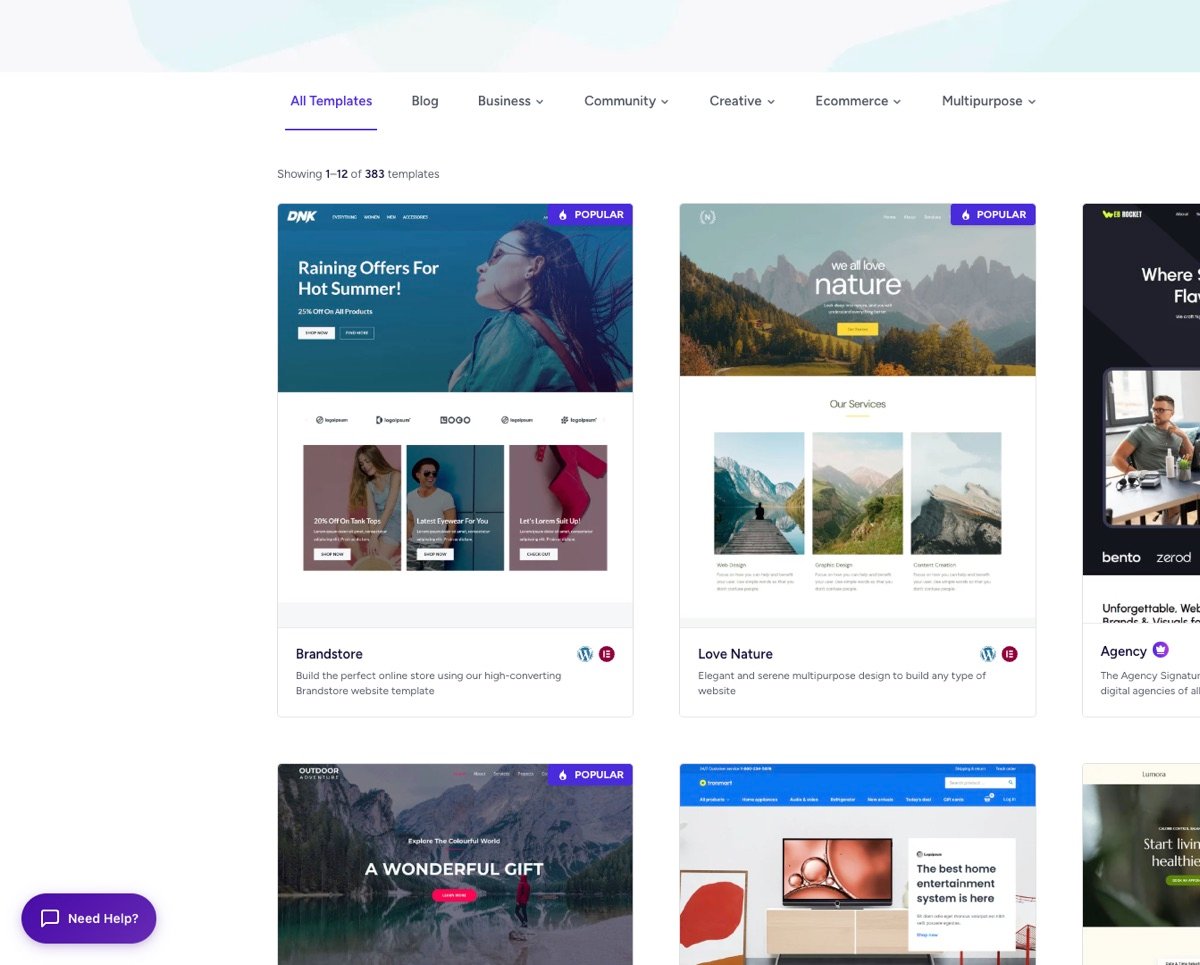
Astra ships with 280+ premade starter templates spanning nearly every niche: ecommerce, courses, agencies, portfolios, restaurants, and more. Each one is a complete, conversion-focused design you can import in a couple of clicks and then customize, which is a massive head start over building a site from a blank page. Honestly, one of my favorite parts of going Pro is getting access to the full premium template library instead of the limited free selection. It's the difference between hoping something close to your vision exists and actually finding it.
Astra vs. Astra Pro: What You Actually Get
The free Astra theme on WordPress.org is genuinely usable on its own. Plenty of solid sites run on it with zero upgrades. Astra Pro is where you get the extra features that make a site feel custom instead of templated. For example:
- Multiple headers, footers, and page-specific sidebars
- The Header and Footer Builder with drag-and-drop widget placement
- Full premium starter template library (280+ vs. a limited free selection)
- WooCommerce and LearnDash design controls for stores and course sites
- Global Palette and typography controls across the entire site
- CSS file generation for extra speed optimization
Here's the free vs. Pro split in one place:
| Most builds Astra Pro | Astra (Free) | |
|---|---|---|
| Overall rating | ||
| Theme weight | Still light (some jQuery for Pro features) | Under 50KB |
| Header / Footer Builder | Full drag-and-drop builder | Basic customizer only |
| Starter templates | 280+ premium packs | Limited free set |
| WooCommerce / LearnDash controls | Full design controls | Basic |
| Global palette and typography | Site-wide controls | Limited |
| Best for | Custom headers, stores, client work | Simple sites, testing Astra first |
Swipe to compare more options. Astra Pro stays pinned.
Free Astra holds its own. Upgrade when you need the Header/Footer Builder or the full starter template library.
Here's what that looks like in the actual product UI.
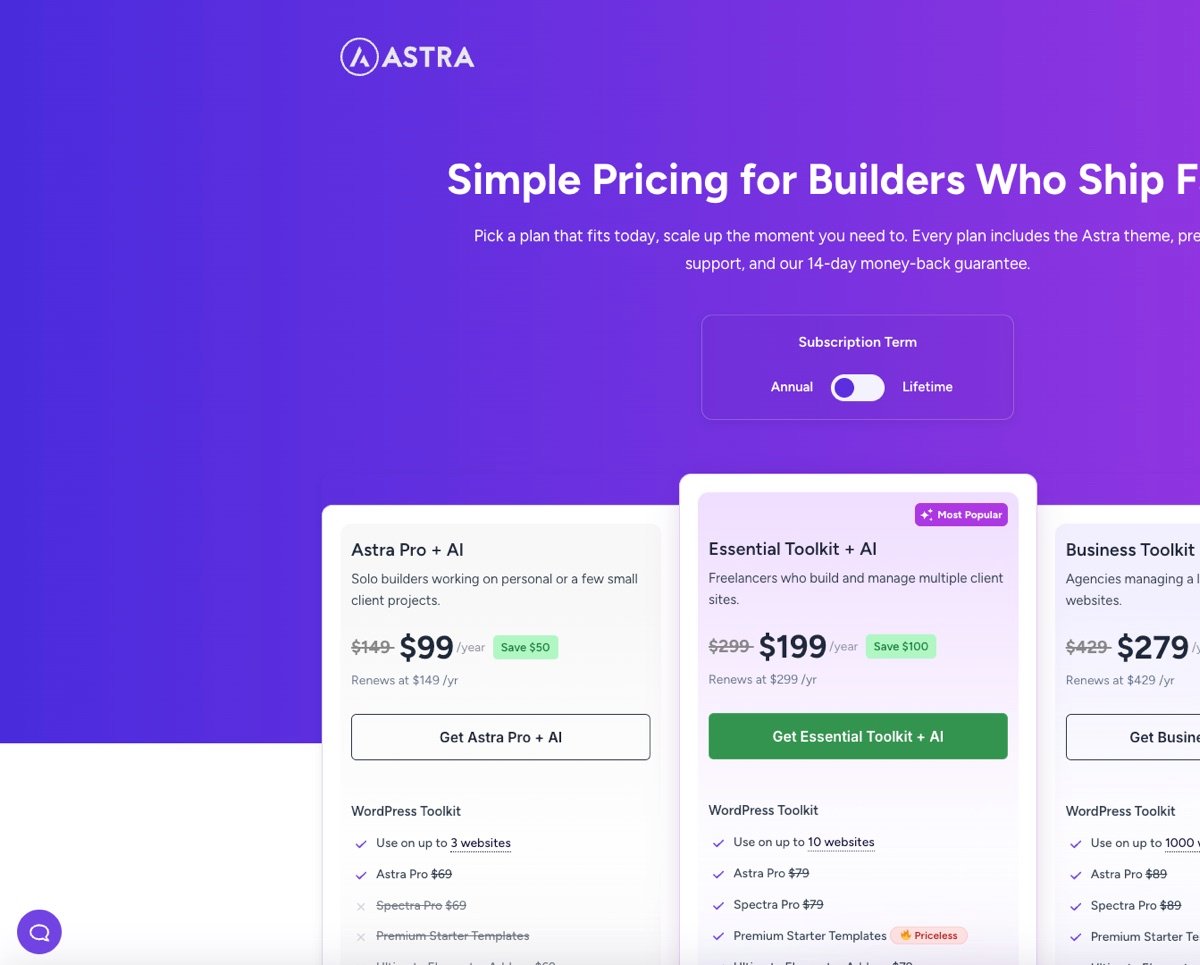
Astra Pro is sold in three tiers: the base Astra Pro add-on for theme-level features, an Essential Toolkit that bundles in the full premium template library plus Spectra Pro, and a Business Toolkit aimed at agencies managing multiple client sites with extras like Convert Pro and Schema Pro layered in. Pricing runs roughly $50-$70/year for Astra Pro alone up to $150-$250/year for the full Business Toolkit, and Astra regularly runs discounts plus lifetime-license options if you'd rather pay once and be done with renewals.
Check live pricing before you buy. Astra runs promotions often, and lifetime licenses show up regularly. The ranges above are typical, not a locked quote.
If that matches what you need, here's the next step:
Building a Site with Astra + Elementor
Astra and Elementor are our go-to combo: the theme handles speed and structure, Elementor handles the actual page design. Astra stays out of the way so Elementor can go full-width; Elementor doesn't have to fight a heavy theme for control of typography and layout.
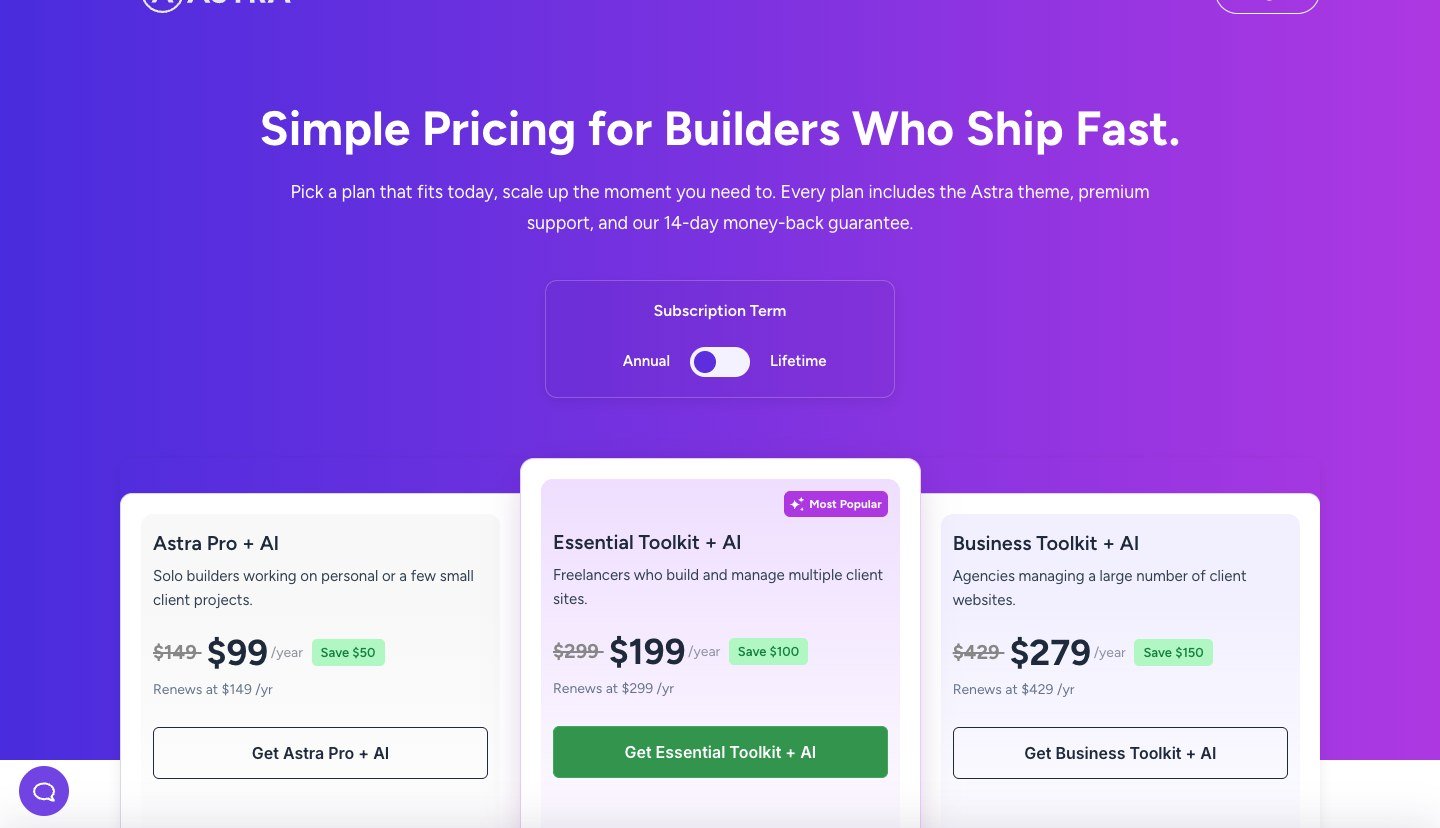
Filter Starter Templates by page builder and pick Elementor. That's what pulls up templates built to work with it instead of a generic layout you'd have to rebuild by hand.
Typical flow: install Astra, import a Starter Template, then replace demo copy and images page by page in Elementor. Keep global colors in the Astra customizer so button and link styles stay consistent even when Elementor sections get creative.
Here's the short version of how they fit together:
- Get hosting and a domain, then install WordPress. We use Hostinger for this on every new build.
- Install the free Astra theme from your WordPress dashboard (Appearance > Themes > Add New) and activate it.
- Install the Starter Templates plugin, pick a template built for Elementor, and import it as your starting point instead of building from a blank page.
- Use Astra’s Header and Footer Builder to set up your navigation, logo, and footer widgets.
- Open any page with Elementor to customize the actual content: hero section, images, text, and layout.
- Check mobile responsiveness with Elementor’s built-in device preview before you call it done.
We cover every one of these steps in full click-by-click detail, including screenshots of the current builder interface, in our complete Elementor tutorial. If you haven't set up hosting and WordPress yet, start with our WordPress tutorial for beginners first, then come back here once Astra is installed.
Prefer Divi instead of Elementor? Astra still works as a base theme, but most Divi users install the Divi theme itself. See our Divi tutorial if that's your builder path. For more theme options beyond Astra, our how to create a website guide links out to the right build path by site type.
Astra Theme Review
Pros and Cons
Pros
- Genuinely lightweight Under 50KB on the free theme without giving up real customizer controls.
- Deep customization without code Layouts, headers, footers, typography, and colors from the customizer / Pro builder.
- Plays cleanly with major builders Elementor, Divi, Beaver Builder, and Gutenberg all work without fighting the theme.
- 280+ starter templates Import a finished design and customize instead of starting blank.
- Solid support + community Responsive support team and a large user base for troubleshooting.
Cons
- Pro features are paywalled Header/Footer Builder and premium templates require Astra Pro.
- Toolkit tiers can get confusing Pro vs Essential vs Business bundles make pricing harder than a single clear plan.
- Not a visual page builder itself You still need Elementor (or similar) if you want full drag-and-drop page design.
Should You Build Your Site with Astra?
Yes, for almost any use case. Astra is our default recommendation for new WordPress builds because it gets the fundamentals right: fast out of the box, flexible enough for a blog or a full ecommerce store, and it plays cleanly with whichever page builder you prefer. Start with the free version, and upgrade to Astra Pro once you know you need the header/footer builder or the premium template library.
Who Should Use Astra
Use Astra if you want a fast, lightweight WordPress theme that stays out of the way of your page builder. It's the default I reach for on blogs, small business sites, and most client builds where Elementor or the block editor handles the design.
Skip Astra if you want a theme that ships heavy built-in design kits and you never plan to use a page builder. Something like Divi's full visual suite may feel more complete out of the box. For everyone else building on WordPress in 2026, Free Astra plus a builder is still one of the cleanest starting stacks.
Pair it with solid hosting (see our Hostinger review) and a real speed checklist from the WordPress speed guide so the theme's lightweight baseline actually shows up in Core Web Vitals.
Customizer Settings Worth Setting Once
Before you import a Starter Template, set global basics in the Astra customizer: site identity (logo and site icon), default container width, typography scales, and button colors. These propagate everywhere unless Elementor overrides them locally. Ten minutes here saves hours of mismatched link colors later.
Header layout deserves its own pass. Pick logo left, menu right, disable sticky until you need it, and set mobile breakpoint behavior. Transparent header on the homepage only is a nice pro touch; enable it per page instead of globally if inner pages need solid bars.
Performance toggles in Astra are underrated. Disable emoji scripts, limit Google Fonts to weights you use, and turn off unused module styles when the site is simple. You keep Core Web Vitals breathing room for Elementor sections.
When you outgrow defaults, caching and CDN matter more than another font pairing. See the WordPress performance guide after you publish.
Document your palette in the customizer notes field or a project file. Clients will ask for hex codes six months later.
Disable unused Astra modules (WooCommerce layouts, LearnDash hooks) when the site is a simple brochure. Fewer CSS files load on pages that never needed shop templates.
Transparent header over hero images needs readable menu colors. Set alternate logo or white menu text when the hero is photography-heavy; don't assume dark text works on every slide.
Astra + Elementor Division of Labor
Let Astra own the site frame, header, footer, blog archive spacing, default link colors, and the WooCommerce shell if you're selling products, and let Elementor own the designed pages: home, services, about, anything with custom sections. Fighting that split is what leads to double headers and weird content widths.
Starter Templates import a full demo page into Elementor while Astra supplies the theme skin underneath it. Replace the demo copy first, then swap the images, then tweak the global colors once so buttons match everywhere. Filter templates by page builder (Elementor specifically) so you're not importing a block-only demo into the wrong editor.
When a page looks wrong after import, check whether the Elementor canvas template is set to default or full width. Astra's container settings interact with that dropdown more often than beginners expect.
A child theme is optional for CSS tweaks, but handy once you need a small functions.php snippet you don't want wiped out on a parent theme update. Keep any custom code tiny, since plugins handle most features on their own now.
Hosting still sets your speed ceiling no matter how clean the Astra + Elementor stack is. Our Hostinger review walks through installing WordPress, Astra, and Starter Templates on the exact stack shown in this walkthrough.
If you're still deciding on a page builder, read Divi vs Elementor and commit to one ecosystem. Astra plays nicely with both, but you shouldn't run both builders on a production site.
And if you're weighing a full theme-plus-builder stack for a client who wants everything bundled into one subscription, website builders compared lays out those tradeoffs. If you're brand new to WordPress entirely, start with our beginner website guide before you spend time tuning customizer options nobody will see because the site isn't even live yet.
WooCommerce shops running on Astra still benefit from lightweight checkout templates. If you don't run a store, disable cart fragments entirely to remove AJAX calls that serve no purpose.
Schema and breadcrumbs work in Astra without any extra plugins on most setups. Enable breadcrumbs once in the customizer so inner pages inherit the navigation context search engines expect. Then validate in Google's rich results test and move on to content instead of tweaking JSON-LD for weeks.
Mobile header breakpoints in Astra control when the hamburger menu appears. Match them to Elementor's section visibility settings so you're not accidentally showing two different mobile nav patterns on the same page.
And if you're on an Agency bundle, the white label setting hides Astra branding for client deliveries, a small detail that makes a big difference in professionalism when you hand off login credentials.
Astra Pro's hooks and filters can extend your layout without touching a child theme at all, but they're optional for a first site. Master the free customizer and Elementor's canvas first before you buy extensions nobody needs on a five-page launch. And read the docs before pasting a snippet from a random forum, one bad filter can whitescreen your entire customizer.
Update Astra and Starter Templates together after major WordPress releases. Mismatched versions occasionally break the import screen until both packages catch up.
And if a speed test looks ugly right after importing a large Starter Template, delete the unused demo pages and disable extra font weights before you blame your host, a clean import beats a premature upgrade.
Starter Template Import Mistakes
After you install Starter Templates, the onboarding wizard pushes AI features and upsells you don't need. Click back if you only want Elementor demos: choose build with templates, filter by page builder, preview a layout, then import. The free options are enough for learning and for plenty of real client launches.
Install and activate Astra first, then Starter Templates, then Elementor if the wizard hasn't already. That order prevents mismatched headers on the imported homepage.
Submitting the import form builds the demo on your domain in a few minutes. From there it's the same process as before: edit with Elementor, replace the placeholder copy, then the colors, and delete the unused demo pages to shrink sitemap clutter and speed up your first PageSpeed run.
Search for Astra under Appearance, Themes, Add Theme, then install and activate it. The theme is just the container, so it won't look finished until Elementor content actually replaces the blank canvas. That expectation alone saves most beginners from panicking on first login.
Here's what activating it actually looks like:
Once you've seen the theme activation and customizer in action, here are the questions people ask most.
Frequently Asked Questions
Is the Astra theme free?
Yes. The core Astra theme is free on WordPress.org and is a fully usable theme on its own. Astra Pro is a paid add-on that adds the header/footer builder, premium templates, and deeper customization.
How much does Astra Pro cost?
Astra Pro starts at roughly $50-$70/year for the base tier, with the Essential and Business Toolkit bundles running higher (about $80-$250/year depending on features and site count). Astra also offers lifetime license options and runs frequent promotions, so check their pricing page for the current rate.
Can I use Astra with Elementor?
Yes. Astra is built to work well with Elementor, Divi, Beaver Builder, and the native WordPress block editor. It's one of the most common theme + Elementor combinations in WordPress, precisely because Astra handles speed and structure while staying out of the builder's way.
How do I use Astra's starter templates?
Install the free Starter Templates plugin (from Brainstorm Force, the makers of Astra) after activating the Astra theme, then browse and import any of the 280+ premade designs directly into your site in a couple of clicks.
Was the Astra theme banned from WordPress.org?
Astra was temporarily suspended from the WordPress.org theme repository for about five weeks in 2020 over an affiliate-code policy dispute. It was reinstated after Astra's CEO addressed the issue directly, and the theme has operated normally since.
Astra earns its spot as our default theme recommendation because it does the unglamorous stuff right, speed, compatibility, and clean customization, without getting in the way of whatever you're actually trying to build. Start free, upgrade when you hit a wall, and pair it with a fast host and a page builder you like.