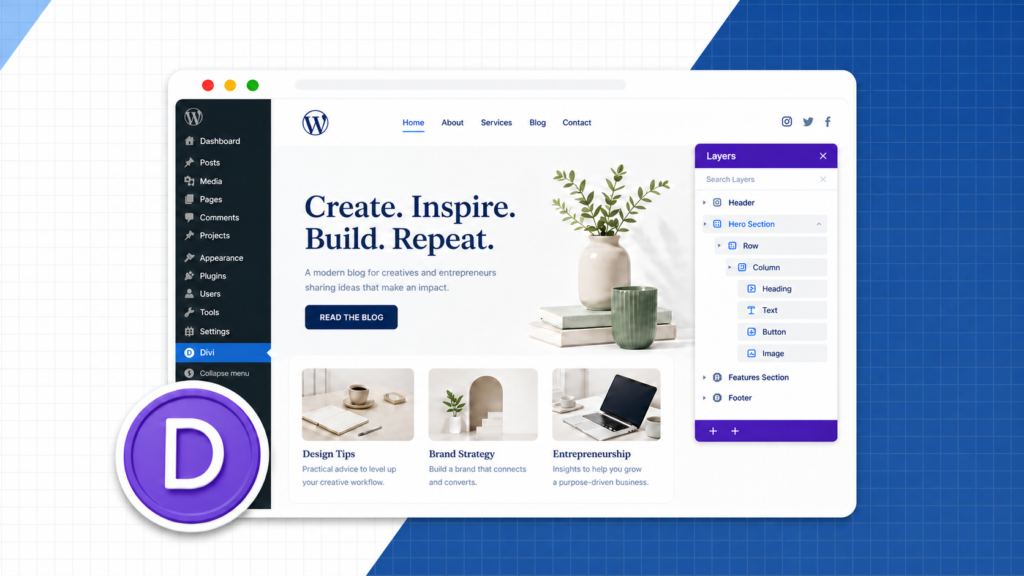
Divi is one of the most popular WordPress page builders out there, and for good reason. It’s drag-and-drop, comes with hundreds of premade layouts, and one Divi membership lets you build unlimited websites. This can include your own sites and/or client work. This guide walks you through building a full WordPress site with Divi from scratch: hosting, WordPress, the Divi theme itself, and a real page built out with the builder.
Quick heads up before we start: Divi went through a complete rebuild in early 2026 (Divi 5), a faster, more modern interface built from the ground up. The core workflow below still applies (get hosting, install WordPress, install Divi, build your pages), but the builder screens themselves look different from older tutorials floating around. We’ll show you what the current interface actually looks like as we go.
Prefer to watch it instead? Here’s the full video walkthrough.
Step 1: Get a Domain Name and Web Hosting
Every website needs two things before anything else: a domain (the address people type in) and hosting (the server your site actually lives on). I use Hostinger for this. It’s inexpensive, it’s fast, and most plans throw in a free domain for the first year so you’re not paying two different companies just to get started. One box worth checking during signup: domain privacy protection. Skip it and your email and phone number are public, which means telemarketers and solicitors calling about “website services” you don’t need. It’s honestly kind of annoying, so I always leave that box checked.
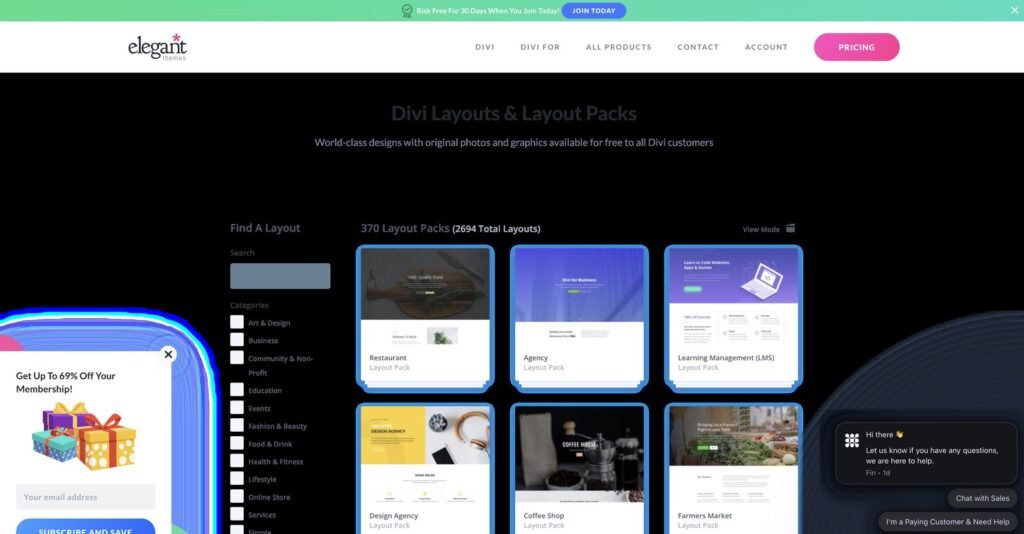
Once you’re in, the layout library is where you’ll actually start. Hundreds of premade packs sorted by industry and page type, so you’re customizing a real design instead of staring at a blank page.
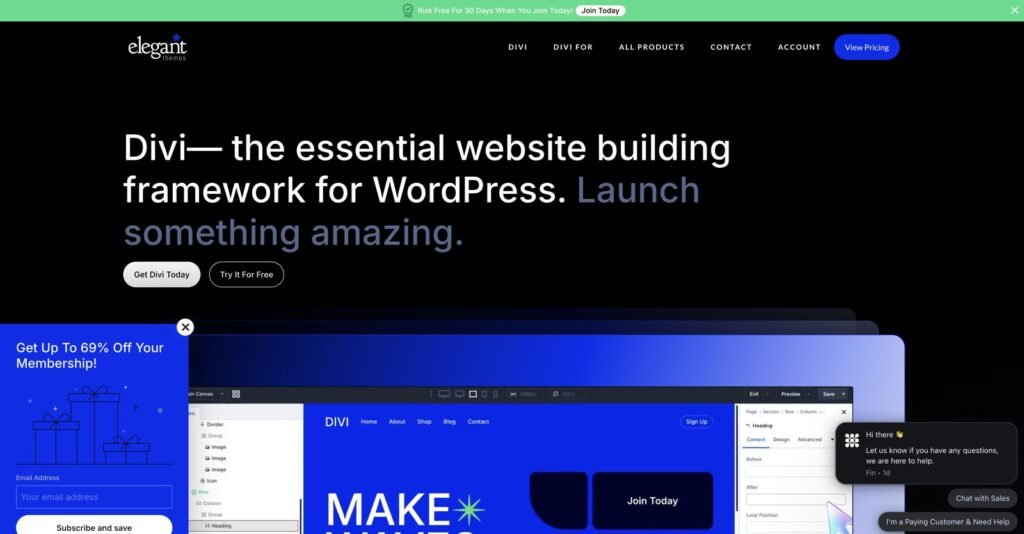
Pick a layout, and Divi drops you straight into the front-end builder. Click on any element on the page and edit it in place. There’s not a separate admin screen to jump back and forth from.
Shared hosting, the cheapest tier, covers basically any new site comfortably. You can upgrade later if you outgrow it. For a full comparison of hosting types and who to avoid, see our web hosting guide. If you want the deep dive on why we pick Hostinger specifically (real renewal pricing, speed, and how it compares to Bluehost and GoDaddy), read our Hostinger review.
Step 2: Install WordPress
WordPress is free, and it’s what Divi runs on top of. If your host offers a one-click installer (Hostinger does, right in the signup flow), this takes about two minutes: pick WordPress, confirm your domain, and you’ve got a blank site waiting for a theme. Don’t overthink the defaults during install. You can change the site title, tagline, and permalinks later from the WordPress dashboard. For the full walkthrough, see our WordPress tutorial for beginners.
Step 3: Get Divi and Install It on Your Site
Divi is an annual membership, not a one-time plugin purchase. But, that membership covers unlimited websites for as long as you’re subscribed. Once you’ve signed up, download the Divi theme .zip from your Elegant Themes account, then in WordPress go to Appearance > Themes > Add New > Upload Theme and upload it directly. Activate it and you’re in.
Divi vs. Divi Pro: the base Divi plan gets you the full theme and builder with no limits on sites. Divi Pro adds AI content and design tools, cloud storage, and faster VIP support. It’s worth it if you’re building sites for clients, overkill if it’s just your own site.
Step 4: Build Your Homepage with the Divi Builder
This is where Divi actually earns its reputation. Open any page and click Use Divi Builder to launch the visual editor: a real-time canvas in the middle, your page structure (sections, rows, modules) on the left, and a settings panel on the right that updates based on whatever you’ve clicked.
Below is what that builder looks like as a static screenshot. This can be useful as a reference once you’re clicking through it yourself.
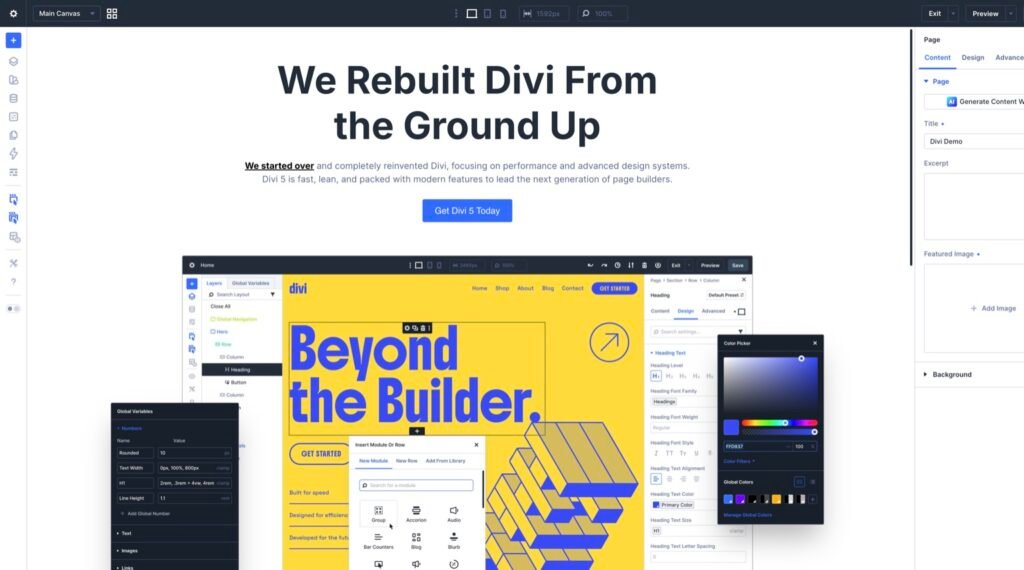
Everything on the canvas is editable in place including text, images, colors, and spacing. Click it, and the right panel gives you every option for that specific element. Divi also ships with a library of premade layout packs organized by niche (portfolio, business, restaurant, and dozens more).
The fastest way to get a finished-looking page is Divi’s premade layout packs. When you first open the builder you get three options: build from scratch, use a premade layout, or clone an existing page. Pick a premade layout and you land in a library of hundreds of niche packs: portfolio, restaurant, agency, fitness, online store, and dozens more. Hover over a pack and it scrolls through every page in the pack so you can see if it fits before you import anything.
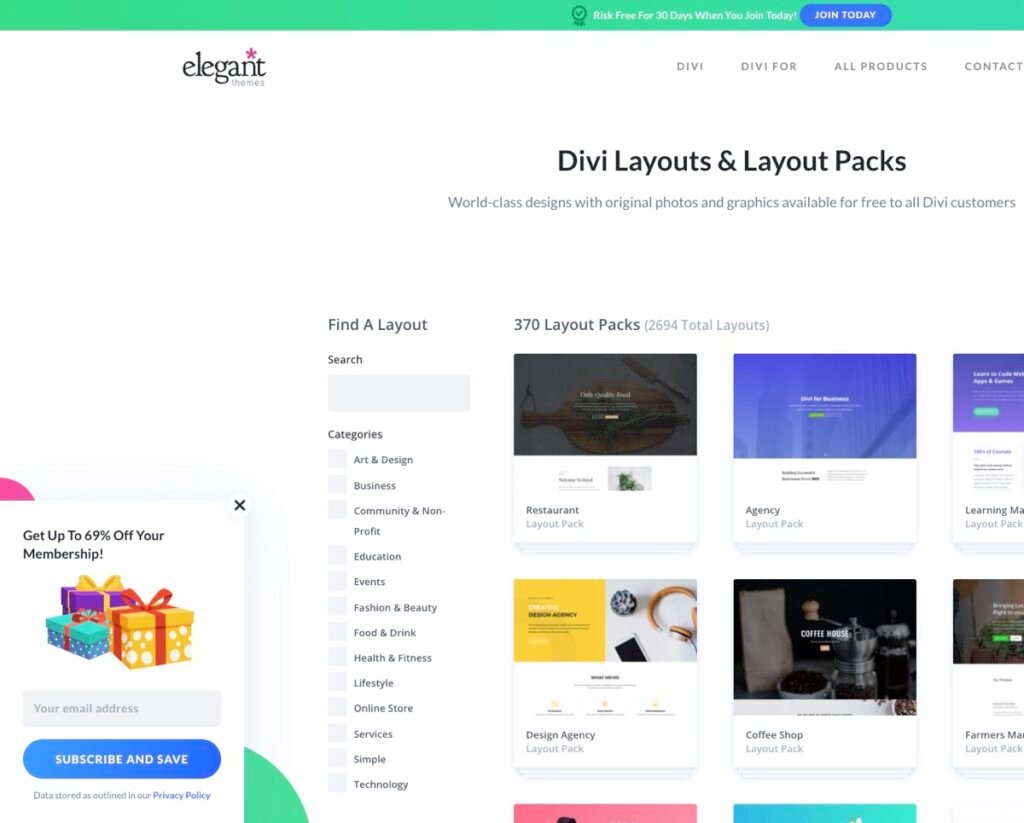
Import the pack that matches what you’re building, then customize it: swap the copy, drop in your own photos, tweak colors to match your brand. Staring at a blank canvas instead of editing a real design usually stalls beginners.
Step 5: Set Up Your Header and Navigation with Theme Builder
Divi’s Theme Builder is what controls elements that repeat across every page: header, footer, and (on Pro tiers) even your blog post and WooCommerce templates. Build your header once here (logo, menu, a call-to-action button) and it applies site-wide instead of you rebuilding navigation on every single page.
Divi 5 (2026) keeps the same sections/rows/modules mental model but puts layers, settings, and responsive preview in a cleaner layout. If an older tutorial shows different buttons, trust the workflow in this post and look for the responsive toggle before you publish mobile spacing.
Theme Builder is the piece most beginners skip, and it’s the reason Divi feels “complete” compared with a page-only builder. Once your global header and footer are set here, every new page you create inherits them automatically, change the logo later and it updates everywhere, same for menu links, footer columns, and any site-wide CTA.
Start with the header: drop in your logo (you can make a simple one free in Canva if you don’t have one yet), add a menu module, and keep the link list short: five or six items max. Then, build a matching footer with contact info, a short about blurb, and the same menu again if you want it mirrored at the bottom.
A menu that tries to cover everything ends up helping visitors find nothing.
Step 6: Check Mobile Responsiveness
Divi 5 makes this straightforward: the top bar has a responsive toggle that switches your live canvas between desktop, tablet, and phone views. You can adjust spacing, font sizes, and layout for each breakpoint separately without leaving the builder.
Do this before you call any page done. Over half of your visitors will hit your site on a phone first, and a desktop layout that looks fine often breaks on a smaller screen: overlapping text, buttons that are too close to tap, images that push everything sideways. Toggle to phone view, scroll the whole page, and fix anything that feels cramped or hard to tap.
Common mobile fixes: drop font sizes a notch on phone, reduce padding so sections don’t feel empty, and stack multi-column rows into a single column so nothing sits side-by-side when there isn’t room. Divi handles a lot of this automatically, but you should still eyeball every page.
How Much Does Divi Cost?
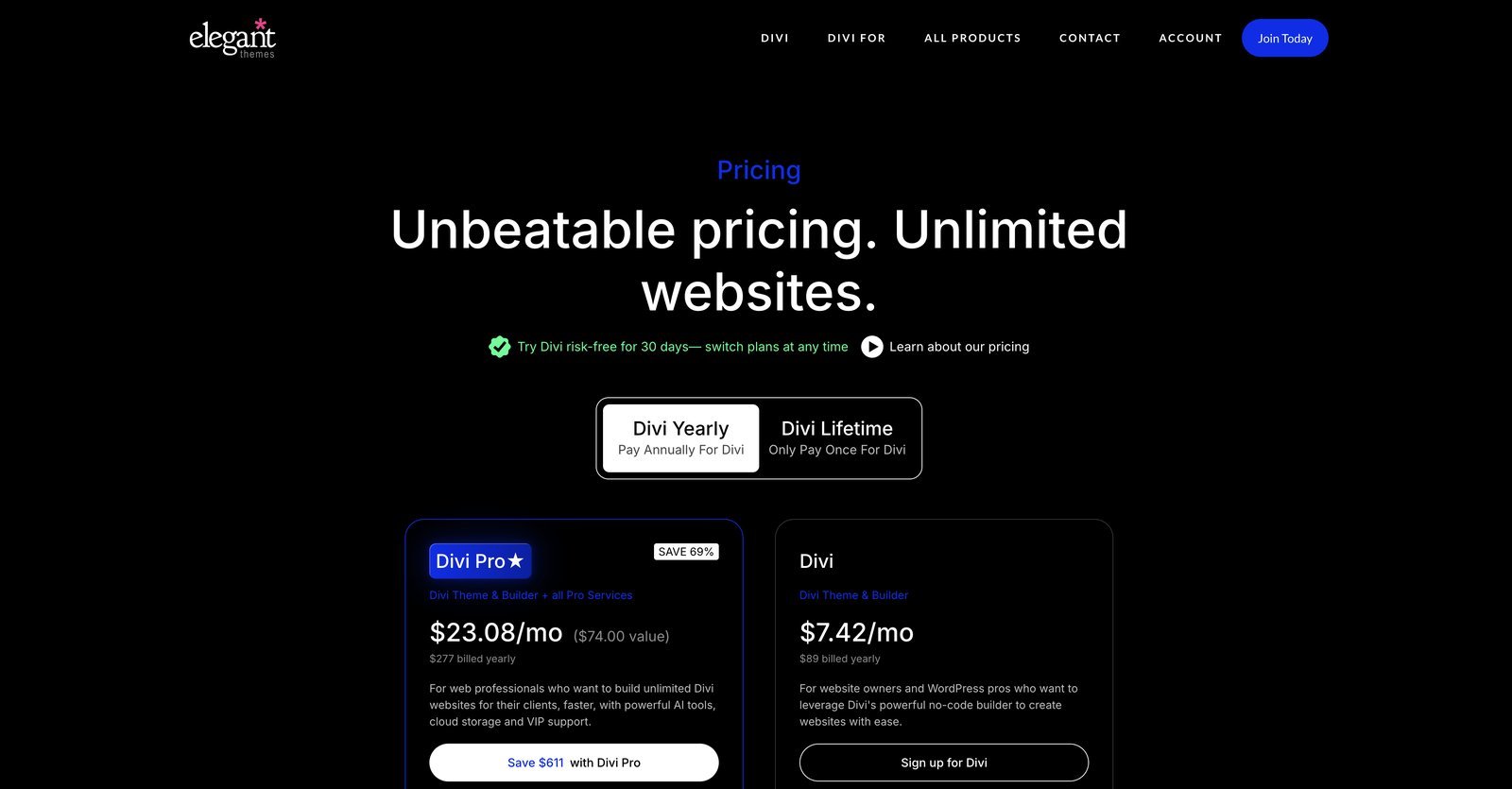
Current pricing as of 2026:
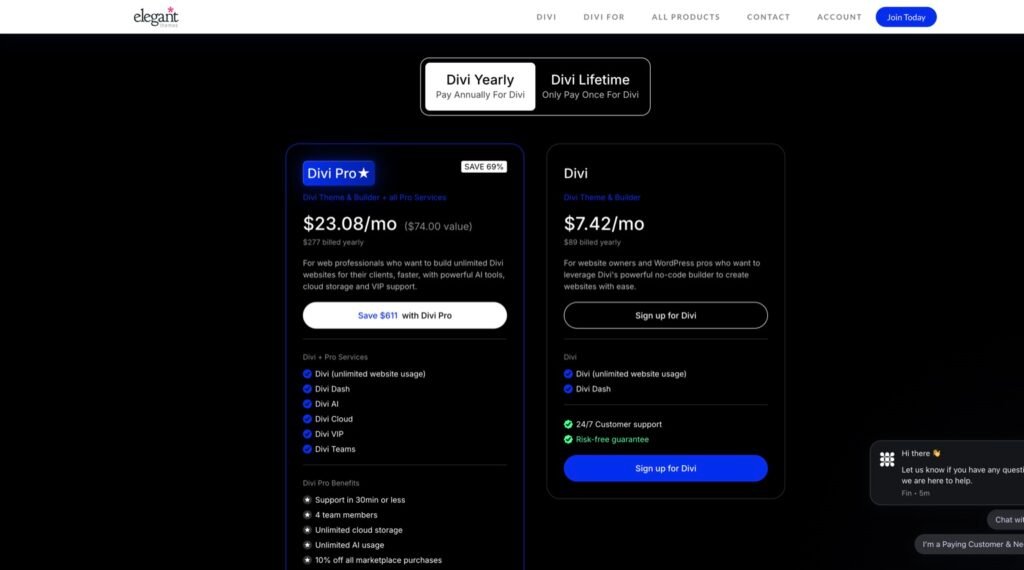
Both tiers include unlimited website usage, so the price doesn’t change whether you’re building one site or ten. Divi Pro mainly makes sense if you’re building for clients and want the AI tooling and faster support baked in.
Divi vs. Elementor
Both are excellent, and either one will get you a great site. The short version: Divi’s Theme Builder and bundled premade layouts give it an edge when you want to build fast without installing a stack of extra plugins. Elementor has the larger community and more third-party integrations if you’re building something highly custom.
| This guideDivi | Elementor | |
| Overall rating | 4.6 | 4.7 |
| Free version | No free builder | Yes (limited) |
| Theme Builder included | Yes, on every plan | Pro only |
| Premade layouts | 370+ packs bundled | Large library (Pro) |
| Best fit | Fast builds, unlimited sites, all-in-one theme + builder | Custom designs, big plugin ecosystem, free starter tier |
| Pricing model | Yearly membership, unlimited sites | Free + Pro plans (site limits on cheaper tiers) |
Both are strong picks. We use Elementor on most client sites, but Divi’s unlimited-site membership and bundled layouts make it a better fit when you’re building multiple sites or want everything bundled in one package. Our full Divi vs. Elementor guide breaks down features, pricing, and who each builder is actually built for.
If you’ve already decided on Elementor, jump straight to our Elementor tutorial: same hosting and WordPress setup, just a different builder from there.
Pros & cons – Is Divi the Right Builder for You?
What’s great
Unlimited sites on every plan
One membership covers every site you build (yours or client work) for as long as you stay subscribed.
Theme + builder in one package
No juggling a separate theme and page builder. Layout packs, Theme Builder, and the visual editor all ship together.
Fast start with premade layouts
Hundreds of niche packs mean you customize a finished design instead of building from a blank page.
The trade-offs
No free version
Unlike Elementor, there’s no free Divi tier to try before you buy. You need a paid membership from day one.
Membership, not a one-time buy
If you cancel, you keep existing sites but lose updates and support. Budget for the yearly renewal.
Divi 5 is still settling in
The 2026 rebuild is faster and cleaner, but older tutorials and some third-party Divi plugins may lag behind the new UI.
Theme Builder vs Building Page by Page
Divi lets you design individual pages or build global templates with Theme Builder. Pages alone feel faster at first, but templates win the moment you have more than three pages: build your header, footer, and blog post wrapper once, and every new page inherits them automatically.
Theme Builder is also where you fix the stuff beginners hate: sticky headers, mobile menu styles, and category archive layouts. Skip it and you’ll rebuild the same hero on every landing page like it’s 2015.
Page-by-page still makes sense for one-off sales pages with unique navigation (no menu, single CTA). Use Theme Builder defaults, then override per page when the campaign demands it. Divi exposes both without a second plugin.
If you’re cross-shopping builders, read Divi vs Elementor before you commit to lifetime pricing. Theme Builder depth is Divi’s edge; plugin ecosystem breadth is Elementor’s.
Pair Divi with solid hosting and caching from our WordPress speed guide since visual builders load more CSS than bare themes. That applies no matter which builder you use, not just Divi.
Global headers should include logo, primary menu, and one CTA. Footer holds legal links, social icons, and secondary navigation. Resist duplicating full menus in both places unless accessibility review demands it.
Blog templates control excerpt length, meta placement, and sidebar visibility. Set them once in Theme Builder instead of tweaking every post by hand when you publish weekly.
Divi 5 Workflow Notes
- If footage from an older tutorial shows different buttons than what you see, trust the workflow, not the screenshot: select the module, adjust the content tab, switch to the design tab for spacing and colors, and check the responsive toggle before you publish mobile padding.
- Module search speeds up finding counter, blurb, or accordion blocks. Learn the keyboard shortcuts for undo and responsive preview, they pay off fast once client calls run long.
- Save a layout to the library the first time a row actually works. The next project imports that same hero skeleton: you swap fonts and colors and ship faster, without the guilt of cloning a site from scratch every time. (Elegant Themes’ documentation updates with Divi 5’s UI names, so bookmark it for when a label moves.)
- Wireframe mode in the builder strips out colors so you can judge spacing without brand distraction. Use it on long sales pages before a client review turns into a font debate.
- If you’re handing a site off to a client, the Role Editor (on the Agency plan) limits their access to content modules while you keep the layout locked. It’s worth it because handoffs without it often end in broken rows and mystery spacing.
- Update Divi on staging first. Major versions touch the CSS cache, so flush both Divi’s cache and your host’s cache after upgrading, then spot-check the header, footer, and one long landing page.
- Export a layout’s JSON before major edits on a live site too. Elegant Themes support can restore corrupted library entries, but your own backup downloads faster than any support ticket queue.
- Keep custom CSS in a child theme or Divi’s theme options instead of scattering it inside individual modules. Centralizing it means an update won’t bury an !important rule inside row seventeen where nobody will ever find it again. Practice undo and revision discipline on client sites, too: Divi’s history helps, but naming your saves before a “just one more column” experiment can save you a Friday night rebuild.
- Global color presets in Divi 5 sync with library items when you import a kit. Rename the colors on import, so “Color #3” becomes “brand blue” in the client-facing style guide instead of staying a meaningless label.
- If you’re coming from Elementor, our Elementor walkthrough maps the same concepts under different names. Translation time is a few hours, not a few weeks.
- When you need stock photos inside a module, grab vetted sources from our royalty-free images guide, so licensing stays simple. And if you’re starting from zero, our step-by-step website guide walks through installing WordPress and the theme before you ever open Divi, which keeps support tickets smaller.
- Split testing and popups belong after you actually have baseline traffic. A fancy conversion module won’t fix a homepage that never clearly says who the site helps.
- If you’re betting the business on Divi, budget for annual support renewal. Even if a lifetime license deal looks perfect on the surface, a builder that stops getting security updates isn’t actually a savings once it’s abandoned.
- Label the version difference in any client training material, too. Your training videos and library clips might still show the older Divi 4.x chrome even after you’ve upgraded to 5. Nobody needs to think the product is broken.
- Keep portability in mind, too. Divi’s shortcodes lock your content into the Divi ecosystem. That’s fine once you commit, but plan your export path early in case a client ever wants to move to Elementor down the line.
Primary Menu Setup Without the Headache
Theme Builder menus use drag-and-drop ordering: add pages from the list, drag your homepage to the top, and only nest items when you actually want dropdowns. Half-indented entries become submenus under the parent link. Most brochure sites stay flat: Home, Services, About, Contact.
Custom links are for off-site URLs. The pages tab pulls in WordPress pages you’ve already published, so close that custom link panel entirely if every item on your menu is an on-site page. Save the menu, assign it to the primary location, and preview it on mobile before you call it done.
Duplicate menu labels confuse both visitors and SEO. Rename slugs in WordPress if two pages sound too similar, then refresh the menu picker so “Consultations” and “Consulting” aren’t fighting for space in the same bar.
Footer menus are where privacy links and secondary pages belong. Keep the primary menu short: if you find yourself needing eight top-level items, you probably need fewer pages, not a bigger nav bar. Preview the primary menu on phone width after every reorder, too. Dropdown arrows only help when subpages exist on purpose, not when a folder got left over from the demo import.
Theme Builder controls your global header.
Divi 5 refreshed the builder chrome — buttons and panel labels may look different than these clips. The workflow (sections, Theme Builder, layout library) is unchanged.
Layout library imports full pages. Pick a pack close to your niche, then swap copy and images.
Once you’ve seen the builder and the layout library in action, here are the questions people ask most.
Frequently Asked Questions
Is Divi good for beginners?
Yes. The drag-and-drop editing and premade layout packs mean you’re customizing a finished design rather than building from a blank canvas, which is the part beginners usually get stuck on.
How much does Divi cost?
$7.42/month ($89 billed yearly) for the standard Divi plan, or $23.08/month ($277 billed yearly) for Divi Pro, which adds AI tools, cloud storage, and faster support. Both cover unlimited websites.
What is Divi 5?
Divi 5 is a complete rebuild of the builder released in February 2026, a faster, more modern interface with a redesigned canvas, settings panel, and Theme Builder. If you’re following an older tutorial, expect the screens to look different even though the core workflow (sections, rows, modules) is the same.
Do I need to know how to code to use Divi?
No. Divi is built entirely around visual, click-and-edit design. Coding knowledge helps if you want deep custom functionality later, but it’s not required to build and launch a complete site.
Is Divi or Elementor better?
Both are strong choices. Divi’s Theme Builder and bundled layouts make it faster to build without extra plugins; Elementor has a larger plugin ecosystem for highly custom builds. See our full comparison for the breakdown.
Can I use Divi on more than one website?
Yes. Every Divi plan, including the base tier, covers unlimited website usage for as long as your membership is active.
Divi gets you from a blank domain to a finished, custom-looking WordPress site without writing a line of code, and the 2026 rebuild made the builder itself noticeably faster to work in. Get your hosting sorted, install WordPress, install Divi, and start with a premade layout close to what you’re building. The rest is customizing what’s already there.