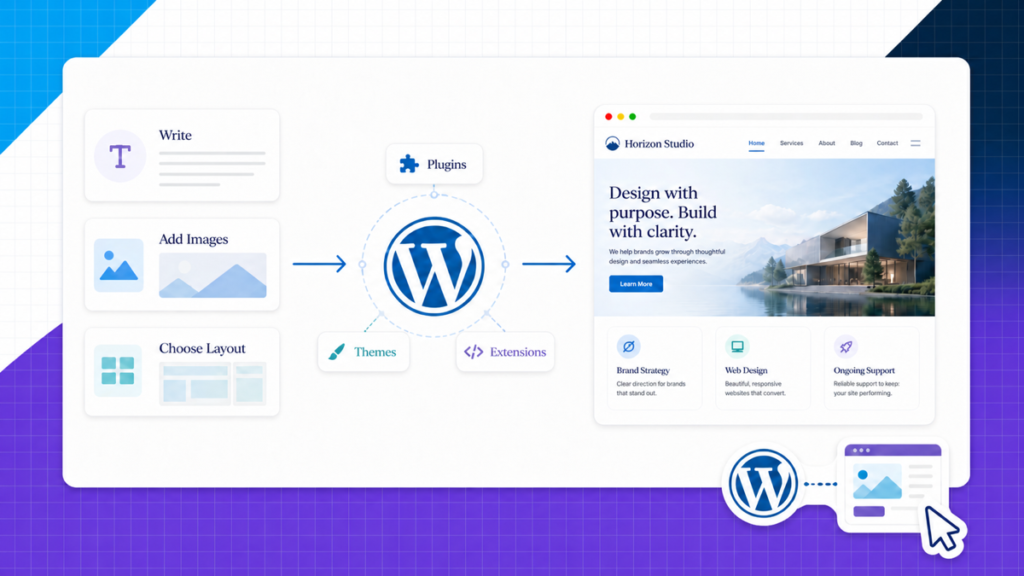
WordPress is the software behind the website, but that simple answer opens up a pile of new questions. Where does hosting fit? What do themes and plugins do? And why are there two different sites called WordPress?
I’m going to make the whole system click. By the end, you’ll know what WordPress is, how it turns your content into a live website, what you need to run it, and whether it fits the site you want to build.
Here’s the full beginner walkthrough if you want to see WordPress on screen:
The video uses the self-hosted WordPress.org version with hosting, a domain, a theme, plugins, and a visual page builder.
Quick answer: what is WordPress?
WordPress is a free, open-source content management system. A content management system, or CMS, gives you a dashboard where you can create pages, publish blog posts, upload images, change the design, and add features without writing the entire website in code.
The WordPress software lives on a web server. You log in through your browser, make changes in the dashboard, and WordPress builds the page a visitor sees when they enter your domain.
- Hosting keeps the website files and database online.
- Your domain gives people an address for the site.
- WordPress manages the content and turns it into web pages.
- A theme controls the site-wide visual foundation.
- Plugins add features such as forms, stores, backups, and SEO tools.
That five-part system is WordPress in plain English. Now let’s look at what happens when someone actually opens the site.
How WordPress works
A visitor never sees your dashboard. They type your domain into a browser, and the browser asks your hosting server for that page.
- The browser requests a URL. Your domain points the request to the server where the site lives.
- The server runs WordPress. WordPress checks which page, post, category, or file the visitor asked for.
- WordPress pulls the content. Text, settings, user accounts, and other structured information live in a database. Images and other uploads live in the site files.
- The theme and plugins do their jobs. The theme provides the visual foundation. Plugins can add forms, products, search tools, memberships, or other behavior.
- The visitor receives a finished page. Their browser renders the HTML, CSS, images, and scripts as the website they can read and use.
You don’t need to manage those requests by hand. WordPress handles the technical assembly while you work with pages, posts, settings, and visual controls.
WordPress is not the hosting company. It is the software running on the hosting account. Think of hosting as the land, your domain as the address, and WordPress as the system you use to build and manage what sits there.
If the server side is still fuzzy, the web hosting guide breaks down that part on its own.
WordPress needs hosting and a domain
Self-hosted WordPress.org doesn't live in the air. You install it on a hosting account, then connect a domain so visitors can find it.
WordPress.org keeps a hosting page for people who need a provider. This clip shows where that hosting section lives on the official site.
For a first website, shared WordPress hosting is usually enough. I use Hostinger for beginner projects because the installer and dashboard are straightforward, but the right host still depends on the size and job of the site. The web hosting comparison explains the options without turning this definition guide into a hosting review.
Your domain is simply the address, such as yourbusiness.com. The domain name guide explains registration, extensions, and how the domain connects back to the server.
What the WordPress dashboard controls
Once WordPress is installed, add /wp-admin to your domain to reach the login screen. For example, yourbusiness.com/wp-admin.
Here’s that login route in action:
Save the address somewhere handy because it is how you return to the site’s backend.
After you sign in, the left sidebar is the map. You don’t need every menu item on day one.
- Pages: Home, About, Services, Contact, and other evergreen content.
- Posts: articles that appear in your blog.
- Media: images, videos, PDFs, and other uploaded files.
- Appearance: your theme, menus, and site-wide design settings.
- Plugins: extra features you can install and activate.
- Users: accounts for administrators, editors, authors, and customers.
- Settings: core options such as the site title, homepage, comments, and permalinks.
This clip moves through the same sidebar so you can see where the main controls live.
The controls become much easier once you use them for a real project. My WordPress tutorial for beginners walks through the dashboard and the complete build in order.
Themes, plugins, and content: the three layers you edit
Most beginner confusion comes from treating themes, plugins, and content as the same thing. They work together, but each has a separate job.
Content is what the site says
Pages, posts, images, menus, product descriptions, and form labels are content. WordPress stores and organizes that material so you can update it without rebuilding the page file.
A theme controls the site-wide foundation
The theme handles the default look and structure: typography, colors, headers, footers, blog layouts, and other shared styles. I often pair Astra with Elementor because Astra stays lightweight while Elementor handles the visual page design.
Plugins add features
Plugins can add a contact form, online store, backup system, security controls, search optimization, memberships, and thousands of other functions. Install only what the site needs, keep each one updated, and remove plugins you no longer use. Start with the best WordPress plugins guide if you need a practical shortlist.
Start with a template instead of a blank screen. A professional starter site gives you a finished structure to customize. It is faster, easier to keep consistent, and closer to the way I build real projects.
For visual editing, Elementor lets you change sections, text, images, buttons, spacing, and mobile layouts directly on the page.
What can you build with WordPress?
WordPress started as a blogging tool, but it can now run far more than a blog. The foundation stays the same while the theme, plugins, and content change for the job.
- Business website: services, testimonials, lead forms, and location pages. Use the business website guide.
- Portfolio: project galleries, case studies, an About page, and an inquiry form. Use the portfolio guide.
- Blog: articles, categories, author pages, email signup forms, and search traffic. Use the WordPress blog guide.
- Online store: products, payments, shipping, coupons, and order management through WooCommerce. Use the online store guide.
- Membership or course site: protected lessons, member accounts, subscriptions, and community features.
You can start with a five-page site and add those features later. That room to grow is the main reason I recommend WordPress for a website you want to own for years.
WordPress pros and cons
WordPress gives you control that closed website builders usually keep inside their own platform. That control comes with a few jobs you have to handle.
Pros & cons
What using WordPress is really like
Why I use it
- You own the website Choose your hosting, move the site, export your content, and change tools without rebuilding on a closed platform.
- It grows with you Start with a few pages, then add a blog, store, membership, course, booking system, or custom feature.
- You can build visually Themes, starter templates, and page builders give beginners a no-code workflow.
- The community is huge Tutorials, documentation, themes, plugins, designers, and developers are easy to find.
What you manage
- You need hosting The software is free, but your files need a server and domain to stay online.
- Updates are your job WordPress, themes, and plugins need routine updates, backups, and basic security care.
- There is a learning curve The dashboard has more controls than a closed builder, even though you only need a small set at first.
I think the trade is worth it for a business, portfolio, blog, or store you plan to keep. If you only need a temporary one-page site and never want to manage updates, a hosted builder may be the cleaner fit.
More plugins don't make a better site. Each plugin adds code and another thing to maintain. Use reputable tools, keep them updated, and add a new one only when it solves a clear problem.
Regular backups, updates, and a few basic speed habits cover most of the maintenance. The WordPress performance guide shows what to do when the site starts feeling slow.
WordPress.org vs WordPress.com
Search for WordPress and you’ll see two names that look almost identical. This is the part to get right before you create an account.
| My pick WordPress.org | WordPress.com | |
|---|---|---|
| What it is | Open-source software installed on hosting you choose | A hosted website-builder service |
| Themes and plugins | Install any compatible option | Access depends on your plan |
| Hosting | You choose and pay a web host | Included and managed by WordPress.com |
| Control | Full control of files and site | Platform rules and plan limits |
| Best fit | Sites you plan to own and grow | Simple sites kept inside one service |
Swipe to compare more options. WordPress.org stays pinned.
Throughout this guide, WordPress means the self-hosted WordPress.org software.
WordPress.org is the version we use throughout Create a Pro Website. You pick the host, install the software, and control the website. WordPress.com packages WordPress into its own hosted service and changes what you can do based on the plan.
WordPress.com can work for a simple site that stays inside one platform. For a serious project, I recommend WordPress.org because the site, files, tools, and hosting decisions stay in your hands.
Who should use WordPress?
WordPress is a strong fit when the website is an asset you plan to grow. You want your own domain, control over design and features, and the option to move hosts or add new tools later.
- Choose WordPress for a business site, portfolio, content-driven brand, blog, membership, or store that may expand.
- Consider a hosted builder for a very small temporary site where the fastest possible setup matters more than ownership or flexibility.
- Use a dedicated store platform if ecommerce is the only job and you prefer one company to manage the whole stack.
Choose the guide that matches the site’s main job: business website, portfolio, blog, or online store.
How to start with WordPress
Once the parts make sense, the build itself follows a clean order:
- Choose a domain and WordPress hosting.
- Install WordPress.org through the host’s setup wizard.
- Log in at /wp-admin and learn the main dashboard menus.
- Install a lightweight theme such as Astra.
- Import a starter template instead of designing every page from zero.
- Customize the pages with the WordPress editor or Elementor.
- Add only the plugins you need for forms, backups, SEO, or ecommerce.
- Test the mobile layout, forms, and links before launch.
Follow the complete website guide if you want every setup decision from the beginning, or jump straight into the WordPress tutorial if you’re ready to build.
Keep the first version simple. Build the pages your visitor needs, make the next action obvious, test everything, and publish. You can add advanced features after the foundation works.
Before you start clicking through the setup, these are the questions beginners usually ask.
Frequently Asked Questions
Is WordPress free?
WordPress.org software is free and open source. You still need a domain name and web hosting so the site has an address and a server that keeps it online. Many themes and plugins also offer useful free versions.
Do I need to know how to code to use WordPress?
No. You can publish pages and posts with the block editor, then use a visual builder such as Elementor for more design control. HTML, CSS, and PHP are optional tools if you want to customize beyond the visual controls.
What is the difference between WordPress and a website builder?
WordPress is a content management system you install on hosting you choose. A hosted builder such as Wix or Squarespace bundles the software and hosting into one closed service. Builders can feel simpler on day one, while WordPress gives you more ownership and room to grow.
What is the difference between WordPress.org and WordPress.com?
WordPress.org provides the open-source software you install on your own hosting. WordPress.com is a hosted website-builder service with plan-based features and limits. When we say WordPress in our tutorials, we mean WordPress.org.
What is a WordPress theme?
A theme controls the site-wide visual foundation, including typography, colors, headers, footers, and default layouts. I often use Astra because it is lightweight and works well with Elementor. Our Astra tutorial shows the setup.
What is a WordPress plugin?
A plugin adds a feature to WordPress. Contact forms, backups, SEO tools, security, caching, and online-store features can all come from plugins. Start with only what you need, and use the WordPress plugin guide to choose the essentials.
How do I start a WordPress website?
Choose hosting and a domain, install WordPress.org, log in at yourdomain.com/wp-admin, add a theme, install the plugins you need, and build your pages. Follow the step-by-step WordPress tutorial for the complete walkthrough.
WordPress is easier to understand when you stop treating it as one giant tool. Hosting keeps the files online, the domain points people to them, WordPress manages the content, the theme handles the foundation, and plugins add features.
You don't need to learn every menu or write code before you begin. Pick the right version, follow the steps in order, and build the first useful version of your site. When you’re ready, open the WordPress tutorial and I’ll walk you through it.