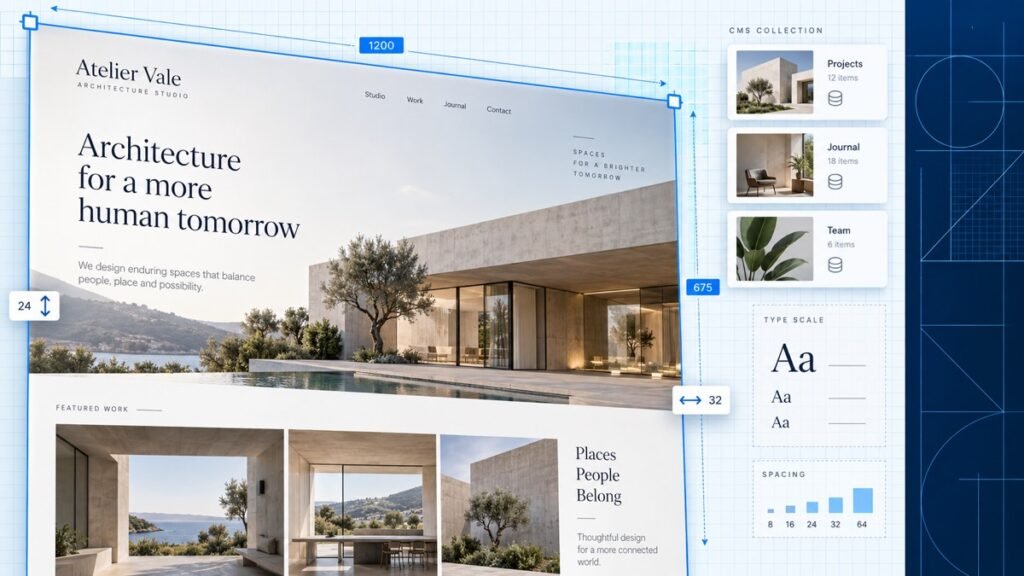
Webflow is a visual website builder that lets you design a site by dragging and arranging real HTML, CSS, and JavaScript elements on a canvas, then publishes that site on hosting Webflow manages for you. It sits between a simple drag-and-drop builder and a full code editor. You get pixel-level design control without writing the code yourself, plus a real content management system underneath it for anything that needs to update on its own, like a blog or a portfolio.
That’s the short answer. The useful answer is what that visual canvas actually controls, what the CMS can and can’t do, what it costs once you get past the free plan, and whether it’s the right call for your specific project instead of just a name you keep seeing in ads.
Webflow often lands on a shortlist beside WordPress before a site build starts. This guide walks through what it is, how it works, and who it’s actually built for. If you already know you want the head-to-head breakdown, here’s my full WordPress vs Webflow comparison.
What is Webflow?
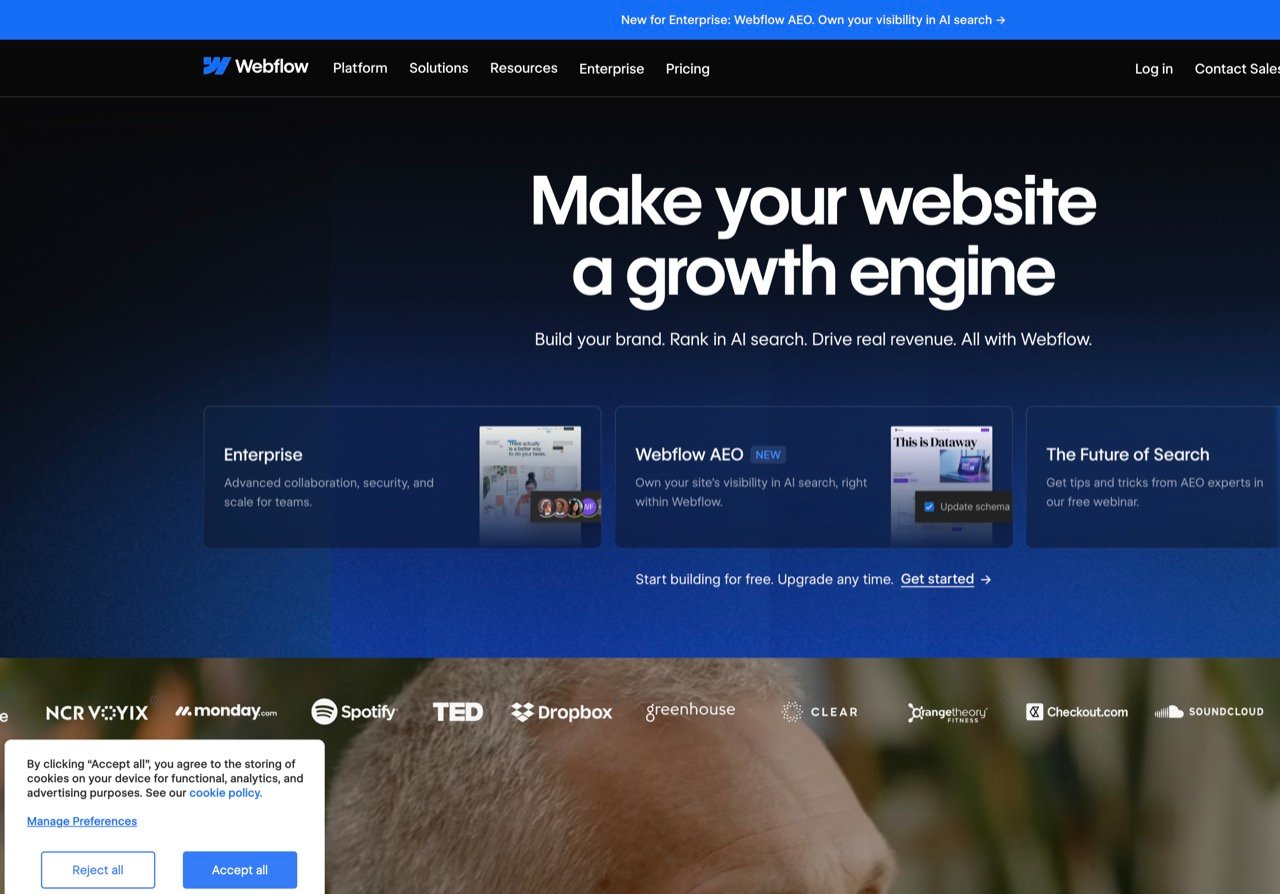
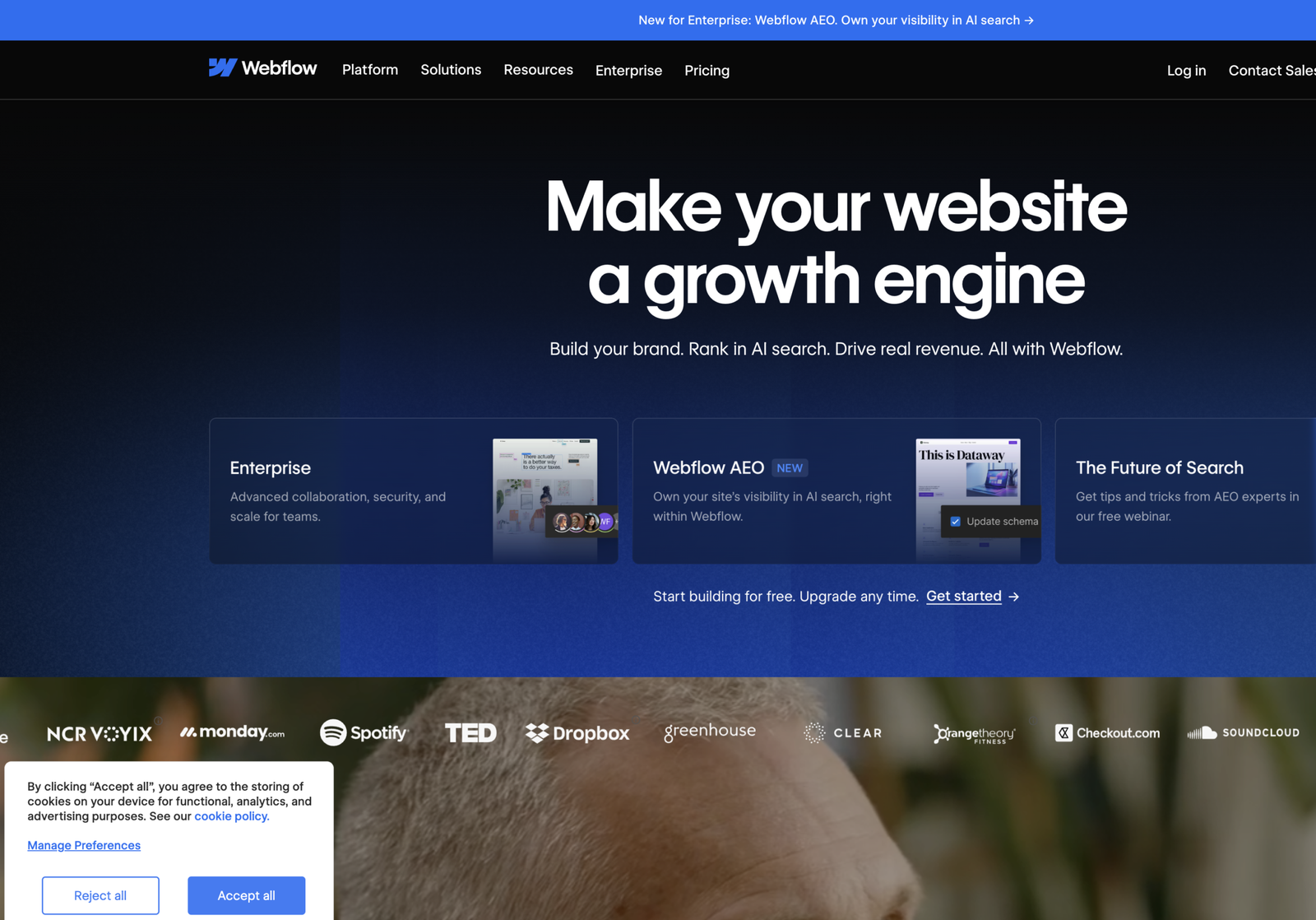
For current limits, use Webflow’s own plan comparison and CMS overview. The screenshots below show the interface; the first-party pages remain the source of truth for plan names, publishing limits, CMS capacity, and changing features.
Webflow launched in 2013 with a simple pitch: give designers the visual control of a design tool like Photoshop, but output HTML, CSS, JavaScript, and assets instead of a flat image. That’s still the core idea. When you move a box, adjust padding, or set a hover state in the Webflow Designer, you’re setting actual CSS properties. Paid Workspace plans can export that front-end code, but Webflow’s CMS, Ecommerce, User Accounts, site search, localized content, and native form processing do not transfer as working features.
That distinction matters because it’s what separates Webflow from a builder like the old Wix editor, where you’re moving pre-built widgets around a much more limited canvas. Webflow assumes you understand, or want to learn, how layout actually works: boxes, flexbox, grid, breakpoints. It’s more capable because of that, and it has a steeper learning curve because of that too.
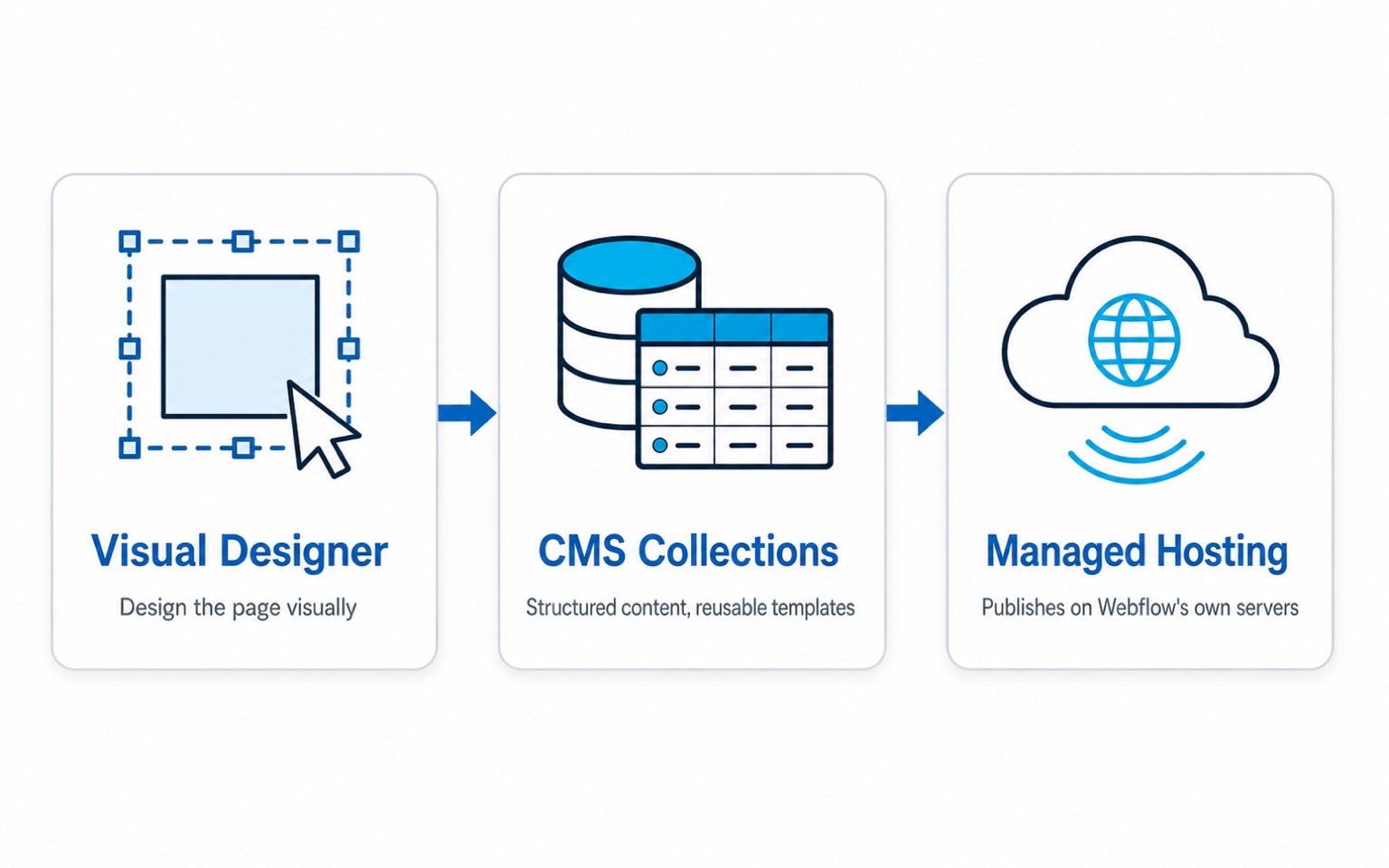
Webflow is three things bundled into one subscription: a visual design tool, a content management system for anything repeatable (blog posts, portfolio pieces, product listings), and hosting that publishes the finished site to a fast global network. You don’t assemble those three pieces from different vendors the way you would with self-hosted WordPress. You pay Webflow, and all three come with the plan.
How does Webflow actually work?
Understanding Webflow means understanding three separate systems working together: the Designer, the CMS, and hosting. Each one does a specific job.
The visual designer
The Designer is Webflow’s canvas. You build pages by placing elements (divs, sections, headings, images, forms) and styling them with a panel that mirrors real CSS properties almost one to one. Set a background color, and you’re setting background-color. Adjust spacing, and you’re setting padding and margin. There’s no abstraction layer hiding what’s actually happening under the hood.
This is the part that takes the longest to learn if you’re coming from a simpler builder. You need to understand how elements nest inside each other, how flexbox and grid control layout, and how styles cascade down from parent elements to children. Those are the same concepts a front-end developer works with, just presented visually instead of in a text editor. Once it clicks, you can build layouts that would take custom development work almost anywhere else.
The CMS (Collections)
Webflow’s CMS is built around Collections, structured sets of content with defined fields. A blog Collection might have fields for a title, a featured image, a body, an author, and a category. You design one template page once, and every new Collection item automatically inherits that design. Publish a new blog post, and it looks exactly like the last one without you touching the layout again.
This is genuinely comparable to what WordPress does with posts and custom post types, and it’s the feature that makes Webflow viable for content-heavy sites instead of just static marketing pages. The free and entry-level plans cap how many Collection items you can have, which is one of the first limits that pushes growing sites onto a paid Site plan.
Hosting and publishing
Webflow keeps the design environment and hosting relationship together. That makes publishing simple, but it also means the production site depends on Webflow’s platform and plan structure.
When you hit publish in Webflow, the site goes live on Webflow’s own hosting infrastructure, built on a global CDN. You’re not choosing a hosting company, configuring a server, or installing an SSL certificate the way you would with traditional web hosting. Webflow handles all of it as part of the subscription, which is the trade-off at the center of the whole platform: less setup and fewer moving parts, in exchange for less control over the infrastructure itself.
Interactions and animation
One feature that sets Webflow apart from most builders is its interactions panel, a visual timeline for building scroll-triggered animations, hover states, and page transitions without writing a line of JavaScript. This is a big part of why design agencies gravitate toward Webflow specifically: a portfolio site with elements that fade in on scroll or a navigation bar that shrinks as you scroll down is a normal Webflow build, not a custom development request. Recreating that same effect in WordPress usually means a dedicated animation plugin or actual custom code.
Webflow separates two different subscriptions: a Workspace plan (for the account and its editing seats) and a Site plan (for hosting and publishing an individual site). A lot of first-time confusion about Webflow pricing comes from not realizing these are billed separately.
What can you build with Webflow?
Webflow is strongest on projects where the visual design is the point and the content structure is predictable. In practice, that covers a wide range:
- Marketing and brand sites where custom animation, interaction, and layout matter more than deep content publishing.
- Portfolios for designers, agencies, and photographers who want full control over how their work is presented.
- Landing pages for product launches or campaigns that need to look sharp fast without a developer.
- Blogs and content sites of a moderate size, using Collections for posts, authors, and categories.
- Simple ecommerce stores through Webflow’s built-in ecommerce plans, though this is one of its weaker areas compared to a dedicated platform.
Where it starts to strain is large-scale content operations, complex membership systems, or anything that needs a specific plugin-style integration that WordPress’s ecosystem has an off-the-shelf answer for. I’ll get into that comparison in more detail further down.
Webflow pricing: what it actually costs
Webflow’s pricing is genuinely one of the more confusing parts of the platform, mostly because of that Workspace-versus-Site split I mentioned above. Here’s the plain breakdown:
| Plan type | What it covers | Who needs it |
|---|---|---|
| Free Starter | Design and preview a site on a webflow.io subdomain | Learning the tool, testing an idea |
| Site plan (Basic/CMS/Business) | Custom domain, hosting, and CMS item limits for one site | Anyone publishing a real site |
| Workspace plan | Editing seats, collaboration tools, and how many sites your account can manage | Teams and agencies managing multiple sites |
| Ecommerce plan | Product catalog, cart, and checkout on top of the CMS | Selling products directly through Webflow |
A single freelancer building one marketing site typically only needs a Site plan. The Workspace question mostly matters once you’re managing client sites or working with a team inside the same account. The free plan is genuinely useful for learning the Designer and building out a full site before you ever pay, but it publishes to a Webflow subdomain and won’t connect a custom domain until you upgrade.
Don’t compare Webflow’s advertised starting price directly against a $3/month hosting plan and call it more expensive. You’re comparing a bundled design tool, CMS, and hosting service against hosting alone. The fairer comparison includes what you’d pay for a theme, plugins, and a page builder on top of that hosting cost.
Webflow vs WordPress at a glance
Here is the short version of the comparison. WordPress is an open content management system you extend with themes and plugins, running on hosting you choose yourself. Webflow is a visual design platform with hosting and a CMS built directly into the subscription. Neither one is objectively “better.” They’re built for different priorities.
| Most flexible WordPress | Webflow | |
|---|---|---|
| Best for | Content-heavy, extensible sites you want to own long-term | Design-led sites where visual control matters most |
| Hosting | You choose your own host | Included, managed by Webflow |
| Ecosystem | Massive plugin and theme library | Smaller, curated integrations |
| Ownership | Full files and database can move to any host | Site is tied to your Webflow account and plan |
| Learning curve | Gentler start, more decisions over time | Steeper upfront (real CSS concepts) |
Swipe to compare more options. WordPress stays pinned.
Webflow is outstanding when visual design and a managed system are the priority. WordPress is my default when content publishing, extensibility, and ownership matter most.
If high-volume content publishing, plugin flexibility, and full ownership matter most to you, WordPress is usually the stronger long-term fit. It’s why I default most serious builders there. If a distinctive visual design and a managed, all-in-one system matter more than a huge plugin ecosystem, Webflow is an excellent choice. I break this down criterion by criterion, with a full pros-and-cons list for each platform, in my complete WordPress vs Webflow comparison. That’s the post to read next if you’re actually choosing between the two.
Webflow vs simpler builders like Wix and Squarespace
It’s worth separating Webflow from builders like Wix or Squarespace, because people often lump them together as “website builders” when they solve different problems. Wix and Squarespace are built for speed and simplicity. You pick a template, swap in your content, and you’re live in an afternoon with very little to configure. Webflow trades that simplicity for control. You can build almost anything visually, but you’re expected to understand how the underlying layout works to do it well.
If you want the fastest possible path to a decent-looking site and don’t care about custom design control, Wix or Squarespace will get you there faster. If the design itself needs to be distinctive and you’re willing to spend more time learning the tool, Webflow is built for that trade.
Does Webflow work well for SEO?
Webflow gives you the technical fundamentals you need: clean, semantic HTML output, editable title tags and meta descriptions on every page, custom 301 redirects, an automatically generated XML sitemap, and fast page speeds thanks to the CDN hosting baked into every plan. None of that is a weak spot compared to WordPress.
Where WordPress still has the edge is depth of content tooling for a high-volume editorial operation: dedicated SEO plugins like Yoast or Rank Math, a much larger library of schema markup plugins, and an editorial workflow built for teams publishing constantly. For a marketing site or a moderate blog, Webflow’s built-in SEO settings are genuinely sufficient. For a large publisher running dozens of writers through an editorial calendar, WordPress’s ecosystem still does more of the heavy lifting automatically.
The pros and cons of Webflow
Design platform vs open CMS
Webflow
Why Webflow wins
- Real design control You are not limited to what a template allows. The Designer gives you the same control as hand-coded CSS.
- Everything's managed for you Hosting, SSL, and performance are handled without assembling a separate stack.
- The CMS connects directly to design Collections power repeatable layouts without a separate theme system to maintain.
- Clean, exportable code Paid Workspace plans can export the front-end HTML, CSS, JavaScript, and assets; Webflow-only features still require rebuilding elsewhere.
The trade-offs
- Steeper learning curve You need to understand real layout concepts to use it well, not just drag a pre-built widget.
- Smaller plugin ecosystem WordPress has an integration or plugin for nearly anything. Webflow's library is far more limited.
- Your site lives inside Webflow's system You can export code, but the CMS, forms, and full editing experience do not transfer as a working site elsewhere.
- Cost adds up with scale More CMS items, more team seats, or ecommerce features all push you up the pricing tiers.
Who should use Webflow?
- A designer or agency that wants full visual control without a developer building custom themes.
- A brand or startup that needs a distinctive marketing site fast, without deep content publishing needs.
- A portfolio site where presentation is the entire point.
- A team that would rather pay for a managed, all-in-one system than assemble and maintain hosting, themes, and plugins separately.
Who should skip Webflow?
- A publisher or content-led business planning to grow through blogging, custom post types, or a large editorial team. WordPress usually handles that growth more cheaply.
- Anyone who needs a specific plugin-dependent feature (memberships, complex directories, advanced ecommerce) that WordPress already has a mature solution for.
- Someone on a tight budget who’s comfortable with a simpler builder and doesn’t need custom visual design.
- Anyone who wants full ownership and portability of their site’s hosting from day one.
How to get started with Webflow
- Create a free account. You can design and preview a full site before paying anything.
- Start from a template or a blank canvas. A template is the faster path if you’re still learning how the Designer works.
- Learn the box model first. Understanding how divs, padding, and flexbox behave will save you more time than any other single step.
- Set up your CMS Collections if your site needs a blog, portfolio, or any repeatable content type.
- Choose a Site plan once you’re ready to connect a custom domain and take the site live.
- Test everything before sharing the link: forms, mobile layout, page speed, and every navigation path.
Your next step
Webflow is a legitimate, professional-grade platform, not a toy version of a real website builder. It’s the right call when visual design control and a managed system matter more to you than a massive plugin ecosystem or full infrastructure ownership. It’s the wrong call when you’re planning to publish a lot of content over time or need a specific feature that WordPress’s plugin library already solves.
If you’re actually deciding between the two for a real project, don’t stop here. My full WordPress vs Webflow comparison walks through design, CMS, SEO, hosting, ownership, and pricing side by side so you can make the call based on what your specific site needs, not just a general reputation. And if you want to see the wider field before committing to either one, my breakdown of the best website builders covers where Webflow fits against the rest of the field.
Webflow FAQ
Frequently Asked Questions
Is Webflow good for beginners?
It’s more approachable than writing raw code, but it has a real learning curve compared to a simpler builder like Wix or Squarespace. Beginners who are willing to learn basic layout concepts do well with it; beginners who just want to swap text into a template usually prefer a simpler tool.
Do I need to know how to code to use Webflow?
No, but it helps to understand how CSS concepts like padding, flexbox, and breakpoints work, since the Designer is a visual version of those same ideas. You don’t write code, but you’re making the same decisions a developer would.
Is Webflow better than WordPress?
Neither is universally better. Webflow wins on visual design control and a managed, all-in-one system. WordPress wins on ownership, plugin flexibility, and scaling a large content operation. See my full WordPress vs Webflow comparison for the complete breakdown.
How much does Webflow cost?
The Designer is free to learn on. A real published site with a custom domain starts on a paid Site plan, and cost scales up with CMS item limits, team seats, and ecommerce features. See the pricing breakdown above for the full picture.
Can I move a Webflow site to WordPress later?
You can export the front-end code and move written content over manually, but Webflow’s CMS, forms, and full editing system don’t transfer as a working WordPress site. Expect to rebuild the theme and any dynamic functionality if you switch platforms later.
Does Webflow include hosting?
Yes. Hosting is bundled into every paid Site plan and run on Webflow’s own infrastructure, so you never choose or configure a separate host the way you would with self-hosted WordPress.
Is Webflow good for ecommerce?
It works for simple to moderate product catalogs through Webflow’s built-in ecommerce plans, but it’s not as deep or purpose-built as a dedicated ecommerce platform for a large or complex store.