A slow WordPress site costs you more than an annoyed visitor. Google uses load time as a ranking signal in search engine results, and most people abandon a page that takes longer than a few seconds to load. If your site feels sluggish, it’s costing you traffic, rankings, and clicks on every affiliate link or CTA you’ve got on the page.
We're going to level with you: there's an easy way to fix this and a slightly more involved way, and you genuinely don't need to become a web wizard to do either one. The good news is WordPress speed problems come from a short list of repeat offenders, hosting, images, caching, database bloat, and unoptimized code, and every one of them is fixable in an afternoon. Here's exactly what to check and fix, in order.
I go through the full process on camera in this video if you’d rather watch it:
Why WordPress Speed Optimization Matters
Google has confirmed page speed is a ranking factor, and their own research shows bounce rate climbs sharply as load time increases past 2–3 seconds. Bottom line is a slow site doesn’t just annoy visitors, it actively buries you in search results.
- Lower rankings. Google’s Core Web Vitals directly factor load speed into how your pages rank.
- Higher bounce rate. Visitors leave before your content ever loads, so they never see what you built.
- Fewer conversions. Every extra second of load time measurably drops the odds a visitor clicks your CTA, opts in, or buys.
Core Web Vitals: The 3 Numbers Google Actually Measures
Every fix in this guide ultimately moves one of these three metrics, so it helps to know what they mean before you start:
Treat Core Web Vitals as a maintenance habit, not a one-time plugin install. Re-test after theme updates, new hero images, or adding a chat widget; INP and CLS often regress from third-party scripts even when LCP still looks fine.
- LCP (Largest Contentful Paint) — how long until the biggest visible element (usually a hero image or heading) finishes loading. Target: under 2.5 seconds.
- INP (Interaction to Next Paint) — how long the page takes to respond after someone clicks or taps something. Target: under 200 milliseconds.
- CLS (Cumulative Layout Shift) — how much visible content jumps around as the page finishes loading (images popping in without reserved space is the usual cause). Target: under 0.1.
You can check all three for any URL, yours or a competitor’s, for free in Google Search Console’s Core Web Vitals report or in PageSpeed Insights.
Test Your Site’s Speed First
Before you change anything, get a real number. Run your site through Google PageSpeed Insights or GTmetrix. Both are free and both will hand you a prioritized list of exactly what’s slowing you down, so you’re fixing real problems instead of guessing.
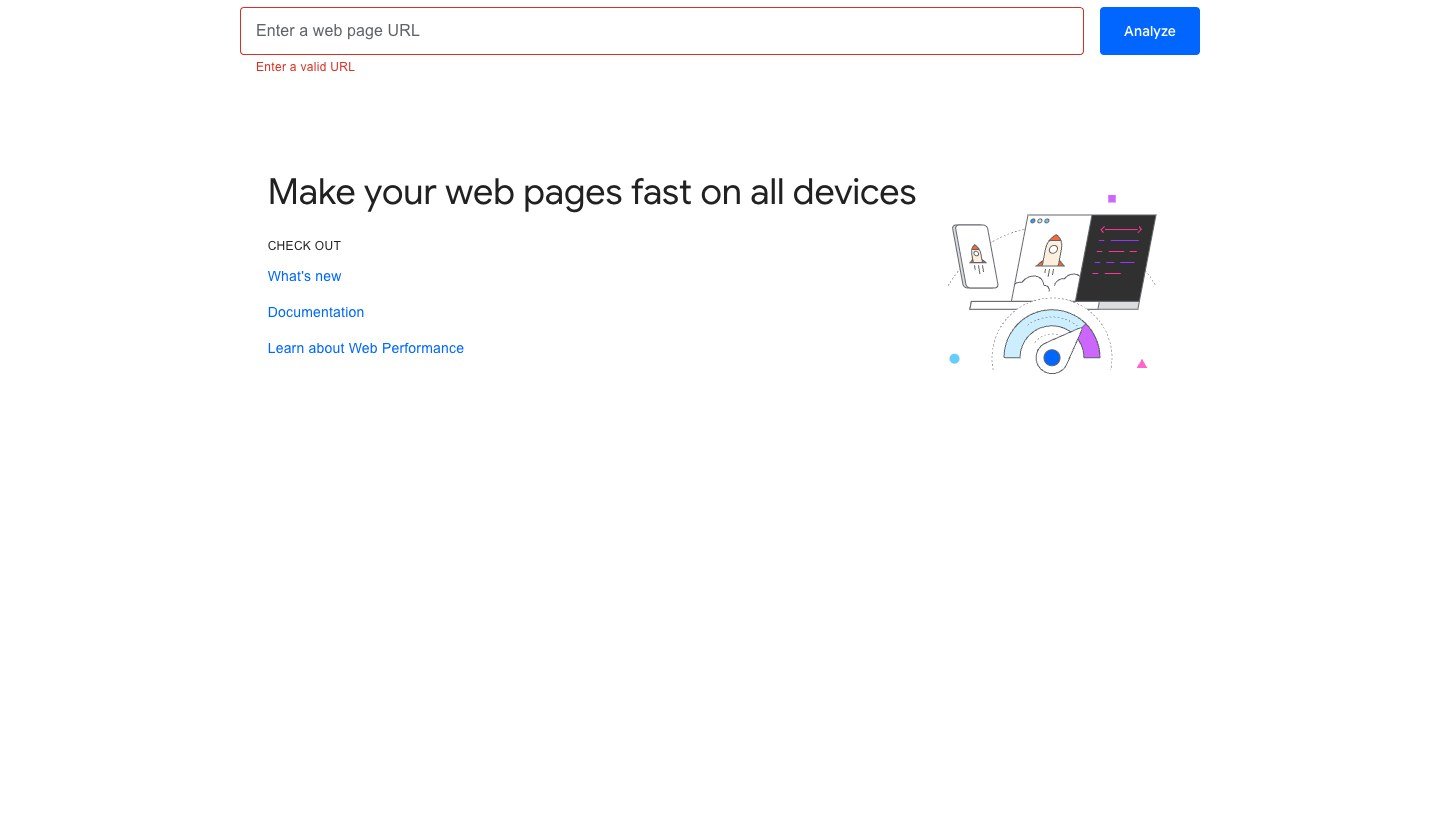
Paste in your URL and run the test. Here's an example of what the full results screen actually looks like once it finishes:
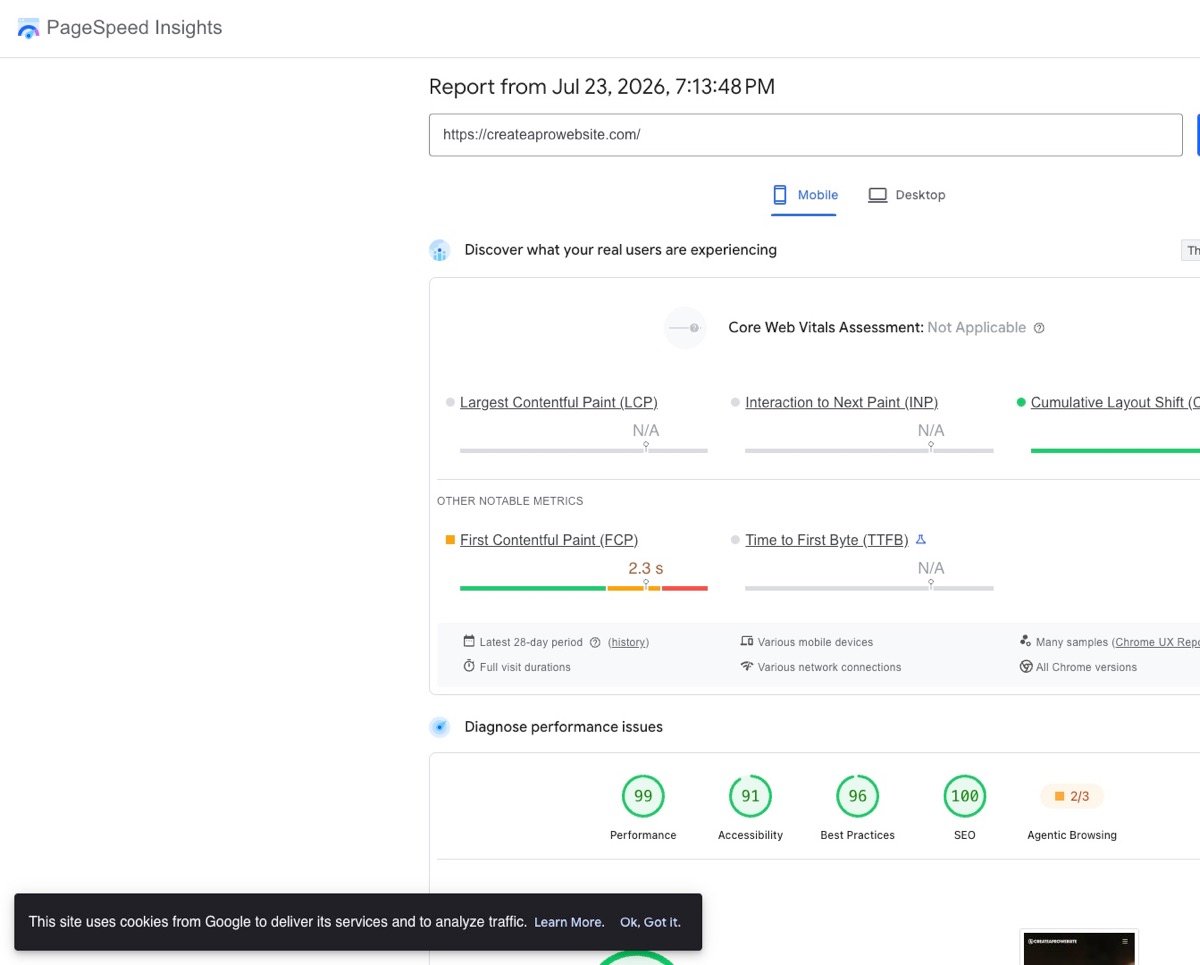
GTmetrix gives you a second data point worth checking, it uses a different testing methodology than PageSpeed Insights and sometimes surfaces issues PageSpeed misses, particularly around server response time (TTFB) and waterfall-chart bottlenecks you can’t see from a single score alone.
The Fixes That Actually Move the Needle
1. Start with Better Hosting
This is the one people skip and it’s the one that matters most. No amount of plugin tweaking fixes a slow server. I run every site I build on Hostinger. It’s fast out of the box, and it’s built for WordPress specifically, and this matters more than people think.
If you’re not sure your current host is the problem, check our web hosting comparison for what actually separates a fast host from a slow one.
2. Compress Every Image Before You Upload It
Oversized images are the single most common speed killer on WordPress sites. A photo straight off your phone or camera can be 5–10MB, way more than any web page needs. Compress to under 200KB per image before uploading, and resize to the actual dimensions the image displays at (1500px wide is plenty for most full-width homepage images).
Use a compressor like TinyPNG or Squoosh before upload rather than an auto-optimizing plugin. Plugins that resize on the fly add their own overhead, so a one-time compression pass at upload usually beats a plugin running on every page load.
3. Set Up Caching
Without caching, WordPress rebuilds every page from scratch on every single visit, running database queries and PHP that don't need to run again for a page that hasn't changed. Caching just means your browser stores a version of what it already loaded, so the next visit is like grabbing a snack from your own kitchen instead of driving back to the store. A caching plugin saves a static version of your pages and serves that instead, which is dramatically faster.
That's the plugin dashboard itself. This next clip walks through the actual caching settings you'd want to check first.
WP Rocket is the one I'd point you to if you want the least setup for the biggest gain. If your host includes built-in caching, Hostinger does, start there before adding a separate plugin on top of it. To be completely honest, I've recommended Hostinger for years, but I actually went and checked their infrastructure against everything in this guide while researching it. I was genuinely a little surprised how many boxes they check on their own, HTTP/2, built-in CDN, fast servers, without you touching a single setting.
Caching plugins are not all interchangeable. They differ mainly in setup effort and how deep the settings go once you need to fine-tune something.
| Our pick WP Rocket | LiteSpeed Cache | W3 Total Cache | |
|---|---|---|---|
| Setup effort | Minimal, works well out of the box | Minimal on LiteSpeed hosting | Steep, many manual settings |
| Free version available | No, paid only | Yes, full-featured | Yes |
| Best fit | Anyone who wants it to just work | Sites already on LiteSpeed-based hosting (Hostinger included) | Advanced users who want granular manual control |
Swipe to compare more options. WP Rocket stays pinned.
If your host runs LiteSpeed servers (Hostinger does), LiteSpeed Cache is free and tightly integrated, often the better default over paying for WP Rocket on top of it.
Whichever you pick, the goal is the same. WordPress stops rebuilding every page from a cold start on every visit. Set it up once, verify with a before/after PageSpeed test, and move on, this isn't a plugin you should need to touch again for months.
4. Clean Out Unused Plugins
Every active plugin loads its own code on every page, whether you’re using it or not. Go through your plugin list and deactivate, then delete, anything you installed once and forgot about. A leaner plugin list is one of the fastest wins available and it costs nothing.
5. Add a CDN
A content delivery network stores copies of your site on servers around the world, so a visitor in Sydney isn’t waiting on a server in Texas. Cloudflare’s free tier covers this for most sites and takes about ten minutes to set up.
6. Lazy-Load Everything Below the Fold
Lazy loading delays images and videos until a visitor actually scrolls near them, instead of loading every image on the page the instant it opens. Most modern hosting and caching plugins turn this on by default. If yours doesn't, WP Rocket and most image-optimization plugins have a one-click toggle for it. This is one of the fastest wins for LCP on image-heavy pages.
7. Minify and Combine Your CSS and JavaScript
Every plugin and theme you install adds its own CSS and JS files, and by default WordPress loads each one as a separate request. Minifying strips out the extra whitespace and comments in that code. Combining merges multiple small files into fewer, larger ones so the browser makes fewer round trips. Most caching plugins (WP Rocket included) handle both with a checkbox, no manual editing required.
8. Clean Up Your Database
WordPress quietly piles up post revisions, spam comments, and expired transients in your database for as long as the site’s been running, and a bloated database slows down every single page load since WordPress has to query it constantly. WP-Optimize or Advanced Database Cleaner will clear this out in a couple of clicks. This is worth doing every few months instead of just once.
9. Check Your PHP Version
PHP is the language WordPress itself runs on, and newer versions are meaningfully faster, not just more secure. If you’re running anything below PHP 8.1, that alone can be costing you real load time. Check your current version under Site Health in your WordPress dashboard, then ask your host to bump it, most will do this with one click or one support ticket.
Test your site immediately after any PHP upgrade. Old, poorly-maintained plugins occasionally break on newer PHP versions. Upgrade, then click through your site before you walk away.
One more thing worth locking in before you move on:
Don’t stack five speed plugins hoping for a bigger effect. Caching, image optimization, and CDN plugins often conflict with each other and can make your site slower, not faster. Pick one plugin per job and test after each change.
How Often Should You Check Your Site’s Speed?
Run a speed test any time you add a new plugin, switch themes, or notice the site feeling sluggish, and otherwise check in quarterly as a baseline. Speed tends to degrade slowly as you add content and plugins over time, so a quarterly check catches the drift before it becomes a real problem.
The caching decision
Host-Level Caching vs. a Dedicated Plugin
Stick with host-level caching if
- Your host already includes it Hostinger and most quality managed hosts ship server-level caching that’s already tuned for their own infrastructure.
- You want the fewest moving parts One less plugin is one less thing that can conflict with an update down the line.
Add a dedicated plugin if
- You need features your host does not offer Things like preloading, CDN integration, or database cleanup bundled into one tool.
- A speed test shows real headroom If PageSpeed or GTmetrix still flags caching as an issue after checking with your host, a dedicated plugin can close that gap.
Related reading: our Hostinger review (LiteSpeed + built-in caching), the Astra theme review (lightweight theme baseline), and the Elementor tutorial if a heavy page builder is part of what you are optimizing. For the full hosting landscape, see our web hosting comparison.
A Simple Monthly Speed Checklist
Once a month, open PageSpeed Insights on your homepage and one heavy inner page. Save the scores. You're watching trends, not chasing a perfect one hundred. LCP should stay under about two and a half seconds on mobile. You want CLS near zero, and INP should be responsive when you tap buttons.
Clear or warm cache after theme updates, hero image swaps, or new plugins. Re-test. If minify CSS broke layout, uncheck that box in WP Rocket and leave HTML alone until you know what failed. Minify is powerful and reversible. That's why I enable it first, and then roll back one toggle at a time.
Lazy-load images and defer JavaScript where the plugin allows. Mobile cache deserves its own toggle when your tool offers it. CDN helps TTFB for visitors far from your server. Enable it once origin caching works.
Hosting still sets the floor. If scores tanked without code changes, check renewal tier and server region. Our Hostinger review notes HTTP/2 and CDN options that pair with caching plugins.
Document what you changed because odds are you'll forget which checkbox fixed CLS. A three-line note in your project file beats guessing six months later.
Mobile scores often lag desktop because real devices throttle CPU. Test on a mid-range phone over LTE, not only Wi-Fi simulators. PageSpeed lab data is a compass, not a contract with Google.
Set a calendar reminder for plugin updates plus retest. Security patches sometimes add scripts. Caching plugins sometimes need new exclusions after major versions.
What Not to Install
Speed usually dies from plugin pile-up more than any single bad choice. You don't need two caching plugins, three SEO suites, four slider builders, and a dozen analytics snippets all running at once. Each one adds CSS, JS, or database queries, so pick one tool per job and actually delete the rest instead of just deactivating and leaving cruft behind.
Page builders and heavy themes load more than a lean block theme by nature. Tthat trade is fine when you need real design control, just pair it with a lightweight parent theme. Our Astra review covers how we keep Elementor pages from bloating every archive view.
Social proof widgets, live chat, popups, and ad network scripts are what actually hammer your INP score. Load them after consent or on scroll whenever possible since every third-party script is a bet that the conversion lift is worth the milliseconds you're losing.
Before you install anything you saw in a Facebook ad, check whether WordPress core or your builder already does it. Our Elementor tutorial covers layout without stacking ten single-purpose plugins on top. And, if you're rebuilding a slow site, compare Divi vs Elementor and commit to one builder ecosystem. Running both on the same install is a speed tax nobody needs.
Skip automatic database optimizers on shared hosting unless support specifically asks for one, scheduled cleanups running during a traffic spike cause more pain than stale transients ever will. That said, old post revisions and spam comments genuinely do slow backups over time. Limit revisions with a small snippet or plugin and clear spam weekly. You don't need twelve copies of the same draft sitting in the database.
Object caching (Redis or Memcached) helps genuinely high-traffic stores, but most brochure sites are fine stopping at page cache plus a CDN. Add that complexity once logs actually prove a database bottleneck, and not because one blog post felt slow one time.
Image optimization plugins help, but uploading a reasonable size in the first place beats fixing a ten-megabyte hero photo after the fact. Resize in Canva or Photoshop before it ever hits the Media Library. Then, let the optimizer handle WebP conversion. Preload fonts only for the weights you actually use in your CSS too. Loading an entire font family slows first paint while visitors wait on files your theme never references.
Video heroes need a poster image and deferred loading. Autoplay background MP4s crush mobile scores unless they're heavily compressed, muted, and backed by a static fallback for low bandwidth. And if your cache plugin offers it, strip query strings from static resources, old analytics tags append ?ver= params that bypass browser cache entirely and inflate every repeat visit.
Hosting upgrades genuinely help once caching is already tuned. Read our best web hosting guide before you blame plugins for a server that was slow from day one.
On the flip side, a slow wp-admin dashboard paired with a fast front end is almost always plugin bloat, not a hosting problem. Audit your plugins before you migrate anywhere. Our Hostinger review covers when a hardware upgrade actually helps versus when it's just a bandage.
In WP Rocket specifically, enable CSS minify, save, then load the homepage and scroll the whole page before you trust it. If icons vanish or the layout breaks, uncheck it and move on, rollback is one toggle. Combine its file optimization with host-level caching carefully too. Two aggressive minify stacks sometimes double-process the same CSS and break icons. Enable one layer, test it, then add the second.
Turn on mobile cache too if your plugin offers it. Phone visitors get a separate optimized bucket instead of sharing desktop rules built for wide screens and fast Wi-Fi, and pair that with lazy-loaded images below the fold on long posts. What matters across all of these toggles is the same handful of settings: caching on, mobile cache on, lazy load for media.
Run PageSpeed before and after each change so you actually know it moved the needle instead of guessing.
Critical CSS tools help with above-the-fold paint but add real maintenance overhead. Enable them when PageSpeed specifically flags render-blocking styles on an otherwise clean theme, and disable them the moment an update mysteriously breaks your hero layout.
Log real-user metrics in Search Console when it's available. Lab scores from PageSpeed are useful, but field data tells you what an actual customer experiences on a Tuesday afternoon over cellular. And before you micro-optimize JavaScript, fix any broken images or 404s first. Speed tools flag missing assets loudly because they waste round trips. One bad URL sometimes hurts your score more than an unminified file ever would.
The Heartbeat API controls admin autosave frequency. Aggressive tuning saves a tiny amount of resources but can disrupt live editing. Only touch it when support has documented a specific conflict.
Core Web Vitals are a habit, not a one-time checkbox. Re-test after plugin updates, new hero images, or any chat widget lands on the site.
Database bloat slows time-to-first-byte even when your front end looks fine. Here's where WP Rocket handles that cleanup:
Preload tells the browser to fetch critical fonts early. Watch where the toggle lives before you enable it site-wide.
Once you've run through image compression, caching, and database cleanup. Here are the questions people ask most:
Frequently Asked Questions
Why is my WordPress site slow?
Almost always one of four things: cheap or overloaded hosting, oversized images, no caching set up, or too many active plugins running code on every page load. Run a PageSpeed Insights test first. It will point you directly at which of these is hurting you most.
What's a good WordPress load time?
Under 2 seconds is the target Google itself points to for keeping visitors engaged. Under 3 seconds is acceptable. Past that, bounce rate climbs fast and it starts working against your search rankings too.
Do I need a caching plugin if my host already has caching?
Test first before adding one. Some hosts, Hostinger included, ship with solid built-in caching that makes a separate plugin redundant or even conflicting. Run a speed test with and without a plugin active to see if it's actually helping before you keep it installed.
How many plugins is too many for WordPress?
There's no fixed number. It's about what each plugin is doing, not how many you have. A handful of well-built, actively maintained plugins will load faster than two badly-coded ones. Audit for what you're actually using rather than chasing a specific count.
Will switching hosts really make my site faster?
Yes, often the single biggest lever available. No plugin or optimization fixes a server that's overloaded or under-provisioned for WordPress specifically. If you've done the image, caching, and plugin cleanup above and speed still isn't there, hosting is almost always the remaining bottleneck.
What are Core Web Vitals?
Three metrics Google uses to measure real-world page experience: LCP (how fast the main content loads), INP (how fast the page responds to clicks/taps), and CLS (how much content shifts around while loading). Check yours for free in Google Search Console or PageSpeed Insights.
Does cleaning up my WordPress database actually help speed?
Yes, especially on sites that have been running for a year or more. Post revisions, spam comments, and expired transients all pile up in the same database WordPress queries on every page load. A cleanup plugin like WP-Optimize clears this in a couple of clicks.
Speed is one of the few things on your website that's purely technical. There's no creative debate about whether your site should load fast. Get better hosting, compress your images, set up caching, cut the plugins you don't use, and add a CDN. Do those five things and you'll outrun the vast majority of WordPress sites still running exactly as slow as the day they launched.