To create a landing page in WordPress, add a new Page, open it in Elementor, give it one clear promise and one main action, then test the complete path on desktop and phone. You can build the layout with free Elementor. If the action is a form, use a form plugin such as WPForms or Elementor Pro's Form widget. The page is done when a real visitor can understand the offer, take the action, and see a confirmation.
A homepage has to introduce the whole business. A landing page has a smaller job. Imagine a photographer offering a free guide to planning a family photo session. The page should explain that guide and collect a request. It does not need a tour of every service, a crowded menu, or four competing buttons.
This guide uses the WordPress and Elementor path we teach in our first website walkthrough. You will leave with a page you can send traffic to and a way to tell whether it works.
Quick path: choose the one action, create a WordPress Page, build the layout in Elementor, connect the form or button, and complete one real test submission before sharing the URL.
Before you open the editor, decide what someone should do after reading. That single decision controls the layout.
Pick one offer and one action
Write this sentence before choosing a template: “This page helps [specific person] get [specific result] by [one action].” If the sentence needs an “and,” narrow the page. For the photographer, it might be: “This page helps parents plan a relaxed family session by requesting the free prep guide.”
Now decide what counts as success. A request form, booking, purchase, or guide download can each work. Pick one. A page with “Book a call,” “Join the newsletter,” and “Shop prints” in the same hero asks the visitor to sort out your business for you.
- Visitor: who arrived, and what problem did they expect this page to solve?
- Offer: what exactly will they receive or be able to do?
- Action: what button or form completes the job?
- Confirmation: what will they see after they take that action?
Keep those four answers beside the editor. They are the test for every section you add.
Create the WordPress page and choose its layout
In WordPress, go to Pages → Add New, name the page for the offer, and save a draft. Give it a short slug that describes the result, such as /family-session-guide/. A Page is the right content type here because this is a standing destination, not a dated blog entry. WordPress's Page documentation covers the basic creation and publishing controls.
Click Edit with Elementor. In Page Settings, choose a layout. Elementor Canvas removes the site's header, footer, and sidebars. Use it when the page should be a focused campaign destination. Keep the normal theme layout when visitors need the site's navigation, identity, or support links close at hand. Elementor documents the Canvas layout and the current page-setting path.
Canvas is a layout choice, not a conversion trick. If you remove the header, add enough identity on the page that a new visitor knows whose site they are on. A logo or linked business name, a clear contact route, and the applicable privacy link may still matter.
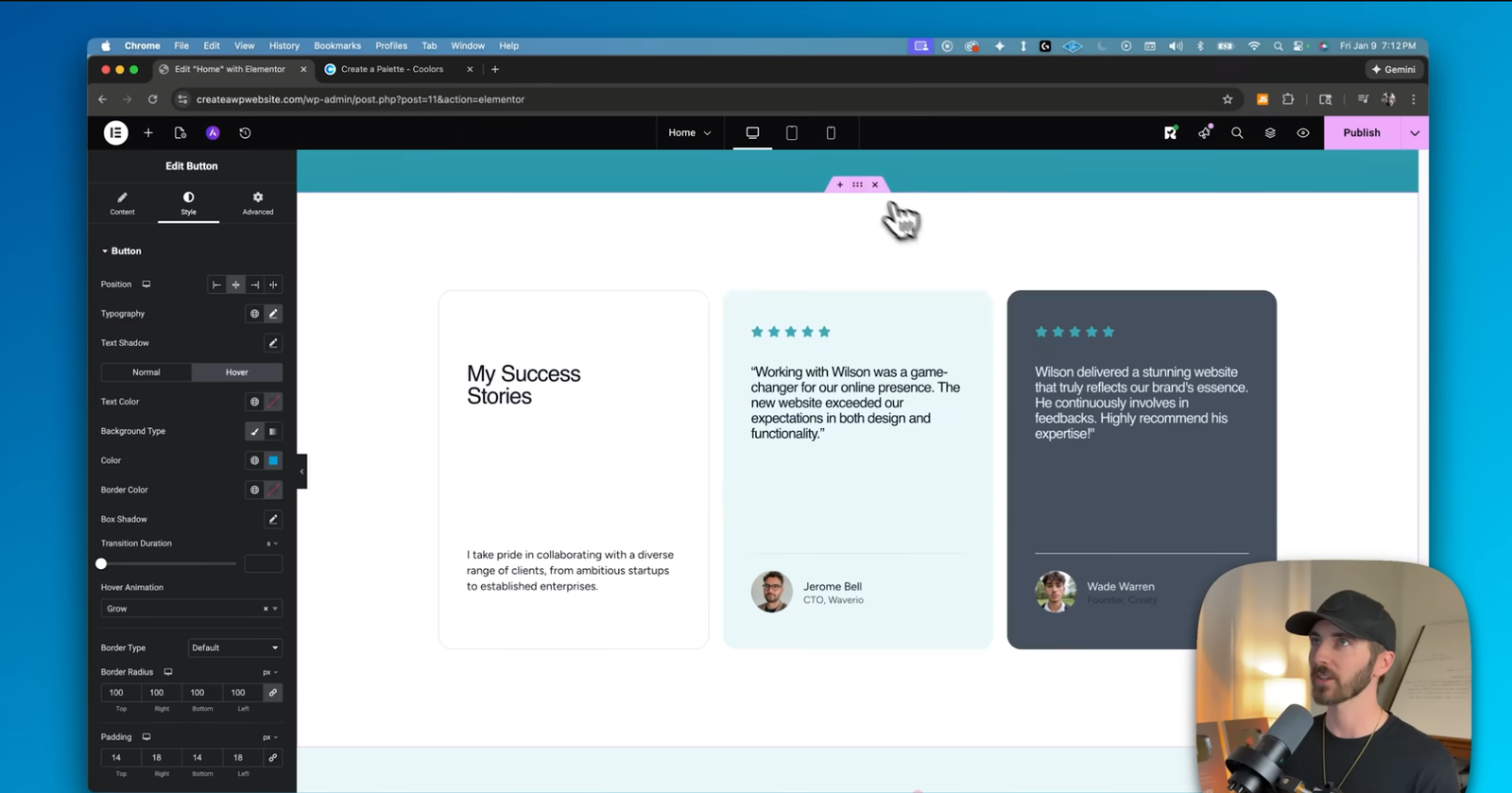
In Elementor, click the folder icon to browse page templates, or add a blank container. Pick a layout with a headline, an image or sample, and room for the action. Delete sections that do not help the offer. Click the headline on the canvas to edit the words; use the left panel to set typography and spacing. Replace every template image and line of sample copy. Our Elementor tutorial shows this editing pattern in a real site build.
Build the page in the order the visitor decides
Start with a headline that names the result, a sentence that explains who it is for, and a button that uses a concrete verb. “Get the family session guide” tells the visitor more than “Submit.” Below that, show the guide or outcome, answer the most likely hesitation, and repeat the same action once when the page gets long. A second button may be useful; a second goal is usually a distraction.
Here is the page anatomy for that example. The labels describe jobs, not a rigid template.
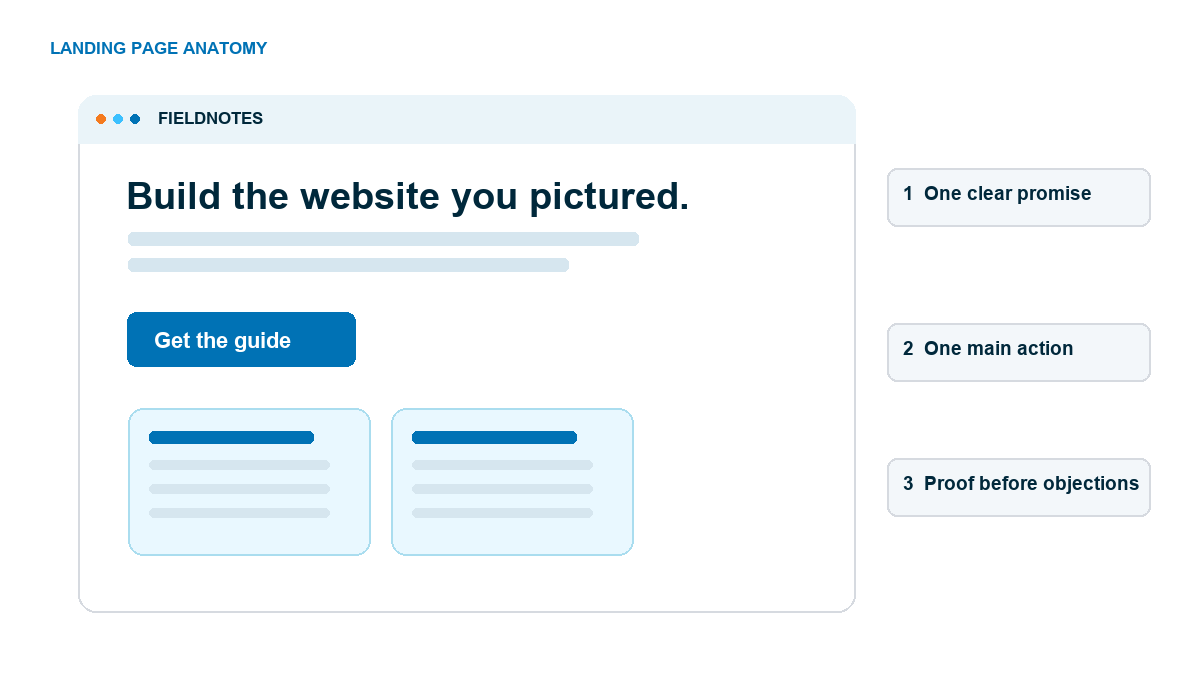
Put proof next to the claim it supports. A real sample page from the guide proves what they will receive. A real testimonial can support confidence if you have permission and the statement is relevant. A generic row of stars with no source does not help someone decide.
For a service page, use a short explanation of the process: request the guide, receive it, then decide whether to book a session. For a product page, show the product, the price and terms, delivery, and what happens after checkout. The order should match the visitor's next question.
Write the page for scanning. A visitor should understand the offer from the headline, one supporting sentence, the image, and the button. Use short paragraphs for the details. If you need five introductory paragraphs before explaining the action, your promise is still too broad.
Add the action without creating a dead end
For a simple lead form, the free Elementor editor can use a separate form plugin. In WordPress, open WPForms → Add New, name the form, and choose Simple Contact Form. Remove fields you do not need; for the guide example, name and email are enough. Save it. WPForms documents how to place its widget on an Elementor page. Elementor's own Form widget is a Pro feature, as Elementor notes in its landing-page tutorial.
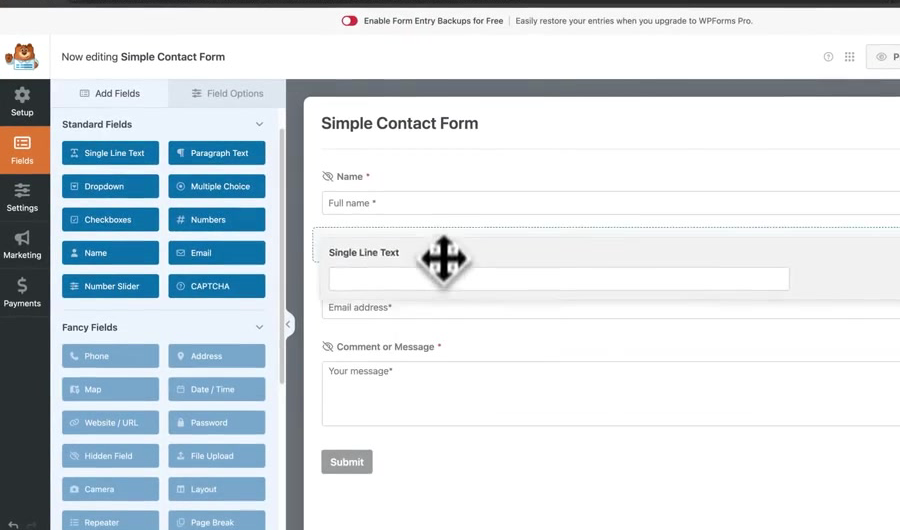
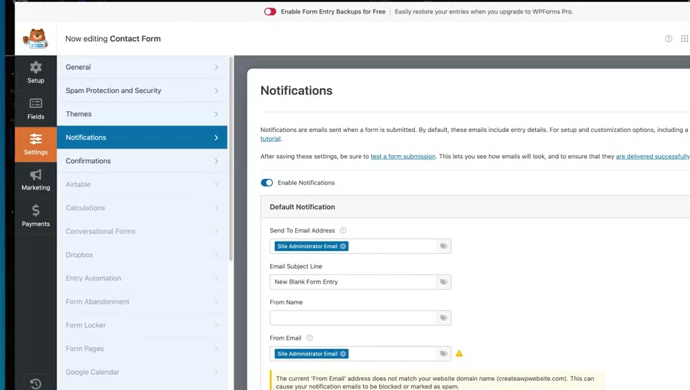
Before you return to Elementor, open Settings → Notifications and set Send To Email Address to the inbox that will handle the request. Then open Settings → Confirmations and choose a clear message or a thank-you page. Save again. Back in Elementor, drag the WPForms widget onto the page and select the form you just made. If your page uses a hero button, link it to the form section or the form's page URL, then click it in preview to confirm it reaches the form.
Keep the form proportional to the offer. A guide request can begin with an email address; an appointment request may need a name, contact method, and a little context. Only ask for a phone number when someone actually needs it to complete the next step. Put the privacy explanation next to the form if you will send follow-up messages.
Test the chosen confirmation on the public page. Send the form to a specific thank-you page or show a clear success state. Say what happened and what to expect next: “The guide is on its way. Check your inbox in a few minutes.” A vague “Thanks!” makes a successful submission look like a broken one. Our WordPress contact form guide covers form setup in more depth.
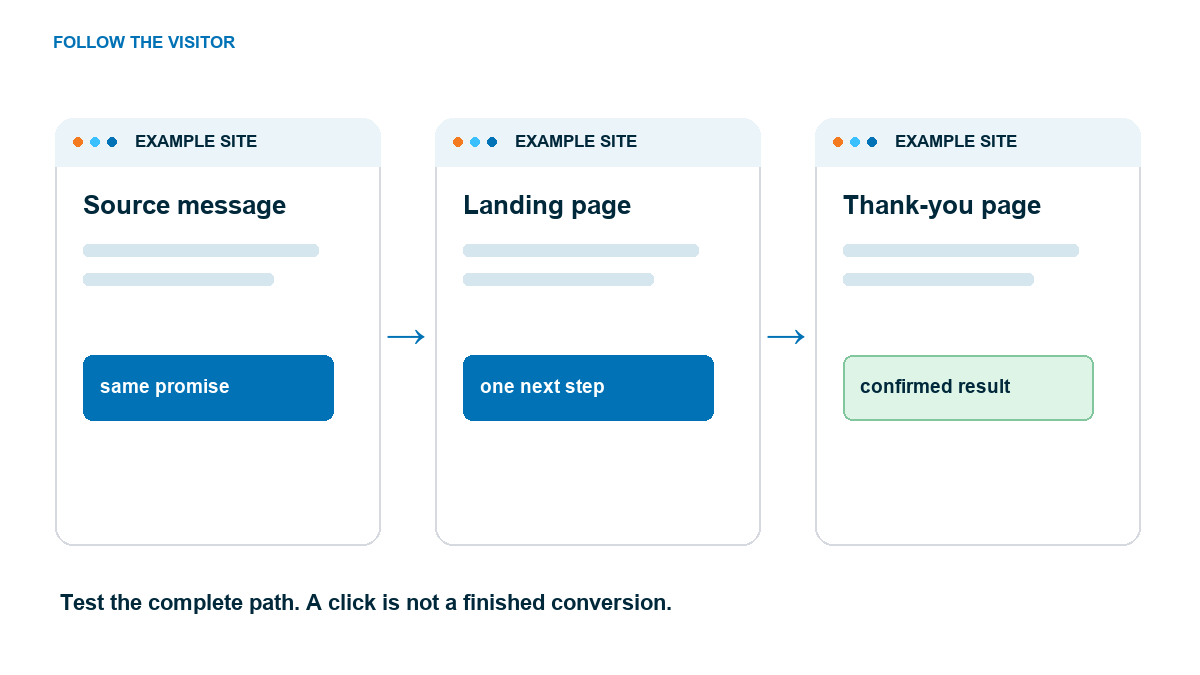
The whole route matters. A page can look polished and still fail when the form sends to the wrong address or the download link does not work.
Check the page on desktop and mobile
Open the page preview in a normal browser tab, then narrow it to phone width. Elementor's responsive editor helps you adjust spacing and type, but it does not prove the real page is usable. Read the headline without zooming. Tap the button. Fill the form with a test address you control. Verify the success message, notification or delivery email, and any promised file or booking confirmation.
Look for a section that pushes the page sideways, text over a photo, a sticky button covering the form, or a menu that reappears when Canvas was supposed to remove it. Test with the real copy and the actual image. Placeholder content often hides layout problems until the final edit.
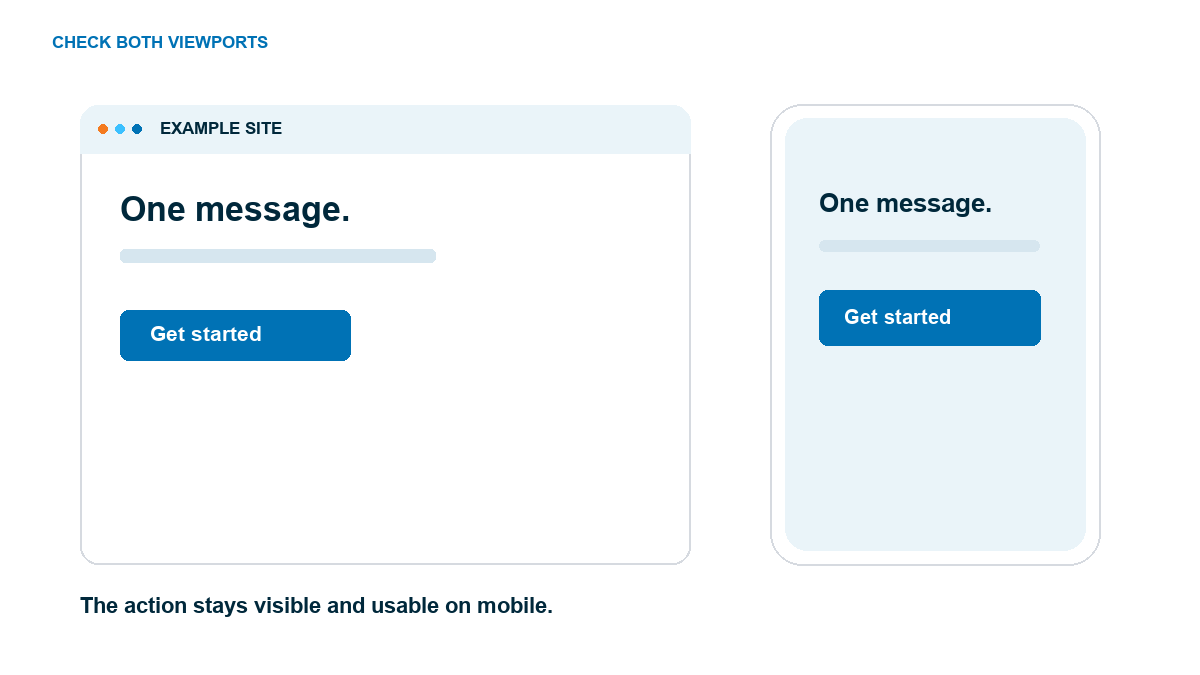
If the mobile version feels crowded, remove a low-value section before shrinking all the text. The important action needs room to breathe. Our website design guide explains the hierarchy behind that decision.
Connect the page to its traffic source
A visitor arrives with an expectation. If an email says “Get the family photo prep guide,” the landing headline should say the same thing. If an ad promises a price estimate, the page should deliver the estimate before it asks for unrelated information. That message match matters more than adding another animation.
Use one destination URL per offer. Set a descriptive page title and snippet so people who discover the page in search know what it provides. Then link to it from the email, ad, YouTube description, or relevant page that sends visitors. Keep the source link and landing page together in a small test sheet so a later edit does not quietly break the route.
If you measure this in analytics, record the useful outcome: form submission, booking confirmation, or purchase. A page view tells you that someone arrived. It cannot tell you whether they got what you promised. Our GA4 setup guide is the next step if measurement is not in place yet.
Run one complete test before sharing it
Publish only when you can complete the journey yourself. Open the final URL in a private window, read it as a new visitor, take the main action, and inspect the result. Send yourself the email. Open the download. Check the booking on the receiving calendar. If money changes hands, run a permitted test transaction and verify the receipt and order state.
Then test a failure. Leave a required field empty, enter an invalid email, or use the back button after submission. The page should explain the problem without losing everything the visitor typed. If it cannot, fix that before the first campaign sends traffic.
That is the standard: a visitor understands the promise, finishes the action, and receives the next step. Once it passes, you can make the page prettier. First make it work.
Frequently Asked Questions
Can I create a WordPress landing page for free?
Yes. WordPress and the free Elementor editor can make the page layout. A form may need a separate free plugin such as WPForms; Elementor’s own Form widget is a Pro feature. Hosting and a domain are separate site costs.
Should a landing page have a menu?
Use a focused layout when the page has one campaign action and enough identity to earn trust. Keep navigation when people need more context or support before deciding. Test the choice with a new visitor.
Can I use a regular WordPress page instead of a landing-page plugin?
Yes. Create a Page and build it with the WordPress block editor or Elementor. The useful parts are the promise, action, confirmation, and testing, not a special post type.
How do I know whether it is working?
Complete a test submission first. After launch, measure the outcome you promised, such as a received form, booked appointment, or purchase, along with the traffic source. A page-view count alone cannot show that the offer worked.