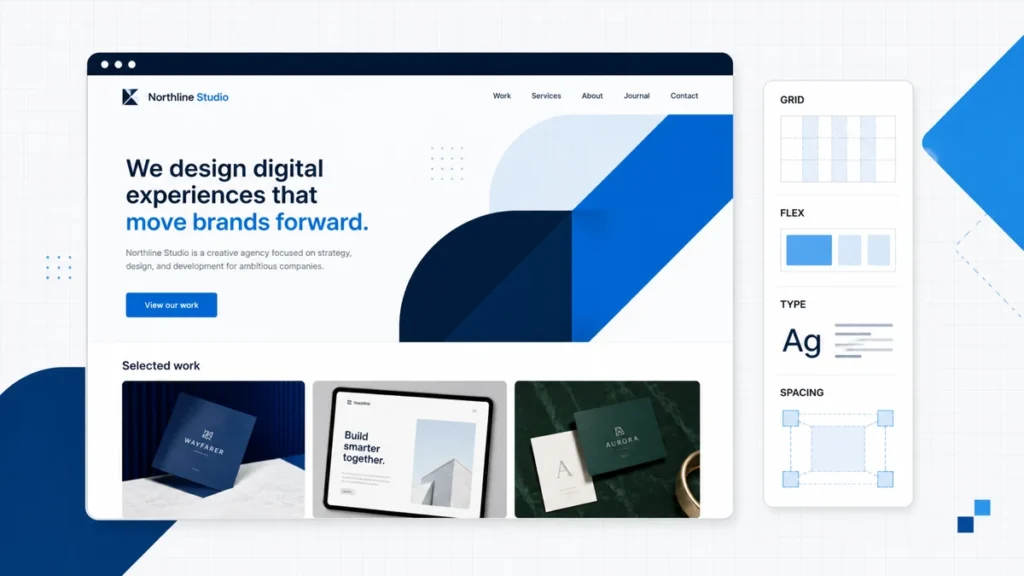
Webflow is one of the best website builders for visual designers who want control over the finished page without writing the whole site by hand. It is not the easiest builder for a true beginner, and its pricing takes more work to understand than a single monthly number suggests.
That distinction matters. Webflow gives you a canvas that behaves more like a visual front end for HTML and CSS than a basic template editor. Classes, breakpoints, components, layout rules, and CMS collections are all exposed. If those controls sound useful, Webflow can produce a site that feels custom. If they sound like a vocabulary test, a simpler builder will get you online faster.
This Webflow review looks at the current editor, plan structure, CMS, SEO tools, and what you can actually take with you if you leave. Use the free Starter plan to test the hardest part of your own site before you pay.
Quick answer: Choose Webflow when custom visual control is the priority and you are willing to learn how web layouts work. Choose Wix or Squarespace for the fastest beginner setup. Choose WordPress when ownership, hosting choice, and a large extension ecosystem matter more.
Webflow sits between a beginner website builder and a traditional development workflow. That middle ground is its biggest strength, but it also explains the learning curve.
What Webflow Is Actually Good At
Most beginner builders ask you to choose a template and edit its content. Webflow lets you control the system underneath the design. You can create reusable classes, set responsive behavior at different breakpoints, turn sections into components, and connect layouts to CMS collections.
The current workspace also brings Design, CMS, and Insights into the same interface. A designer can build the page, a marketer can update collection content, and a team can reuse components without recreating the same section on every page.
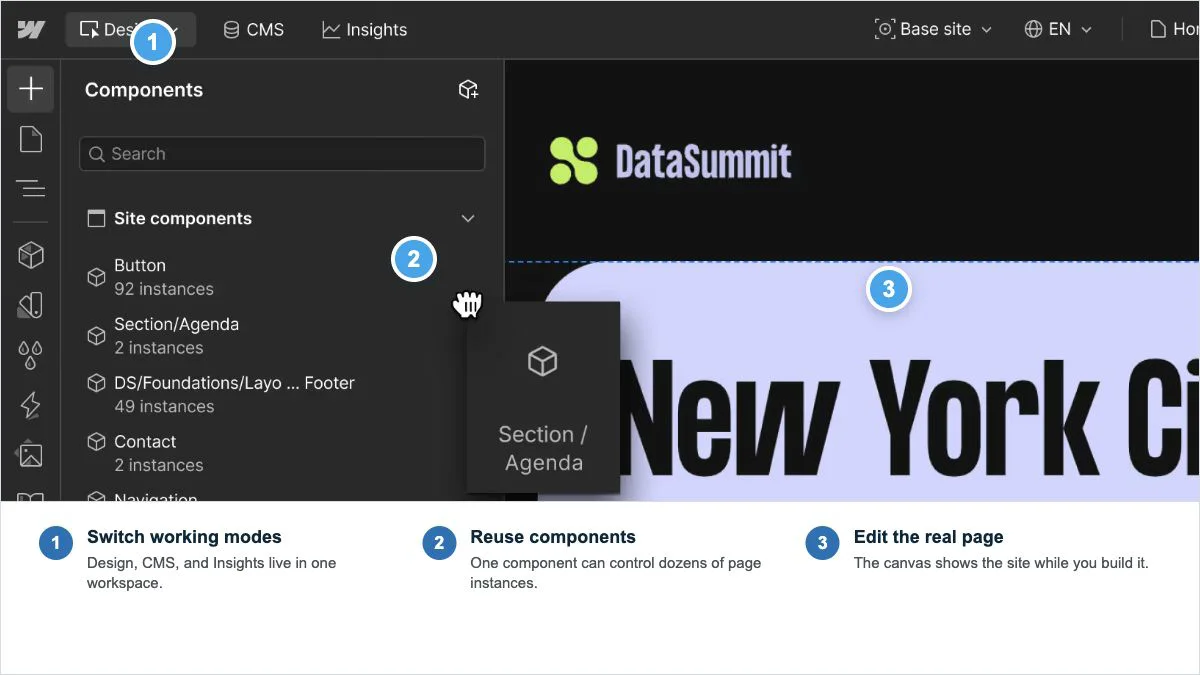
This is why Webflow is popular with designers and agencies. You can start from a blank canvas, build a real design system, and give a client controlled access to the content they need to change. The finished site does not have to look like a lightly edited template.
If you want to see how that approach compares with a self-hosted platform, our WordPress vs Webflow comparison breaks down the two systems side by side.
How Hard Is Webflow to Learn?
Webflow is learnable, but I would not call it effortless. The editor becomes much easier once you understand the box model, flexbox, grid, classes, margins, padding, and responsive breakpoints. Those are standard web design concepts. Webflow makes them visual; it does not remove them.
A complete beginner can still build with a template, but that skips much of the reason to choose Webflow. The platform earns its keep when you can control the layout system instead of nudging individual elements until the page looks right.
- Easy first steps: editing text, replacing images, publishing a template, and updating CMS entries.
- Moderate learning: classes, spacing, containers, flexbox, grid, and component properties.
- Steeper work: complex interactions, scalable class systems, custom code, and larger CMS architecture.
If your main goal is to publish a straightforward business site this weekend, start with our best free website builder guide. Webflow makes more sense when learning the extra controls will improve the work you plan to produce.
Webflow Pricing in 2026
Webflow pricing feels confusing because the live website and the people building it can be billed separately. A Site plan connects one project to a custom domain and adds hosting features. A Workspace plan controls design access, collaboration, team roles, and paid capabilities such as code export.
Here are the core Site plans shown on Webflow's current pricing pages. Prices below use annual billing and can change, so confirm the final amount before checkout.
| Site plan | Annual billing, per month | Monthly billing, per month | What it includes | Best fit |
|---|---|---|---|---|
| Starter | $0 | $0 | Webflow.io domain, 2 static pages, limited CMS | Learning the editor or testing a small concept |
| Basic | $15 | $25 | Custom domain, 300 static pages, 10 GB bandwidth, no CMS | Marketing site with no collection-driven content |
| Premium | $25 | $39 | CMS, up to 20,000 CMS items, 40 collections, 50 GB starting bandwidth, site search, and file upload | Blog, portfolio, directory, or content-driven business site |
On a phone, swipe the plan table sideways to compare every column.
The free Starter plan offers limited CMS for testing. The paid Basic plan has no CMS at all. That makes Premium the realistic starting point for most blogs, resource libraries, team directories, and other sites built around repeatable content.
The other budget question is who needs to work inside the builder. A solo site owner may need one Site plan and nothing more. A designer needing paid Workspace features may add a Core Workspace, listed at $19 per month billed yearly in October 2026, on top of the Site plan. For example, one Premium site plus one Core Workspace is $44 per month on annual billing before taxes and add-ons. More collaborators can add seat costs; verify the actual checkout before committing.
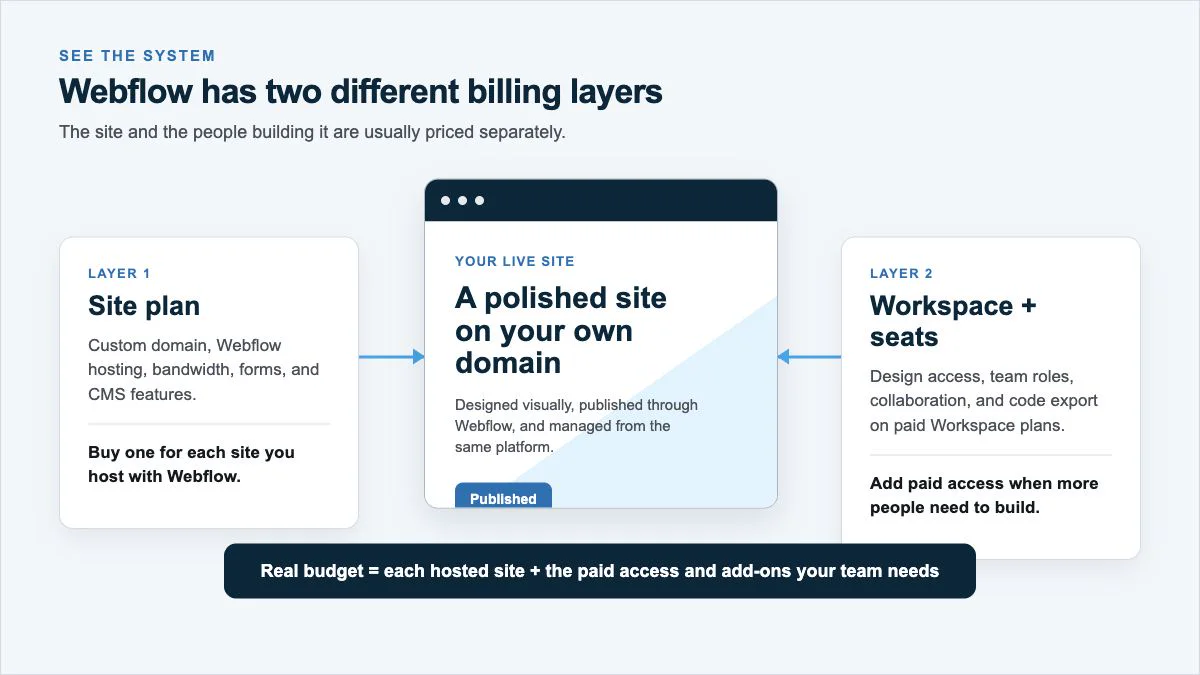
Do not compare Webflow with another builder by looking at the first number on each pricing page. Map the actual project: number of hosted sites, whether each site needs a CMS, how many people need design access, and which add-ons the team will use. That produces the real monthly cost.
Webflow CMS, SEO, and Hosting
Webflow's CMS works well for structured content. You define a Collection, add fields, design one template, and let each item fill that layout. It is a clean fit for portfolios, case studies, team members, locations, articles, and directories with a predictable content model.
The SEO controls cover the essentials: title tags, meta descriptions, canonical URLs, XML sitemaps, redirects, robots directives, and schema markup. Webflow also hosts the site, handles SSL, and serves assets through its managed infrastructure. You do not need to assemble a separate theme, hosting account, cache plugin, and page builder before the first page loads.
That convenience comes with a boundary. Webflow's ecosystem is smaller than WordPress, and some workflows that take one plugin in WordPress require an integration, custom code, or a different approach in Webflow. Our best website builders guide is useful if you are deciding across several platforms instead of choosing between two.
The Ownership and Export Limit
Webflow lets paid Workspace users export a site's HTML, CSS, JavaScript, and uploaded assets. That sounds like a complete exit path, but it is only the static front end.
The export does not include the CMS database or CMS functionality. Ecommerce features, user accounts, site search, forms, password protection, and localized content do not keep working as a portable Webflow system after export. You can host the static files elsewhere, but dynamic features need to be rebuilt.
Do not treat code export as a complete migration. Before building a content-heavy or ecommerce site, list every dynamic feature you use and decide how each one would work outside Webflow. Static files are portable. The managed CMS and platform services are not.
This does not make Webflow a bad choice. It means you should choose it with the same care you would use for any hosted platform. The more your operation depends on Webflow's CMS and services, the more work it takes to leave.
Webflow Pros and Cons
The platform's strengths all point toward one type of buyer: someone who values design control and is willing to learn the system. Its trade-offs show up when speed, simplicity, or portability matters more.
Webflow review
Where Webflow wins and where it asks for more
What is strong
- Custom visual control Build responsive layouts with classes, grid, flexbox, breakpoints, and components instead of staying inside a fixed template.
- Design and CMS in one system Create a collection once, design its template, and let a content team update structured entries.
- Managed hosting SSL, publishing, and hosting live in the same platform, so there is less technical assembly at launch.
- Reusable components A shared component can update repeated sections without rebuilding them page by page.
The trade-offs
- A real learning curve The editor exposes web layout concepts that simpler builders hide.
- Layered pricing Site plans, Workspace access, seats, and add-ons can make the final budget harder to read.
- Partial portability Static code can be exported, but the CMS and managed platform features do not move with it.
- Smaller extension ecosystem Specialized workflows may need integrations or custom code instead of a ready-made plugin.
Read that list as a fit test, not a score. Webflow is excellent when its strengths match the work. It is expensive complexity when they do not.
Who Should Use Webflow?
Webflow is a strong choice for freelance designers, small agencies, startup marketing teams, and businesses that need a custom-looking marketing site with structured content. It also works well when one skilled builder creates the system and other people only update approved content.
You are a good fit if most of these are true:
- You care about exact layout, spacing, typography, and responsive behavior.
- You are willing to learn classes, breakpoints, grid, and flexbox.
- You want hosting, publishing, CMS, and design tools in one platform.
- Your content fits clear structures such as projects, articles, team members, or locations.
- You are comfortable paying for the managed platform instead of assembling your own stack.
The best Webflow user does not need the fewest controls. They want more control, presented visually.
Who Should Skip Webflow?
Skip Webflow if you want the fastest possible first website, expect a basic editor to make every design decision for you, or need a large plugin ecosystem. It is also a weaker fit when moving the full site between hosts is a hard requirement.
For a beginner business site, Wix or Squarespace can shorten the path from template to publish. For a content business that needs deep ownership, hosting choice, and thousands of extensions, WordPress usually gives you more room to change the system later.
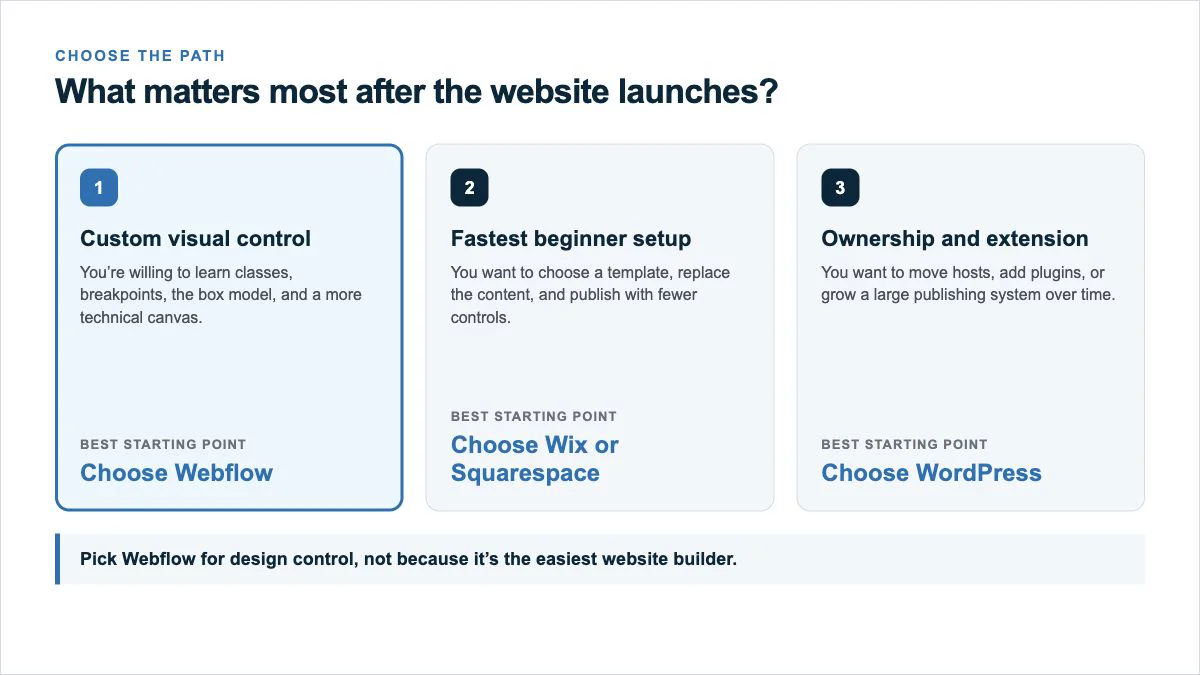
If you still have three or four builders on your list, compare them with our website builders comparison. The right decision usually becomes clear once you rank design freedom, setup speed, ownership, and ongoing cost.
Is Webflow Worth It?
Webflow is worth it for design-led work. A freelance designer or agency can use its classes, components, CMS, and responsive controls to create a polished system without handing every change to a developer. The same monthly bill makes less sense for a five-page template site that could be built faster in a simpler tool.
This review uses Webflow’s published plan documentation and annotated product interface; it is not a claimed hands-on build of a client site. Before paying, build the hardest page of your project on the Starter plan. Do not test only the homepage hero. Create a collection, connect it to a template, set the mobile breakpoints, and make one reusable component. If that workflow clicks, Webflow may be a good fit. If it feels like overhead, believe the test and choose a simpler platform.
The current plan limits and export rules are documented on Webflow's pricing page, May 2026 pricing update, code export guide, and SEO documentation.
Frequently Asked Questions
Is Webflow good for beginners?
Webflow is good for a beginner who wants to learn web design concepts such as classes, spacing, flexbox, grid, and responsive breakpoints. It is not the fastest builder for someone who only wants to choose a template, replace the content, and publish.
How much does Webflow cost?
Webflow has a free Starter plan. Current annual Site plan pricing starts at $15 per month for Basic and $25 per month for Premium. Workspace access, seats, ecommerce plans, and add-ons can increase the total. Confirm current pricing before checkout.
Can I use Webflow for a blog?
Yes. Webflow's CMS can manage posts, authors, categories, and other structured content. The current Premium Site plan includes CMS features; the Basic Site plan does not.
Is Webflow good for SEO?
Webflow covers the core technical controls most sites need, including title tags, meta descriptions, canonical URLs, XML sitemaps, redirects, robots directives, and schema markup. Rankings still depend on useful content, site structure, links, and competition.
Can I export a Webflow website?
Paid Workspace users can export HTML, CSS, JavaScript, and assets. The CMS database, ecommerce functionality, user accounts, forms, search, password protection, and other managed features do not become a complete portable system in that export.
Is Webflow better than WordPress?
Webflow is better for a designer who wants managed hosting and precise visual control in one interface. WordPress is better when hosting choice, full-site portability, and a much larger extension ecosystem are priorities.
Those answers return to the same decision: control, simplicity, and ownership pull in different directions. Pick the platform that matches the part of the website you will still care about a year after launch.
Final Verdict
Webflow is a great builder for designers and design-led teams, but it is not the default recommendation for every beginner. Choose it when you want custom visual control, a structured CMS, and managed hosting in one system. Skip it when you want the easiest setup or need every dynamic part of the site to move cleanly between hosts.
Use Starter to test one difficult page, one limited CMS collection, and the mobile layout. The result will show whether its design controls serve your project.