
If you're building your first WordPress site, I'd start with Hostinger. I've used it for my own and client sites, and its guided setup makes the first steps feel manageable. But don't choose by the $2.49 headline alone: that offer asks you to pay for 48 months up front. SiteGround is the one I'd check if you want daily backups on the entry plan, a possible phone support route, or specific client handoff tools.
I'll show you the actual plan tradeoffs, the screens I check before paying, and what happens after you choose a host. My Hostinger review goes deeper on Hostinger itself. Here, the job is deciding which of these two fits your WordPress site.
For the record: It’s super important for us to keep this site 100% free for you and 100% high quality. To help us do that, we’ve partnered with some of the products we recommend and earn a commission if you buy through our links. Read our affiliate disclaimer.
Plan facts below come from the providers' public pages, checked October 21, 2026. The setup footage is from my March 2026 WordPress tutorial, so its checkout prices are historical. Use the current plan tables and checkout for today's numbers. I have not run an identical-site speed or support-response test on these two hosts.
Quick answer: For a site you edit often, compare Hostinger Unlimited with SiteGround GrowBig. Both list daily backups; GrowBig lists staging. The upfront terms and renewal prices differ, so check the exact checkout before paying.
The most useful comparison starts with the plan you would actually buy. A cheap entry plan and a more capable middle plan are not interchangeable.
Hostinger vs SiteGround at a glance
Here is the practical split. Hostinger's current Premium offer is aimed at a small first site; its Unlimited plan adds daily backups and more capacity. SiteGround's StartUp plan serves one website with daily backups; GrowBig adds room for multiple sites and staging. Each host can run WordPress, so the decision turns on the operations you need after launch.
| Hostinger Premium | SiteGround StartUp | |
|---|---|---|
| Intro offer checked Oct 21 | $2.49/month for 48 months | $2.99/month for 12 months |
| Upfront base charge | $119.52 for 48 months | $35.88 for 12 months |
| Advertised renewal | $10.99/month | $17.99/month on a 12-month term |
| Website allowance | 3 websites | 1 website |
| Included backup cadence | Weekly | Daily |
Swipe to compare more options.
US public offers checked October 21, 2026. Terms differ, so this is a plan-fact table, not a like-for-like total-cost ranking. Tax, optional extras, domain renewals, and later promotions can change checkout totals.
The providers publish these details on their Hostinger pricing and SiteGround feature and pricing pages. Notice the unequal prepaid terms. Dividing both offers into a monthly headline hides how much cash leaves your account today and what happens at renewal.
If you will update the site regularly, the next tier is often the more relevant purchase. Here are the two plans behind the recommendation later in this article.
| Hostinger Unlimited | SiteGround GrowBig | |
|---|---|---|
| Intro offer checked Oct 21 | $3.49/month for 48 months | $4.99/month for 12 months |
| Upfront base charge | $167.52 for 48 months | $59.88 for 12 months |
| Advertised renewal | $16.99/month | $29.99/month on a 12-month term |
| Included backup cadence | Daily | Daily |
| WordPress staging | Support says Business/Unlimited or above; verify at checkout | Included |
Swipe to compare more options.
US public offers checked October 21, 2026. This table describes plan features and posted charges, not equal-term total cost. Verify the current checkout, taxes, extras, and renewal before purchase.
Both plans include daily backups. GrowBig expressly includes staging on its current plan page. A current Hostinger WordPress Overview guide says staging is available on Business/Unlimited plans or above, while its staging setup guide still says Business or above. Because the plan names do not line up cleanly across those pages, confirm staging on your exact Unlimited checkout before you pay for it. GoGeek is the SiteGround tier to inspect if you need white-label client access.
Compare the bill you will actually receive
The biggest beginner mistake is comparing $2.49 with $2.99 and stopping there. Hostinger's displayed Premium deal requires 48 months up front. SiteGround's displayed StartUp deal uses a 12-month term. The first invoice, the next invoice, and the features included are all different.
Before checkout, write down four numbers or conditions: the total due today, the term that total covers, the renewal amount and term, and the price of anything you added. Then check the domain and email renewal separately. A first-year domain promotion is useful, but it does not make that domain free forever.
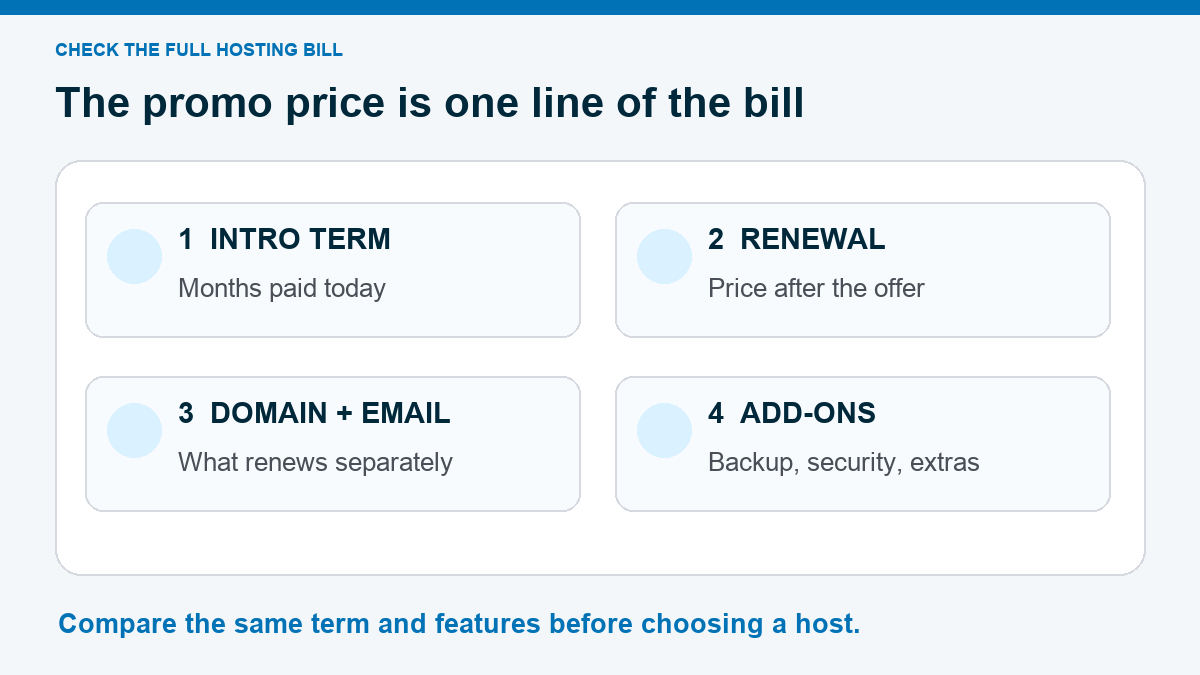
Here's the real choice behind those tiny monthly numbers. Hostinger Premium's current 48-month promotion means $119.52 before extras today. SiteGround StartUp's 12-month promotion means $35.88 before extras today. You get different amounts of time for that money. If you're testing an idea and want a smaller first invoice, that matters. If you're committed to a site for years, the longer Hostinger term may make sense. Neither conclusion comes from comparing $2.49 with $2.99 in isolation.
My checkout rule: screenshot the final order summary, not the pricing banner. Save the term, amount due today, renewal date and price, domain renewal, and any add-ons. Then compare the backup and staging features on that exact plan.
This is also where I decide whether the entry plan is enough. If I edit a WordPress site often, weekly backups could leave too much work to reconstruct. Hostinger currently lists daily backups on Unlimited; SiteGround lists daily backups across its shared plans. That recovery difference can matter more than a small first-term discount.
Backups and staging change how safely you work
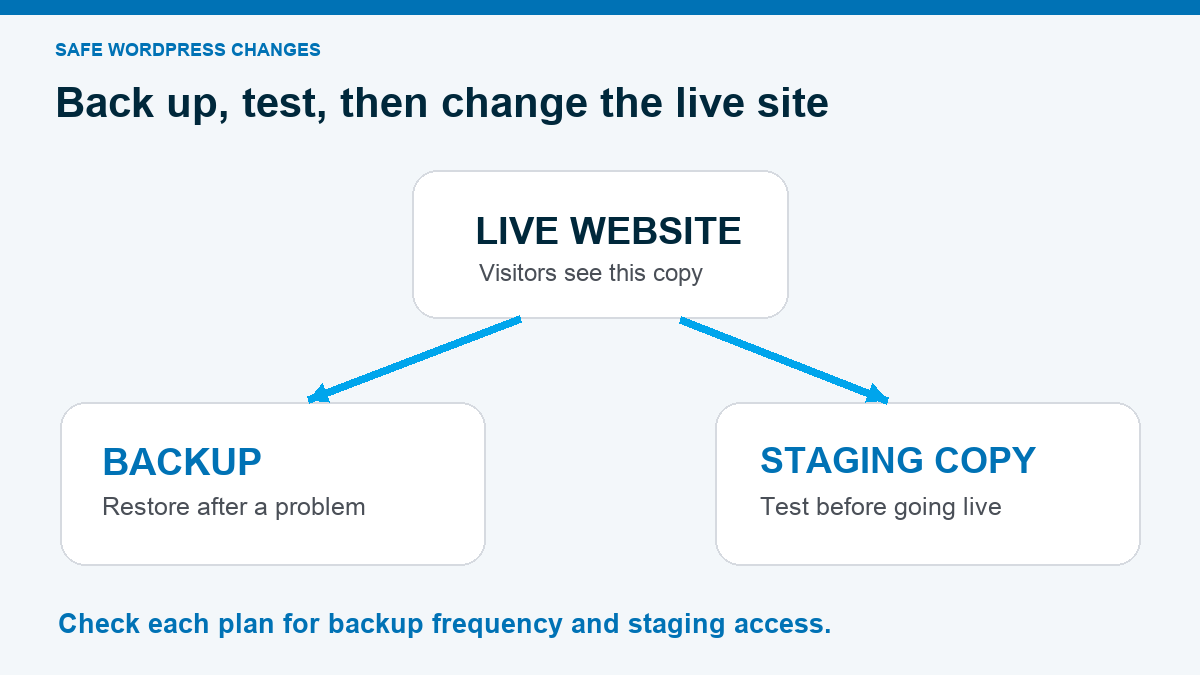
A backup is the copy you restore after a bad plugin update, a broken edit, or a security incident. Staging is a separate copy where you test the change before visitors see it. They solve different problems, and neither removes the need to know how restoration works.
SiteGround says its shared plans include daily backups and up to 30 daily restore points. GrowBig and GoGeek add staging and manual backup slots, according to its backup documentation and plan page. Hostinger's current Premium offer lists weekly backups, while Unlimited lists daily backups. Its WordPress Overview guide includes Unlimited in the staging-eligible tier, but its staging setup guide still says Business or above. Those labels need clarification at checkout before you buy Unlimited for staging.
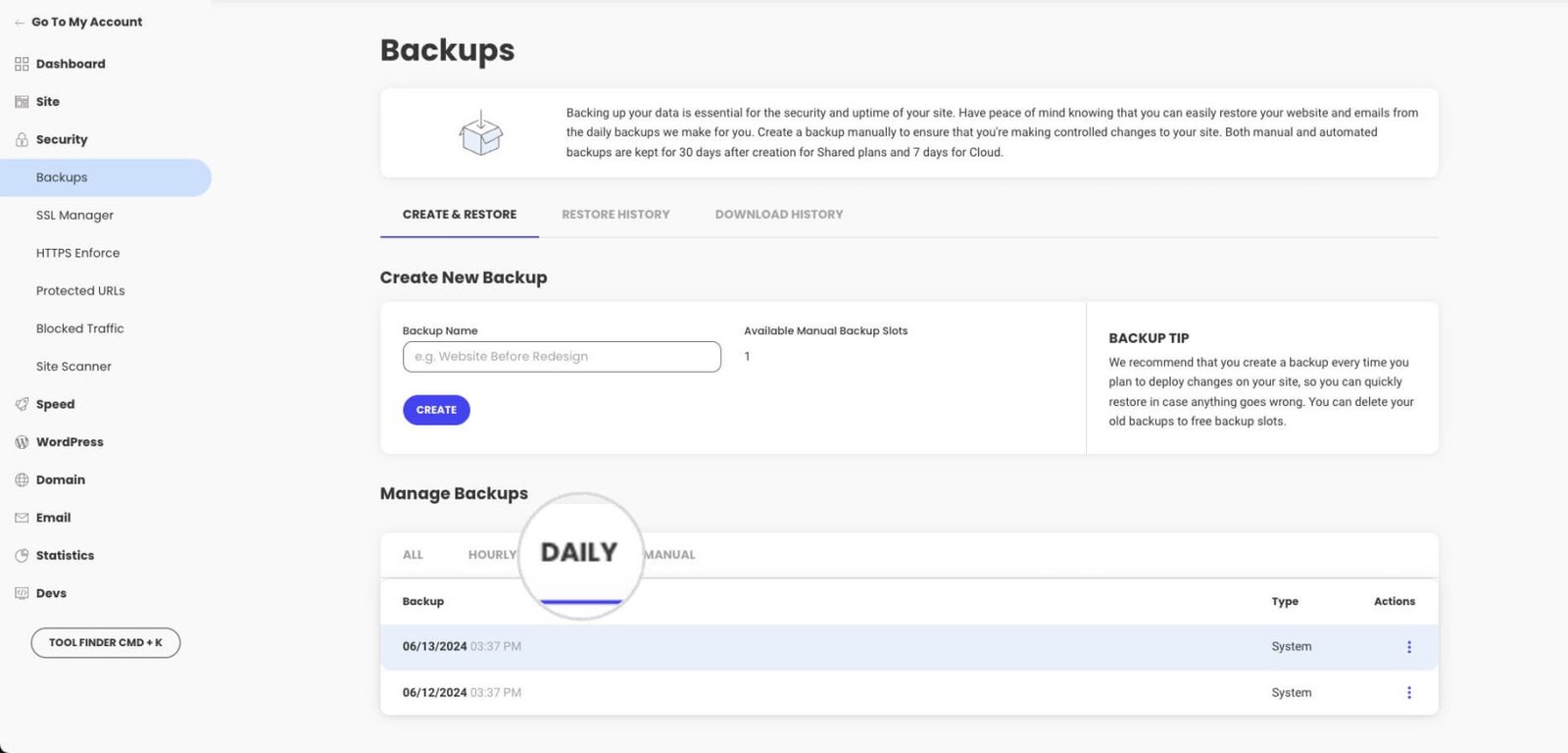
The Daily tab sits above a list of dated restore points. On a phone, open the full-size image to read that list. The same screen has a separate place to create a manual backup when the plan allows it. The plan page tells you what is included; the restore screen tells you what you would use on a bad day.
Hostinger's current support guide shows a different operation in its staging menu: Publish, Revert, and Delete. Publish is the action that can send your test copy to the live site. Check the plan's staging eligibility first, then treat that button as a release step, not a harmless preview.
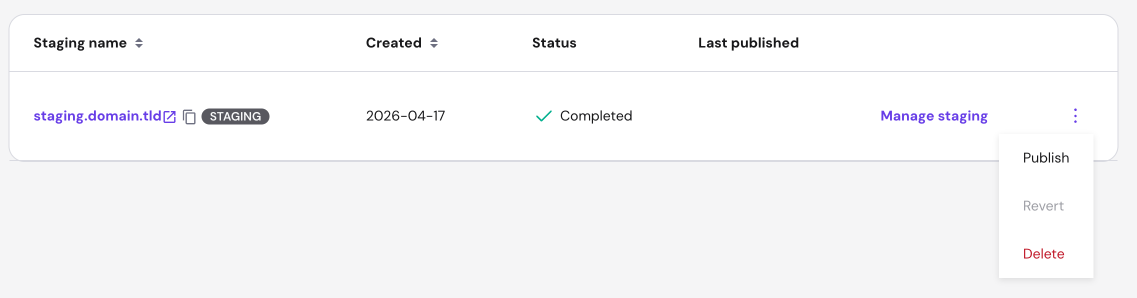
Say you copy your store to staging on Monday, fix a design problem there, and push that copy live on Thursday. What happened to the orders placed Tuesday and Wednesday? A full database push could overwrite them. Hostinger's staging documentation warns about live changes made after you create the staging copy. Before pushing staging to a store or lead site, take a fresh backup and check exactly which files and database tables will be replaced.
Don't click “push live” on autopilot. If a site takes orders, bookings, or form submissions, confirm whether the staging push replaces its live database. Back up first, then test the site and submissions after the change.
If your site is mostly static, that risk is smaller. If people interact with it every day, recovery and safe testing should be part of the hosting decision, not an afterthought.
What will setup and migration actually feel like?
In my WordPress setup walkthrough, Hostinger asks whether you're creating a new site or bringing an existing one over. Then it asks what you want to build. Choose WordPress if you want the self-hosted WordPress site this comparison is about. That is a useful beginner path: one choice at a time, instead of dropping you into a server dashboard with no map.
SiteGround also documents a Website Setup Wizard: choose a domain, then start a new website or migrate an existing one. Its October 2026 Hostinger-to-SiteGround migration guide shows those choices in the setup screen. I don't have a firsthand SiteGround recording to compare how the dashboards feel, so use its current guide before paying if that experience will decide it for you.
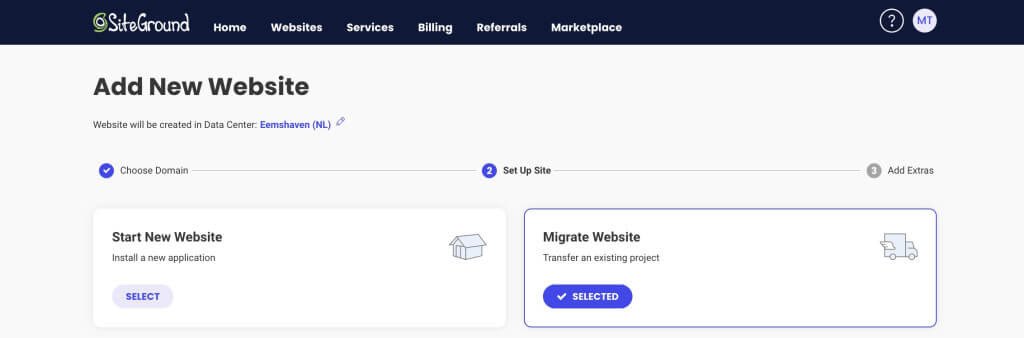
If you're moving a site, “migration complete” means more than copied files. Open the new site before switching DNS and test a public page, the WordPress login, a form submission, any checkout, email, redirects, and SSL. Keep the old host running until those checks pass and you have a fresh backup. Run those checks no matter which company moves the files.
Phone support can be a deciding factor, but be precise about it. SiteGround offers a phone route through its Client Area; its support guide says the option depends on the issue and current availability. Hostinger advertises 24/7 online support. If a live call is essential to your work, confirm the route on the plan you're buying rather than assuming every issue gets a phone number.
What about speed and security?
Both hosts advertise caching, SSL, a CDN, and WordPress tools. Cool. That still doesn't tell us which one will load your site faster. I haven't run the same WordPress build on both hosts, in the same region, with the same theme, plugins, and test method. So I can't give you an honest speed winner from a feature page.
Once you're testing a plan, use the pages that matter: your homepage, a long article, and your checkout or lead form. Keep the images, plugins, and third-party scripts the same. Test from the region where most readers or customers live. A slow page can come from a heavy site build, even on good hosting.
For security, I ask a more useful question than “Does it include SSL?” Can the account owner turn on two-factor authentication? How often does the plan back up the site, and can you restore it yourself? Who updates WordPress and plugins? What happens if malware is found? Hosting tools help, but neglected WordPress software can break on either provider.
Which host fits your site?
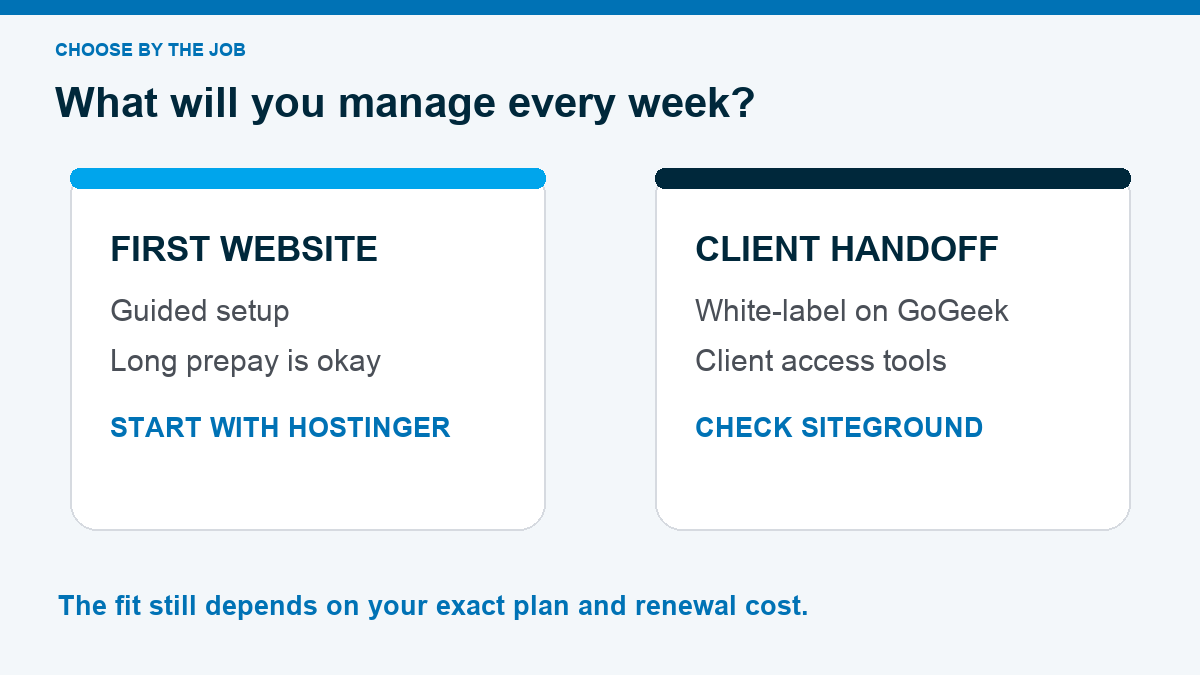
My pick for a first WordPress site is Hostinger. You're guided through the launch, and I've used that path in my own WordPress tutorials. I would check the current Unlimited plan first if you'll edit the site regularly, because it lists daily backups. Premium can work for a simpler, mostly static project, but read its weekly-backup limit and 48-month prepaid term before choosing it.
SiteGround wins a different job. StartUp lists daily backups without moving up from the entry shared plan. GrowBig adds staging. If you build sites for clients, inspect Site Tools collaborator access and GoGeek's white-label client option. SiteGround's role documentation says the white-label client role is a GoGeek or Cloud feature. Those are specific reasons to choose it, even though its current renewal is higher than the Hostinger plans shown above.
If neither setup matches your site, use our best web hosting comparison for the wider field. If you are still learning what a host does, the plain-English web hosting guide will make these plan details easier to read.
For the actual purchase, I would compare Unlimited and GrowBig first if the site changes often. The cheaper entry plans deserve a look when you have one mostly static site and can accept their different backup and staging limits.
Hosting comparison
Where each host fits
Hostinger strengths
- Guided first-site setup hPanel organizes the common launch and maintenance tasks for a beginner.
- Lower displayed entry rate The current Premium offer is inexpensive per month, with a long prepaid term.
- Upgrade path The current Unlimited offer adds daily backups and more site capacity.
SiteGround strengths
- Daily backups on StartUp The entry shared plan includes daily backups rather than weekly copies.
- Phone support route SiteGround may route eligible issues to phone support through its Client Area.
- Client handoff tools Collaborator access and GoGeek white-label client roles can fit agency work.
If Hostinger fits, open its current plan page and compare the exact checkout with the table above. If daily entry-plan backups or client permissions push you toward SiteGround, check its current WordPress plans. If you choose SiteGround, follow its WordPress setup guide and run the same domain, form, email, and backup checks before launch. Either way, save the final invoice and renewal details before you pay.
Watch the first steps after choosing Hostinger
Once you have hosting, the first screen asks whether you're building a new site or moving one you already own. In my March 2026 tutorial, I choose a new site. If you're migrating, choose that path and keep the old host live until you've tested the copy. The exact labels may change, but the decision does not.
Next, Hostinger asks which platform to use. Select WordPress for a self-hosted WordPress site. Its AI builder is a separate product path; don't click it just because the demo looks fast if WordPress plugins, themes, and ownership are why you bought hosting.
If you want to follow every step after that, watch my full WordPress tutorial below. It covers hosting, a domain, WordPress, a starter template, and mobile cleanup. It was recorded in March 2026, so follow this article's October 21 plan checks for current pricing rather than the video's historical checkout screens.
Already have a WordPress site? Start with the migration checks in the next section instead of repeating the new-site walkthrough. The goal is a working site and a safe cutover, not simply getting through the host's setup wizard.
Before you buy or move, use this checklist
- Choose the real plan: list your websites, storage, backup frequency, staging, email, and support requirements.
- Read the invoice: record today's total, prepaid length, renewal rate, domain renewal, and optional add-ons.
- Name the owner: keep the hosting, registrar, billing, and recovery accounts under the business owner's control.
- Plan the move: back up the current site, test the migrated site and forms, then update DNS.
- Test recovery: find the restore screen and confirm you can recover the site before the first big change.
That checklist will catch a bad fit faster than another generic speed claim. If you choose Hostinger, start with the beginner website build guide after the account is ready.
These are the decisions that tend to come up after the first price comparison.
Frequently Asked Questions
Is Hostinger cheaper than SiteGround?
Hostinger shows a lower current monthly entry offer, but its displayed Premium price requires a 48-month prepayment. SiteGround StartUp shows a 12-month introductory term. Compare upfront and renewal totals over the same period before calling either one cheaper for your situation.
Does SiteGround include daily backups?
SiteGround says its shared hosting plans include daily backups. Its backup guide says shared plans keep up to 30 daily copies; check the exact retention and restore options on your chosen plan.
Can I use staging on either host?
SiteGround lists staging on GrowBig and GoGeek. One current Hostinger support page lists Business/Unlimited or above, while its staging setup page says Business or above. Confirm staging on the exact Hostinger plan at checkout before paying.
Can I move a WordPress site between the two?
Yes. Both advertise migration help. Keep a current backup and check pages, forms, email, redirects, SSL, and the WordPress login on the new host before switching DNS or canceling the old account.
Which would you choose for a first WordPress site?
I would begin with Hostinger for its guided setup if the prepaid term fits my budget, then choose a tier with the backup frequency the site needs. SiteGround is worth checking when its entry-plan backups, phone support route, or client handoff tools solve a specific requirement.