
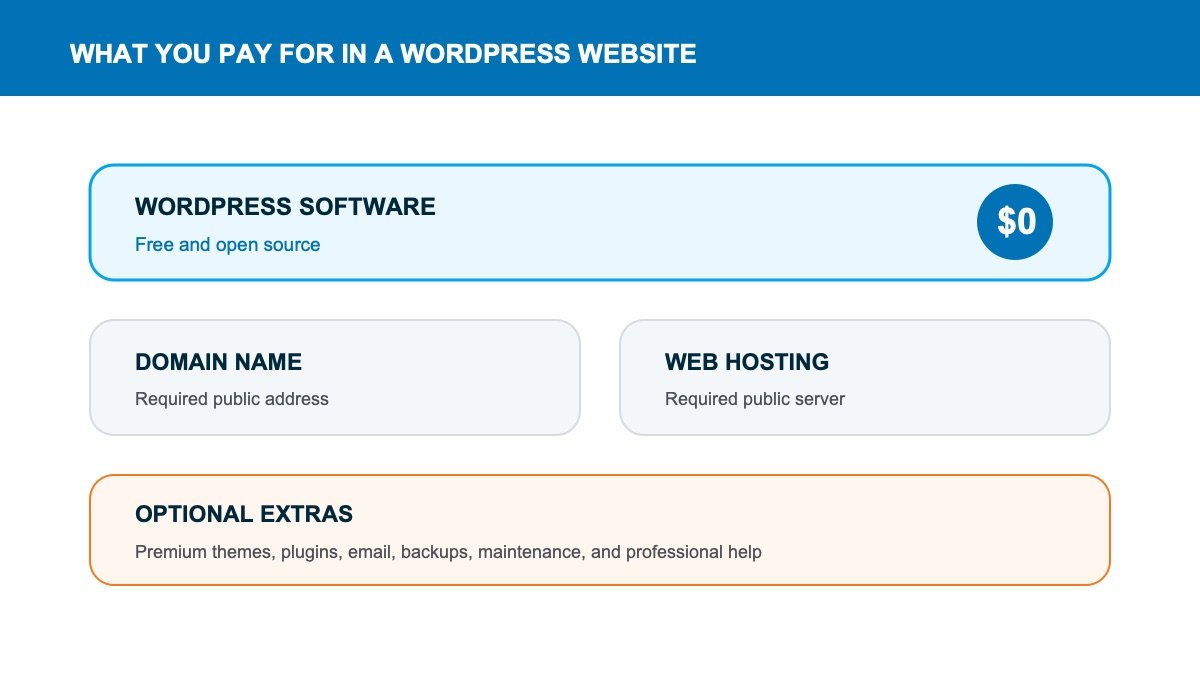
Yes, WordPress is free, open-source software. You can download it, install it, change it, and use it to build a website without paying WordPress a software license. A real website still needs a domain and hosting, and you may choose to pay for a theme, plugins, email, backups, or professional help.
That's the answer most explanations blur. WordPress itself costs $0. Publishing a professional WordPress website does not usually cost $0.
This is a cost-basis guide, not a price quote. It shows which parts require payment so you can compare current domain, hosting, email, and software rates without mistaking an introductory offer for the long-term total.
Quick answer: Expect two required costs for a self-hosted WordPress site: a domain name and web hosting. Everything else is optional, though paying for a strong host, reliable backups, and the right premium tool can save time.
If you want to see the zero-dollar route in practice, this tutorial builds a WordPress site with free hosting, a free subdomain, Astra, and Elementor, then shows the later move to a custom domain and paid hosting:
The video proves that you can start without paying. The breakdown below explains which compromises come with that setup and what a professional site normally costs over time.
In the walkthrough, I build the free version first instead of hiding behind a pricing table. I create a free hosting account, choose a free subdomain, install WordPress, import an Astra starter site, edit it with Elementor, add pages, and publish it. Then I show the upgrade path to a normal custom domain and paid hosting, including how to migrate the site without rebuilding it.
Why WordPress is free
The distinction in this guide starts with two first-party facts: WordPress publishes the software under the GPL, while its own hosting documentation says a working installation still needs a web server. Free software and a free production website are not the same promise.
WordPress.org distributes WordPress under an open-source license. The code is developed in public by a global project, and anyone can download it from WordPress.org. There is no per-site license fee and no requirement to pay more when your traffic grows.
Free software doesn't mean the website lives nowhere. WordPress needs a server that stores the files, runs PHP, connects to a database, and sends each page to visitors. That server is web hosting.
If you want the plain-English explanation of the software before the cost breakdown, read our guide to what WordPress is and how it works. This post stays focused on the money.
WordPress.org vs WordPress.com
The name WordPress refers to two related products, and mixing them up creates most of the confusion.
| WordPress.org | WordPress.com | |
|---|---|---|
| What it is | Free open-source software | A hosted website service |
| Hosting | You choose and pay for a host | Included in the plan |
| Themes and plugins | Install any compatible option | Features depend on the plan |
| Ownership and portability | Move files and database between hosts | Managed inside WordPress.com's platform |
| Best for | Serious sites that need control | People who prefer a managed service |
This guide uses self-hosted WordPress.org because it gives you control over hosting, themes, plugins, and the full site. You still pay outside vendors for the infrastructure and any premium products you choose.
The two costs almost every WordPress website needs
1. A domain name
Your domain is the address people type, such as yourbusiness.com. You rent it through a registrar and renew it, usually every year. Some hosting plans include the first year, but the domain remains a separate asset with its own renewal.
Domain prices vary by extension and registrar. Standard .com domains are usually inexpensive; premium domains and specialty extensions can cost far more. Our guide to the best domain registrars explains what to check before buying.
2. Web hosting
Hosting is the server that runs WordPress and makes the site available online. It is the largest required cost for most new sites. Entry-level shared WordPress hosting can be inexpensive, while managed, cloud, and high-traffic plans cost more because they include more resources, backups, support, and performance tooling.
I recommend starting with a host that makes installation, SSL, backups, and support easy. Saving a few dollars on a confusing host isn't a win if the site is slow or you can't restore it. See our current web hosting comparison for the options we actually recommend.
Optional WordPress costs
Themes
A WordPress theme controls the broad design and layout system. The official theme directory has thousands of free options, and a good free theme is enough for many business sites and blogs.
A premium theme can add templates, design controls, support, and updates. Pay when the theme replaces real design or development work, not because a sales page tells you free themes look unprofessional. Our list of the best free WordPress themes is a good place to start.
Plugins
Plugins add features such as forms, SEO controls, backups, ecommerce, memberships, and security. Many of the best plugins have a useful free version. Premium plans usually add advanced features, priority support, or more sites.
Don't buy a giant bundle before you know what the website needs. Every plugin adds another update, setting, and possible conflict. Start with the lean stack in our guide to the best WordPress plugins, then add only what solves a specific problem.
Page builders
The WordPress block editor can build complete pages for free. Visual builders such as Elementor also offer free versions, with premium upgrades for advanced widgets, templates, dynamic content, and theme-building controls.
For a first site, use the free version until a paid feature solves a problem you can name. Our Elementor tutorial shows how far you can get before upgrading.
Website hosting does not always include a professional mailbox. You may pay separately for an address such as you@yourdomain.com, especially if you want Gmail or Microsoft Outlook as the interface.
Free forwarding can work for a simple setup, but a business should use a dependable mailbox with spam protection and proper domain authentication. See our guide to creating a professional email address.
Backups and security
Many hosts include basic backups and SSL. That doesn't guarantee the backup runs often enough, lives outside the same account, or has ever been restored successfully. A second independent backup can be free or paid, depending on storage and scheduling.
The important part is the restore test. Our WordPress backup guide walks through building a backup you know you can recover.
Maintenance and professional help
You can maintain WordPress yourself by updating the core software, theme, and plugins; checking backups; monitoring security; and fixing problems when updates collide. The software doesn't charge for those tasks. Your time still has value.
A maintenance plan pays someone else to handle that work and respond when the site breaks. Custom design, copywriting, SEO, migrations, and development are separate professional services rather than WordPress fees.
What each WordPress setup requires
| Site type | Required stack | Optional upgrades | Best approach |
|---|---|---|---|
| Personal blog | Domain + entry hosting | Premium theme or email | Use free theme and plugins |
| Small business site | Domain + quality hosting + business email | Page builder, forms, backups | Pay for reliability and support |
| Ecommerce site | Domain + stronger hosting + payment processing | Premium extensions, email, security | Budget for maintenance and testing |
The cheapest possible site isn't always the cheapest site to operate. A weak host, abandoned plugin, or untested backup can create hours of repair work. Spend first on the foundation, then add design extras.
Can you build a WordPress website completely free?
You can install WordPress on your own computer and build a complete site locally for $0. That is perfect for learning, designing, and testing. Nobody else can visit it until you put it on a server and connect a public address.
You can also use a free hosted plan or temporary subdomain, but the platform may limit plugins, themes, storage, monetization, or branding. That's fine for practice. It isn't the setup I would choose for a business you want to own long-term.
Watch the renewal price. Hosting and domains often advertise an introductory rate. Check the normal renewal before you choose a multi-year plan, and budget from that number instead of the first checkout screen.
How to build the free WordPress version from the video
1. Create a free hosting account
The free route starts with a hosting account and temporary address. Confirm that the selected plan is genuinely $0 before you create the site.
The tutorial starts with InfinityFree. Create an account, verify your email, and select the free hosting option. Free hosts may place limits on storage, traffic, server resources, support, backups, and which features you can use. That is acceptable for a learning site as long as you understand what you are trading away.
2. Choose a free subdomain
A free subdomain gives the site an address without buying a domain. The address includes the host's domain rather than a clean yourbusiness.com. Pick something readable for testing, but do not treat that address as a permanent brand asset. You do not own the root domain, and moving later is part of the plan.
3. Install WordPress and log in
Use the host's installer, then confirm that you can reach the real WordPress dashboard before changing the design.
Use the host's WordPress installer, create an administrator username and a strong password, and save the /wp-admin/ login address. WordPress itself is still the same open-source software here. The free part comes from the host providing a limited server and subdomain around it.
4. Install Astra and import a starter site
A starter site gives you editable page structure without pretending the first imported design is finished.
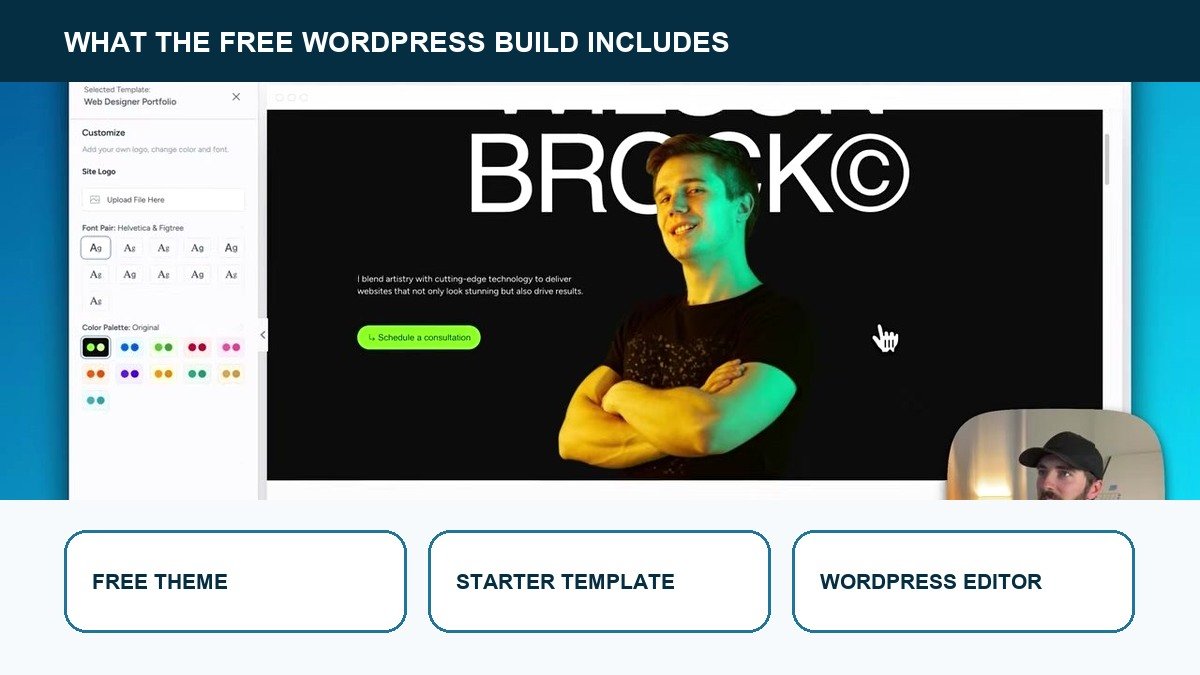
In WordPress, install the free Astra theme and its starter-template plugin. The video imports a complete design so we are editing a real page instead of staring at a blank canvas. Choose a template marked as free, upload a logo if you have one, set the colors, and let the importer create the pages and menus.
5. Edit the site with Elementor
Open the homepage with Elementor. Click any heading, paragraph, button, or image to replace it. Use the navigator when sections are difficult to select, and update the page after each meaningful group of changes. The free version is enough to change the starter site's core content, imagery, spacing, colors, and basic layout.
The tutorial also edits the header and menu from WordPress, adds a new page, and uses Elementor's free tools to build the page content. You do not need a paid page builder just to replace the demo business with your own.
6. Decide when the free address has done its job
A free subdomain is fine while you learn the editor and decide whether the site is worth continuing. Upgrade when you need a credible address, dependable email, better speed, backups, support, or enough server resources for real visitors. That is the line between “WordPress is free” and “a professional website has operating costs.”
7. Migrate instead of rebuilding
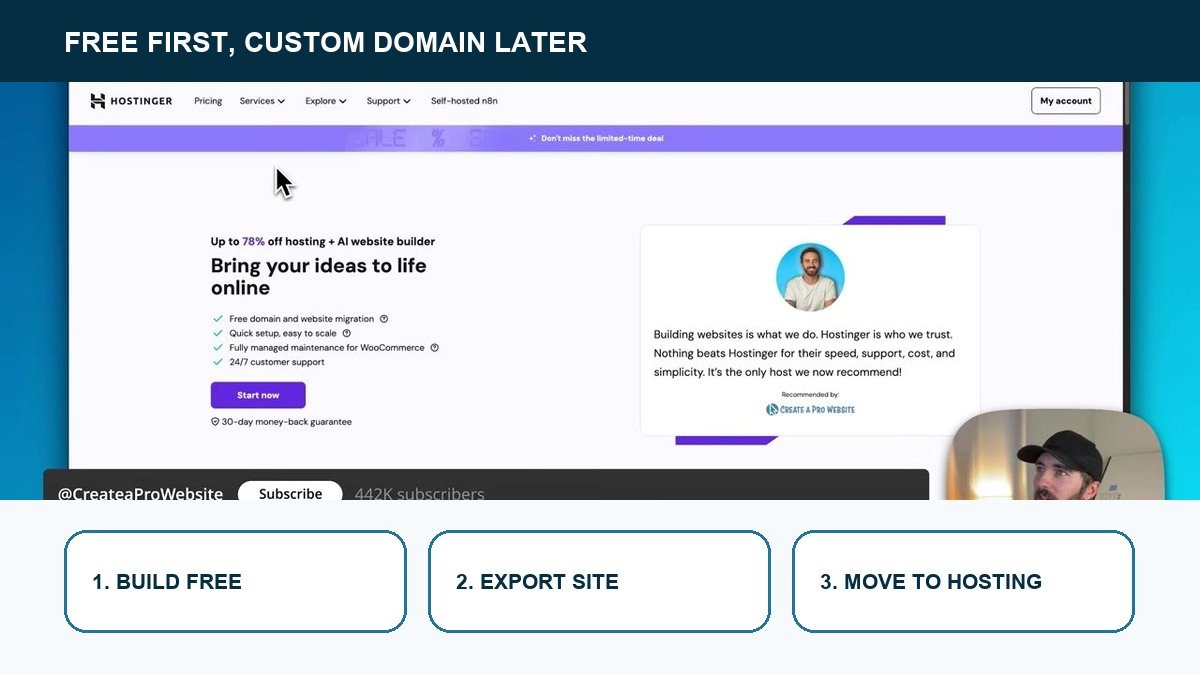
The last part of the video creates a paid hosting account with a custom domain, installs a fresh copy of WordPress, and migrates the free site using a migration plugin. That means the work you did on the free version does not have to disappear. The pages, design, and settings can move to the new host.
Make your own backup before migrating. Confirm the new site loads on the temporary address, check forms and links, point the domain only after the copy is complete, and keep the old site available until you have tested the new one. Migration is straightforward when you verify each step instead of deleting the original immediately.
The move does not suddenly make WordPress paid software. WordPress, Astra, Elementor Free, and the pages you built can remain free. What changes is the infrastructure around them: you now pay for a dependable server and a domain you control. You may also gain SSL management, backups, support, email options, more storage, and fewer resource limits depending on the host.
Use the free build as a runway. Keep the WordPress, hosting, and domain accounts under your own email, save the administrator credentials, and back up the site before moving it. Upgrade when visitors or customers need a dependable address and server, not simply because the software stopped being free.
How to keep WordPress costs low
- Buy the domain yourself. Keep the account and renewal email under your control.
- Choose the right hosting tier. A new brochure site doesn't need an enterprise server.
- Start with a proven free theme. Upgrade when a premium feature replaces real work.
- Use fewer plugins. One dependable tool is better than five overlapping ones.
- Review renewals once a year. Remove licenses and services the site no longer uses.
- Back up before changes. Preventing one emergency repair can cover years of basic hosting.
Start with the required foundation, then add paid tools only when they replace work or reduce risk. Our WordPress tutorial for beginners walks through the setup step by step.
Frequently Asked Questions
Is WordPress free forever?
The WordPress.org software is free and open source. There is no built-in expiration or future license payment for the core software. Your domain, hosting, and premium products have their own renewal terms.
Does WordPress charge a monthly fee?
Self-hosted WordPress.org does not charge a monthly software fee. Your hosting company may bill monthly, annually, or for a longer term. WordPress.com is a hosted service with its own plans.
Can I use WordPress without hosting?
You can run WordPress locally on your computer without paid hosting. To make the site publicly available, it needs a web server somewhere. That may be your own server, a hosting provider, or a hosted WordPress service.
Are WordPress themes free?
Many WordPress themes are free, including options in the official directory. Premium themes charge for extra designs, controls, support, or updates. A free theme can produce a completely professional site when it is maintained and configured well.
Are WordPress plugins free?
Thousands of plugins have free versions. Some are fully free; others sell premium features or support. Use the smallest set that covers the site's real needs and keep every plugin updated.
How much does a basic WordPress website cost?
A basic self-built site needs a domain and hosting. The final total depends on the provider, billing term, renewal rate, and whether you add business email or premium tools. Check current pricing directly before buying because these rates change often.
Is WordPress cheaper than Wix or Squarespace?
WordPress can cost less because you choose the host and decide which premium tools to add. Wix and Squarespace bundle hosting and the builder into one subscription, which can be simpler to predict. Compare the complete stack and the amount of control you want, not only the advertised starting price.