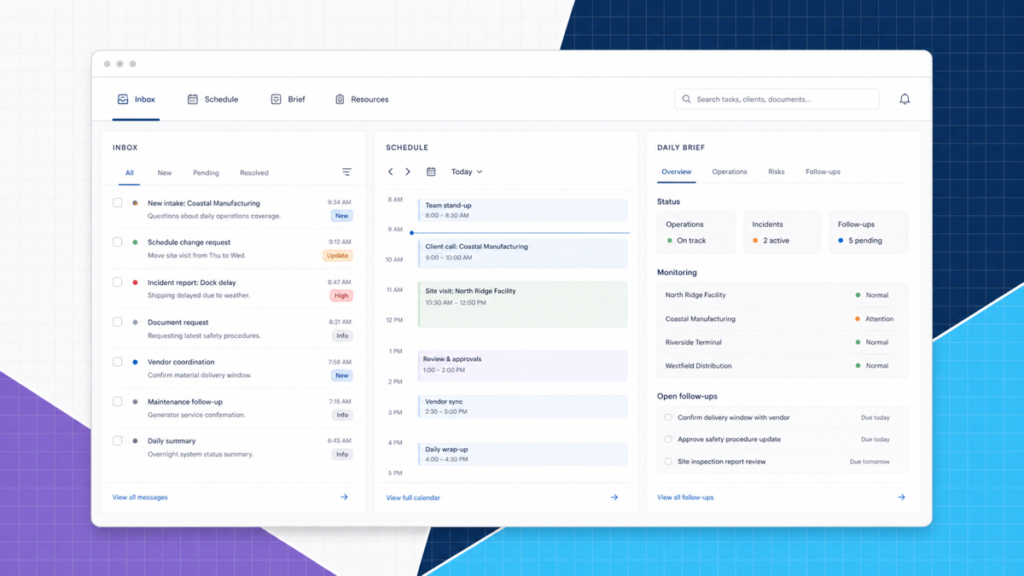
The best OpenClaw use cases are jobs that start in a message, require several tools, and end with a result you can verify. Think “build my morning brief from my calendar and tasks,” not “run my entire life.” OpenClaw becomes useful when it connects context, tools, and repeatable instructions behind one assistant.
That also explains where people go wrong. They give a brand-new agent vague authority over everything, then can't tell whether it completed the job correctly. Start with a narrow workflow, add a review point, and expand only after the result is dependable.
Quick answer: Strong OpenClaw examples include daily briefs, source-linked research, content preparation, website monitoring, inbox triage, meeting follow-up, file organization, personal knowledge retrieval, and carefully scoped coding tasks.
This full beginner walkthrough shows several of the building blocks behind these use cases, including skills, Google Workspace access, scheduled jobs, memory, security, and webpage monitoring:
Use the examples below to decide which narrow, checkable workflow to build first instead of turning on every integration at once.
These are not hypothetical feature ideas. In the video, I connect OpenClaw to Telegram, install a Google Workspace skill, create a real calendar event, explain scheduled jobs and heartbeats, change the assistant's operating instructions, route simple work to a cheaper model, and build a webpage monitor that sends an alert. Those demonstrations are the backbone of the examples below.
What makes a good OpenClaw workflow?
Before copying a use case, check it against OpenClaw's official capabilities overview and security model. Those pages define what tools, skills, channels, and trust boundaries actually support today.
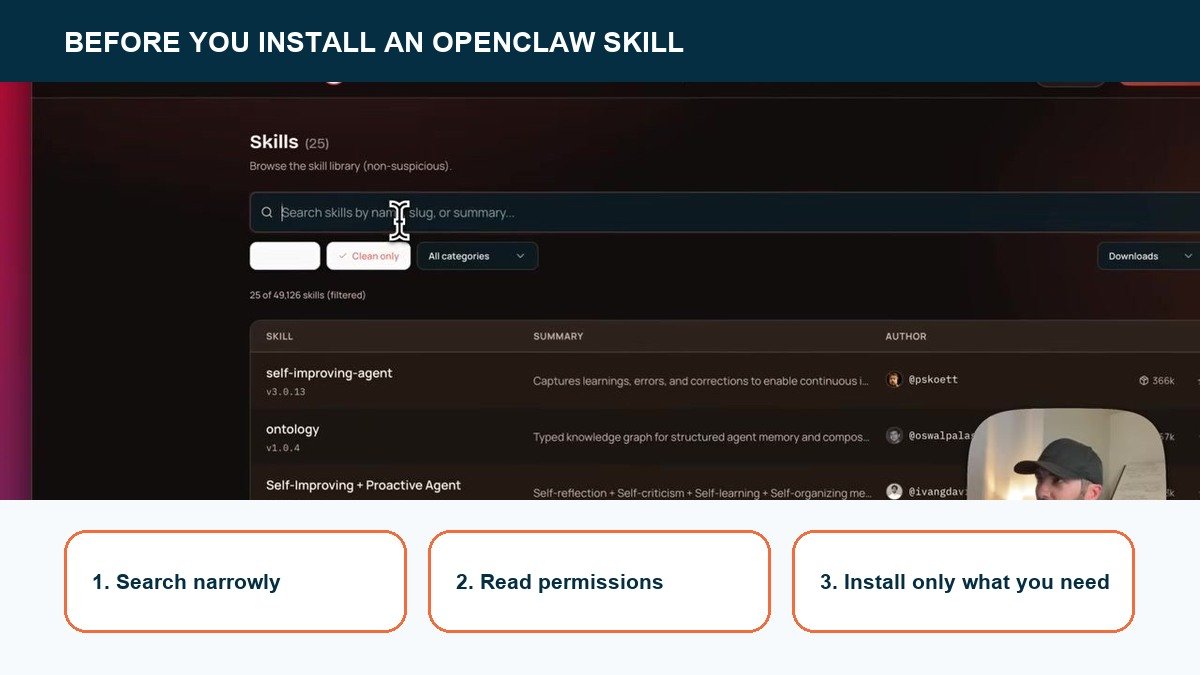
Skills are the reusable layer. Search for the narrow capability you need before giving the agent broader access.
OpenClaw is a self-hosted Gateway that connects an AI agent to channels, files, browser tools, commands, skills, and scheduled jobs. The useful part isn't chatting with a model. You can already do that in dozens of apps. The useful part is giving the assistant a controlled route from a request to real work.
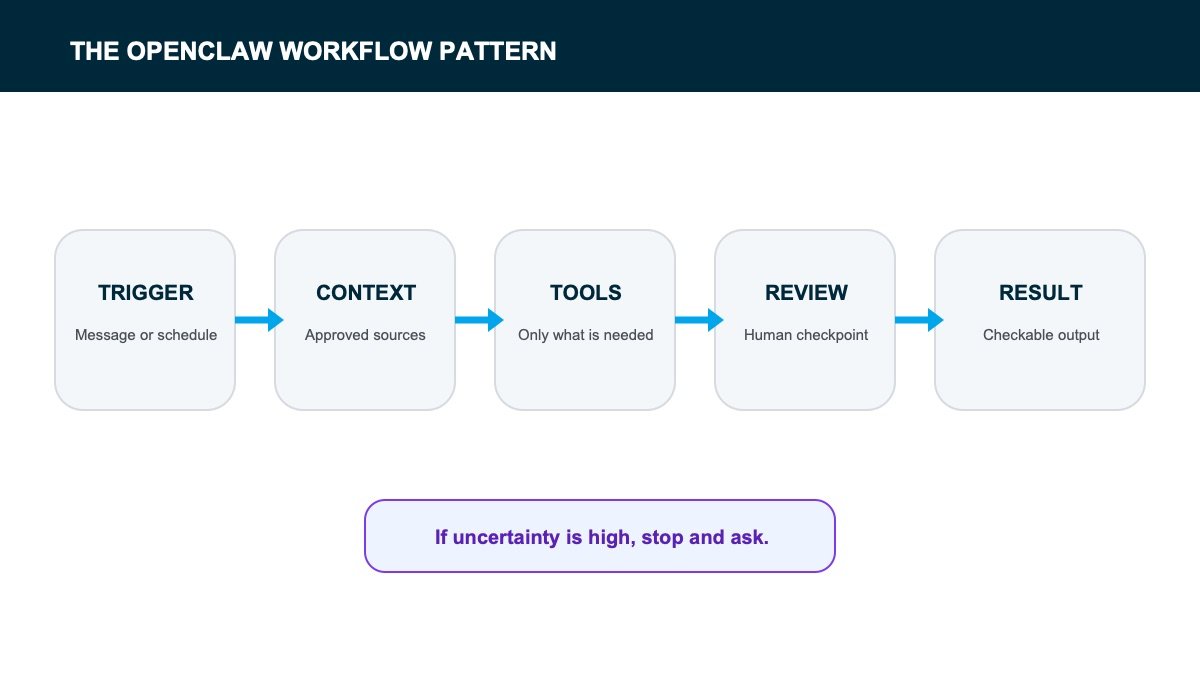
A good first use case has four parts:
- A specific trigger. A message, a schedule, a new file, or a known event starts the job.
- Bounded inputs. The assistant knows exactly which calendar, folder, website, or inbox it may read.
- A checkable output. You can inspect a brief, draft, report, or proposed change before trusting it.
- A safe failure mode. If the agent gets confused, it stops or asks instead of improvising.
If you haven't installed it yet, follow our OpenClaw tutorial first. The examples below assume your Gateway and browser dashboard already work.
1. Build a morning brief from your real day
OpenClaw separates exact scheduled work from recurring background checks. That distinction keeps a morning brief predictable.
A morning brief is one of the cleanest OpenClaw examples because the inputs are easy to define: today's calendar, overdue tasks, and a short list of active projects. The assistant can pull those sources, remove duplicates, and return one page that tells you where the day is likely to break.
Start read-only. Ask for the top three commitments, any schedule conflicts, and tasks that have rolled over more than once. After the brief proves reliable, you can add a second step that proposes a plan. Don't let it reschedule meetings automatically on day one.
The video shows the smaller version first: I tell OpenClaw about a meeting, it asks for the missing time-zone detail, creates the Google Calendar event, and returns a link I can open. A morning brief uses the same connection in reverse. Read today's calendar, summarize what matters, and send the result to Telegram at a fixed time through a cron job.
2. Turn scattered sources into a research brief
Research is a strong fit because an agent can browse, open files, compare claims, and keep source links attached to each conclusion. Give it a question, a source standard, and a required output shape. For example: “Use official documentation and primary research, then produce a one-page brief with confirmed facts, open questions, and links.”
The review step matters. An AI-generated research brief is a starting point, not proof by itself. Require every important claim to point back to the source so you can verify it quickly.
3. Prepare content without auto-publishing it
OpenClaw can turn an approved topic into a research packet, outline, first draft, internal-link plan, and image shot list. That's a useful chain because every stage produces something a human can inspect.
The safe boundary is simple: draft and prepare, but don't publish. A website post carries brand, legal, and factual risk that a background agent shouldn't approve for itself. If you're building this workflow, our OpenClaw prompt library gives you a better starting structure than a one-line “write a blog post” command.
Skills are what make this practical. ClawHub includes skills for common services and workflows, but I recommend reading the source and permissions before installing anything. Give the agent the smallest useful capability, test it on disposable content, and expand only after you know what the skill actually does.
4. Monitor a website and report what changed
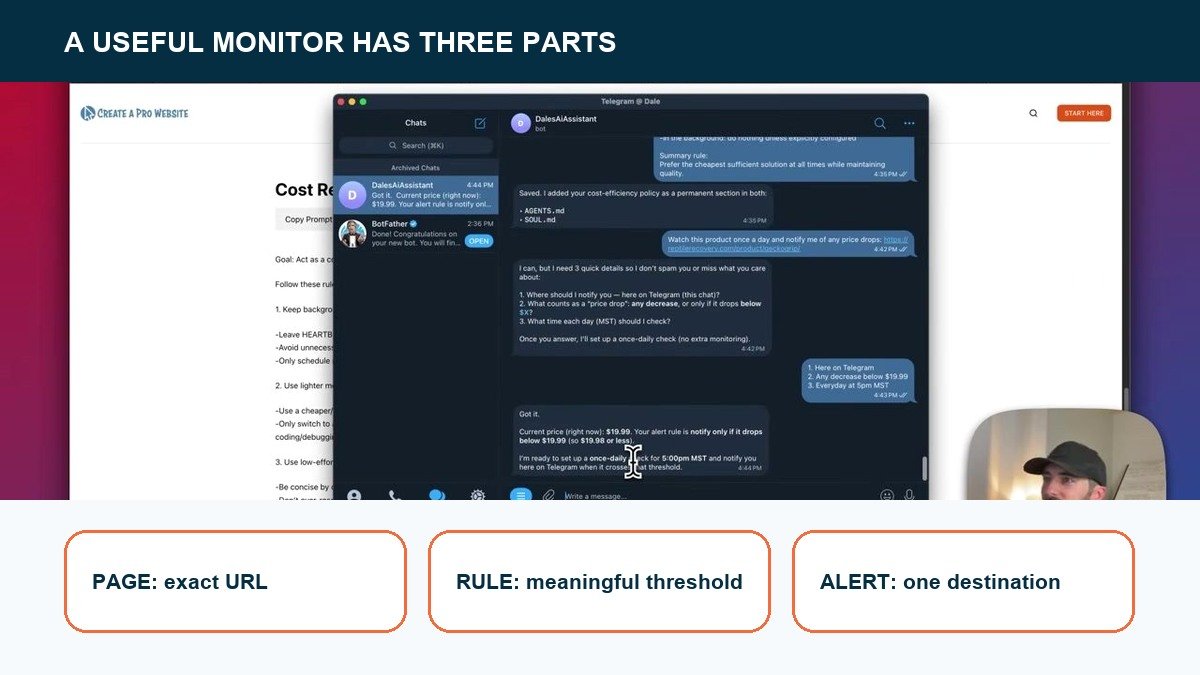
A monitor is useful when the request names the page, the change worth reporting, and what to do when nothing changed.
A website-monitoring agent can check a known list of URLs for broken links, missing titles, changed copy, failed forms, or visual regressions. The ideal output is a concise report that separates confirmed problems from things that merely look unusual.
Keep the first version read-only. Ask the assistant to identify the page, evidence, and likely impact. Let a human approve the fix, especially on WordPress sites where editing the wrong block or template can affect far more than one page.
In the walkthrough, I ask OpenClaw to monitor a product page and notify me if the price changes. Then I edit the page to create a controlled test. OpenClaw notices the new price and sends the alert through Telegram. That test proves the monitor is reading the right page, comparing the right value, and delivering the result where I expect.
5. Triage an inbox without impersonating you
Inbox triage works well when the assistant labels messages, extracts requests, and drafts replies for review. It works badly when it sends confident answers in your name without understanding the relationship or context.
- Good first version: summarize unread messages, group them by urgency, and draft suggested replies.
- Risky version: automatically reply to every new sender or click links inside untrusted email.
- Better upgrade: auto-send only a tiny set of preapproved, reversible responses after weeks of clean drafts.
OpenClaw's security guide warns that tool-enabled agents processing untrusted content need strict tool policies. Email, web pages, and shared documents can all contain instructions the agent should not obey.
The Google Workspace setup in the video starts with Calendar and Drive before Gmail for exactly this reason. Calendar creation is narrow and visible. Gmail exposes the agent to far more untrusted content and gives it a channel where a bad action can affect another person. Earn that permission after the safer integrations work.
6. Close the loop after meetings
Meeting notes often die because nobody converts them into owners and deadlines. OpenClaw can take a transcript or note, extract decisions, assign each action to the person actually named, and draft follow-up messages.
Tell it to separate direct commitments from inferred tasks. “Alex said he will review the homepage” is a commitment. “Alex should probably rethink the pricing” is an inference. Mixing those two creates fake accountability.
7. Search your personal knowledge base
A private assistant becomes far more useful when it can answer “What did we decide about this?” from your own notes. Point it at a bounded workspace, give it canonical naming rules, and require file links or quoted evidence with every answer.
OpenClaw uses two practical memory layers. The daily memory captures what happened recently, while the longer-term memory holds facts and preferences that should survive across sessions. In the video, I also edit the assistant's operating instructions so it becomes more direct, practical, and focused on progress. Memory stores context; instructions shape how it behaves with that context.
This is better than dumping everything into one giant prompt. The assistant can retrieve the relevant project, recent decision, and supporting record when the question arrives. Keep private notes in a private workspace and make sure the underlying folder isn't synced to a public repository.
8. Organize files with a preview before moving anything
File organization is useful when the assistant first produces a move plan: current path, proposed destination, naming change, and reason. You review that table, then approve the exact set of moves.
Never start with broad delete access. Moving a file can usually be reversed. Deleting a large folder because a model misread “archive” cannot.
A solid workflow also checks for duplicate filenames and existing links before moving anything. That turns “clean this up” into a predictable migration instead of a gamble.
9. Handle small coding and maintenance tasks
OpenClaw can inspect a repository, explain an error, update a test, or prepare a narrow patch. The best tasks have a working test or an obvious before-and-after state. “Fix this failing unit test” is safer than “modernize the whole app.”
Keep deployments and destructive commands behind explicit approval. A coding agent that can edit production, rotate credentials, and delete infrastructure has a completely different risk profile from one that prepares a patch in a branch.
Which OpenClaw use case should you start with?
| Use case | Value | Risk | Best starting permission |
|---|---|---|---|
| Morning brief | High, daily | Low | Read calendar and tasks |
| Research brief | High | Low to medium | Browse and read files |
| Content preparation | High | Medium | Create drafts only |
| Website monitoring | Medium to high | Low | Read-only browser checks |
| Inbox triage | High | Medium to high | Read and draft, no send |
| File organization | Medium | High | Propose moves only |
| Coding tasks | High | Varies | Patch and test, no deploy |
Start in the top half of that table. Read-only workflows teach you how the assistant interprets your instructions without risking an expensive surprise.
Use a cron job when the work belongs at a specific time. Use a heartbeat when the assistant should check a condition repeatedly. A 9:00 a.m. morning brief is a cron job. A webpage monitor that watches for a price change is a heartbeat. That distinction prevents a lot of overcomplicated setups.
Cost belongs in the workflow design too. The video shows how to route simple work to a cheaper model while reserving a stronger model for jobs that need better reasoning. You do not need the most expensive model reading the same product page every few minutes. Match the model to the job, then measure the result before spending more.
Use instructions and model routing before adding more tools
Put a cost boundary beside the model choice. A small recurring task should not quietly inherit the most expensive configuration.
A lot of people try to improve an agent by installing another integration. I would fix the instructions first. In the walkthrough, I give the assistant a simple operating style: be direct, stay practical, explain the next step clearly, question bad assumptions, and help the user make progress. The same tools become noticeably more useful because the assistant now has a standard for how to use them.
Write those rules for the job, not for an imaginary all-purpose personality. A research assistant should cite sources and separate confirmed facts from open questions. A calendar assistant should repeat the date, time zone, and attendees before creating an event. A monitoring assistant should report the old value, new value, URL, and check time. Specific operating rules create outputs you can inspect.
Then choose the model. A small model can check whether a webpage value changed or reformat a known report. A stronger model makes more sense when the agent must compare conflicting sources, infer intent, or plan a multi-step task. Routing cheap work to a cheaper model is one of the easiest ways to keep an always-on assistant affordable without weakening the jobs that genuinely need better reasoning.
This also gives you a clean troubleshooting order: inspect the input, inspect the instruction, inspect the tool permission, and only then blame the model. Most unreliable workflows are unclear long before the AI call happens.
Keep a short test log while you build. Record the prompt, approved tools, expected result, actual result, and any correction you made. After five clean runs, you have evidence that the workflow may deserve a schedule. Before that, you only have a promising demo.
For any workflow that touches another person, add one more question: what would happen if this ran twice? A duplicated research brief is annoying. A duplicated email, calendar event, file move, or payment can create a real mess. Give the skill an idempotency check, such as searching for an existing event or draft before creating a new one, and make the assistant report when it skips a duplicate.
That single check turns a clever automation into something you can trust on a normal Tuesday.
How to turn an example into a dependable automation
- Write the result first. Define exactly what the finished brief, draft, or report contains.
- Limit the inputs. Name the approved folders, accounts, websites, and channels.
- Choose the tools. Deny everything the workflow doesn't need.
- Add a stop condition. Tell the assistant what uncertainty requires human input.
- Run it manually. Test the workflow several times before adding a schedule.
- Review failures. Improve the instruction based on what actually went wrong.
This is where OpenClaw's skill system becomes useful. A skill stores a repeatable workflow and review standard instead of forcing you to re-explain the process in every chat.
Frequently Asked Questions
What can OpenClaw automate?
OpenClaw can coordinate any task supported by the tools you connect, including browsing, files, commands, chat channels, scheduled jobs, and custom plugins. The practical limit is not the idea. It's whether you can define safe permissions and a result you can verify.
Can OpenClaw replace Zapier or n8n?
Sometimes, but they solve different problems. Zapier and n8n are built around explicit workflows and integrations. OpenClaw is an agent gateway that can choose tools based on natural-language goals. For predictable business processes, a visual workflow tool may be easier to audit.
Can OpenClaw manage email and calendars?
Yes, when the right integrations and permissions are configured. Start with read and draft access. Let it propose replies or schedule changes before allowing it to send or edit automatically.
Can OpenClaw run on a schedule?
Yes. Its cron tooling can create recurring jobs that continue after the original conversation. Scheduled jobs are powerful, so test the same workflow manually and keep its inputs and permissions narrow first.
Does OpenClaw work for a business team?
It can support business workflows, but the standard Gateway assumes one trusted operator boundary. Don't put mutually untrusted users behind one tool-enabled agent. Separate gateways and credentials are safer when authority shouldn't be shared.
What is the safest first OpenClaw use case?
A read-only morning brief or source-linked research report. Both create obvious value without changing external systems. They also expose weak instructions quickly, which helps you improve the workflow before granting more access.
If you are still setting up the system, start with our complete OpenClaw tutorial. If your job is a fixed app-to-app workflow rather than an agent making judgment calls, compare the options in our n8n alternatives guide before adding another tool.
Useful beats impressive
The best OpenClaw setup isn't the one that controls the most tools. It's the one that quietly completes a real job, shows its work, and stops when the situation falls outside its instructions.
Pick one use case from this list, run it manually for a week, then decide whether it deserves a schedule or more access. If the Gateway is too much infrastructure for that job, choose a simpler hosted assistant or a fixed automation platform.