You are building
How to Create a Nonprofit Website (2026)
Explain the mission, earn trust, and give every supporter a clear way to help.
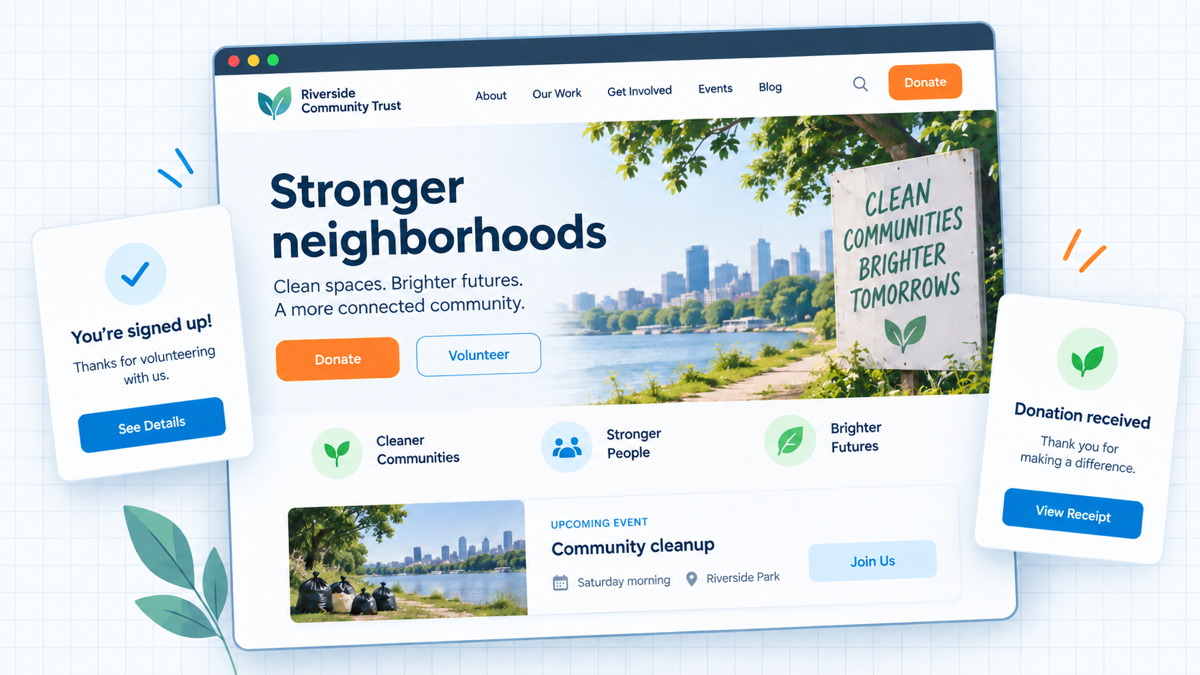
This guide shows you how to create a nonprofit website that does more than describe your group. It should help the right person understand the mission, see the work, trust the people behind it, and take the next useful action: donate, volunteer, attend, share, or get help.
This guide works for nonprofits, community groups, causes, associations, campaigns, clubs, and event-led organizations. We will build a WordPress site on a domain your team controls, then connect the forms and action paths it needs.
By the end, the site will have a focused homepage, mission and program pages, visible leadership and contact details, volunteer or event paths, a tested donation flow when needed, accessibility checks, backups, and a clear owner for updates.
Choose the Primary Visitor Action
Turn the mission into a next step
We start by naming the people who visit and what each one needs. A supporter may want to donate. A volunteer needs the commitment and next date. A community member may need services, an application, or event details. A journalist or partner needs a clear description and contact.
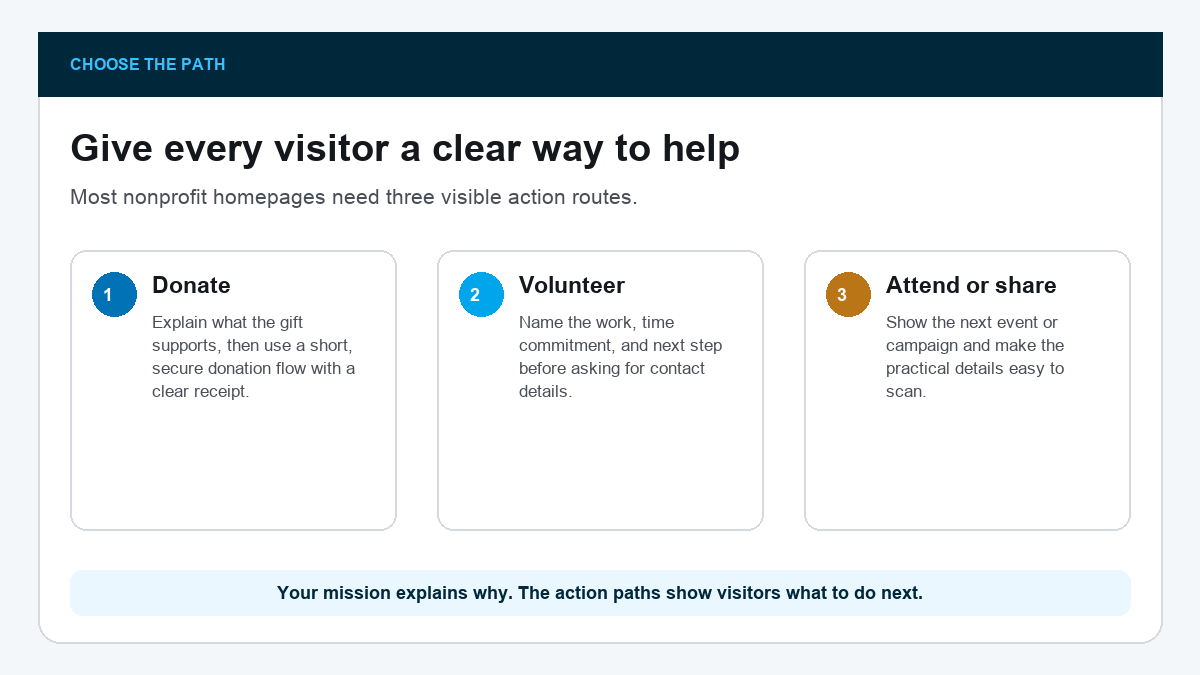
Choose one primary homepage action based on your team’s immediate goal. Keep the other important routes visible, but do not give every request equal weight.
The mission explains why your group exists. The action button tells a visitor how to participate. You need both.
Secure the Domain and Hosting
Keep ownership with the organization
Register the domain and hosting under a team-controlled account, not a volunteer’s personal login. Use a shared business email, record who has administrative access, and turn on two-factor authentication where available.
I recommend Hostinger for a new beginner WordPress build because the guided setup keeps the domain, hosting, and WordPress installation together. Go through our Hostinger discount page, compare current WordPress plans, renewal terms, backups, and support, then choose the smallest plan that meets the site’s needs. If your team already has reliable hosting, keep it and document the login rather than moving for the sake of moving.
Choose a domain close to your public name. Avoid hyphens, hard-to-hear abbreviations, and extensions people will mistype. Set renewal to a team-controlled payment method and calendar the date.
A site can outlast the person who built it. Domain, hosting, email, donation, and analytics ownership must survive a volunteer or staff transition.
Install WordPress and Start From a Template
Create the structure quickly
Install WordPress through the host, create the admin login, and bookmark the domain followed by /wp-admin. From the dashboard, go to Appearance → Themes → Add New, search for Astra, then click Install and Activate.
Next go to Plugins → Add New, install Starter Templates, open it under Appearance, and select Elementor as the page builder. Choosing Elementor here matters because it determines which editor opens the imported pages.
This full-page nonprofit template shows a useful starting structure: mission, current work, responsible people, giving, volunteering, stories, contact details, and a real footer. The layout is reusable. Its claims, numbers, people, partners, and contact information are not.
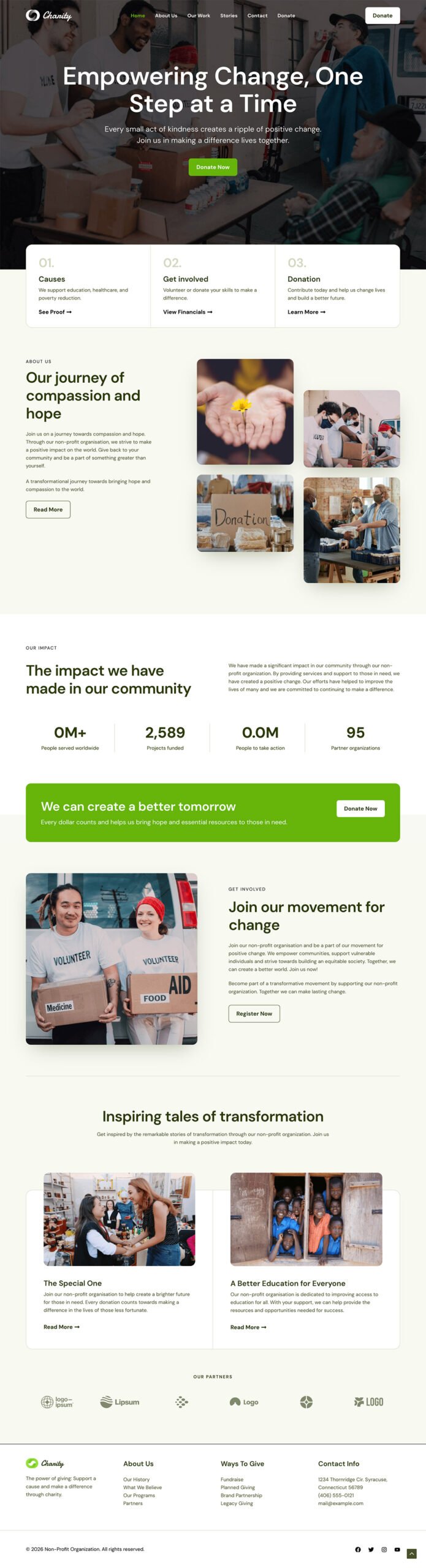
Choose a template with a clear hero, program or project sections, an About page, events or news cards when needed, and visible calls to action. A charity template can be useful, but a community, association, event, education, or church template may fit better. Structure matters more than the template label.
Import Home, About, Programs or Our Work, Get Involved, Contact, Privacy, and Thank You pages. Add Donate, Events, Resources, Leadership, or Get Help only when your team needs them.
Use our WordPress tutorial for the dashboard and the Elementor tutorial for editing the imported pages.
Write a Homepage People Can Understand
State the mission in plain language
Replace the template slogan with one sentence that names who the organization helps, where or how it works, and what changes. We organize free weekend meals for students in Caddo Parish is clearer than Creating brighter tomorrows together.
Open Pages → Home → Edit with Elementor. Click the hero headline on the canvas, replace the copy, update the main button label and destination, and click Update before leaving the page.
Follow the mission with one primary button and a short explanation of the work. Then show a real program, current event, participant resource, or recent result. Use real photographs only when your team has permission to publish them.
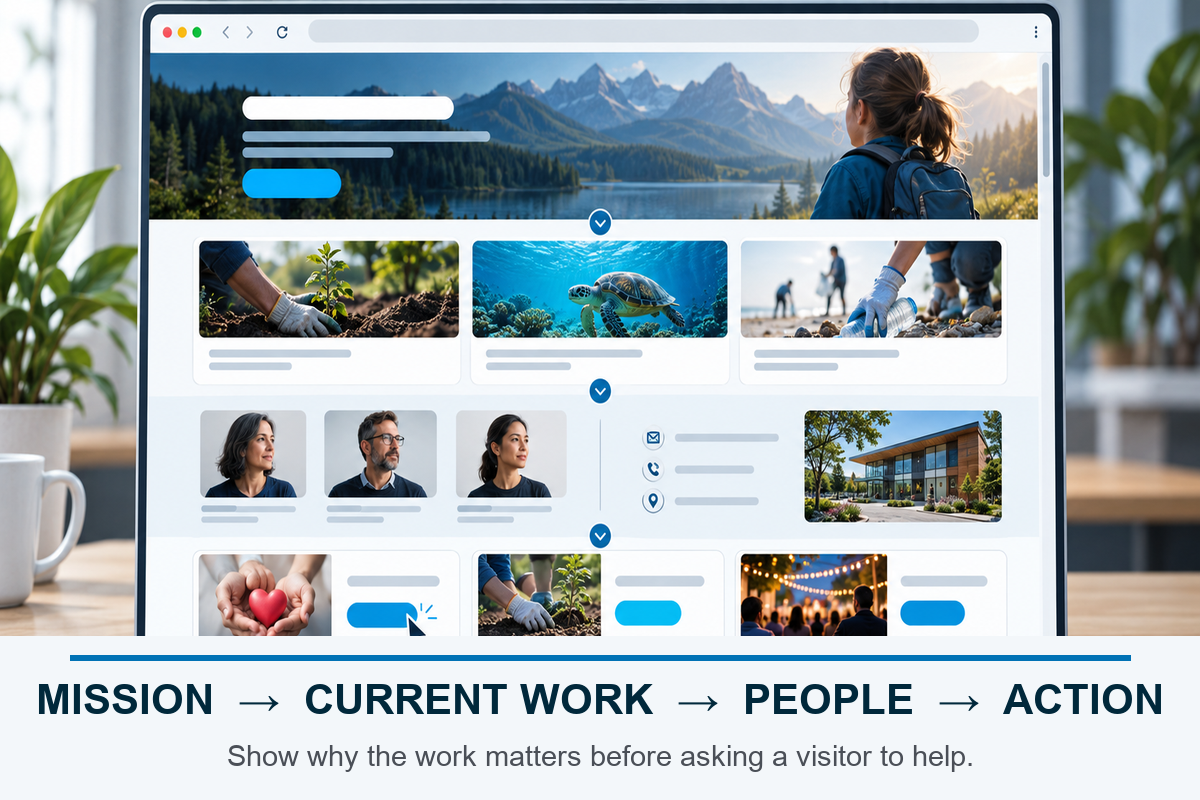
Keep urgent support information easy to find. If people visit to apply, request help, find a location, or call during a crisis, that path should not sit below fundraising copy.
A visitor should understand who you help, what you do, and how to act without knowing the organization’s internal language.
Show the Work and the People
Earn trust before asking
Create one page per major program or service. Explain who it serves, what happens, where or when it runs, how to participate, and who to contact. Remove expired dates and programs instead of leaving visitors to guess.
The About or Leadership page should name the people responsible for the work and provide a real contact route. Add governance, annual reports, financial information, registration details, or policies when your nonprofit normally publishes them and the facts are current.
Do not manufacture impact numbers. If your team has verified counts, name the period and source. If it does not, show the work through current programs, schedules, photos with permission, partner names you are authorized to use, and plain explanations.
Trust comes from specific, current information. A giant Donate button cannot replace missing program details, leadership, or contact information.
Build Volunteer, Event, and Contact Paths
Route each message correctly
Create a short form for each real job. A volunteer form can ask about availability and interests. A contact form needs a reason field so program, media, partnership, and support messages reach the right person. An event form should confirm the date, place, accessibility details, and what to bring.
Use as few required fields as possible. Tell the visitor who receives the message and when to expect a reply. Add an urgent phone or local-service path when the form is not appropriate for immediate help.
Test every form from a private window. Confirm the message arrives at the correct inbox, the sender sees a clear confirmation, and spam protection does not block legitimate submissions. Our contact form guide covers the WordPress setup.
Add a Donation Flow
Make giving clear and trustworthy
If your nonprofit accepts donations, use a reputable processor or donation platform that supports secure payment, recurring gifts when needed, confirmation emails, refunds, exports, and team-controlled account access.
The donation page should explain what gifts support, offer sensible amounts without pressure, state whether recurring giving is available, and tell the donor what happens after payment. Use only tax-deductibility and receipt language the organization is authorized to make. Rules vary by entity and location.
Complete a real or sandbox donation before launch. Verify the charge, receipt, donor record, thank-you page, notification email, mobile flow, cancellation or refund process, and the bank destination.
If you use WooCommerce for a simple campaign, install its current official Stripe extension under Plugins → Add New, connect the processor account your team controls, enable test mode, and complete the entire donation-style checkout before accepting live payments. A dedicated donation platform may be better when you need donor management, recurring gifts, pledge tools, or specialized receipts.
Record which account receives the funds and who handles failed payments, refunds, and donor questions before you expose the form to visitors.
Never test only the Donate button. Follow the entire payment and receipt path, then confirm the money and donor record reach the correct organization account.
Check Accessibility, Privacy, and Security
Protect the people using the site
Use the W3C’s WCAG 2.2 quick reference while checking descriptive page titles, one clear H1, readable contrast, large tap targets, keyboard-accessible navigation, labels for every form field, useful image alt text, captions or transcripts for video, and visible focus states. Test zoom and the site on a real phone.
Collect only the information your team needs. Publish a privacy notice that matches the actual forms, email tools, analytics, and donation systems. Never place sensitive participant or client details in a normal contact form unless you have a properly designed secure process.
Keep WordPress, themes, and plugins updated. Use unique passwords, limit administrator accounts, turn on backups, and practice one restore. The website security guide and backup guide cover the setup.
Test and Assign Ongoing Ownership
Launch a site the team can maintain
Open the site in a private window and complete the primary action. Donate, submit the volunteer form, open an event map, or request help. Repeat on a phone. Check every confirmation and every receiving inbox.
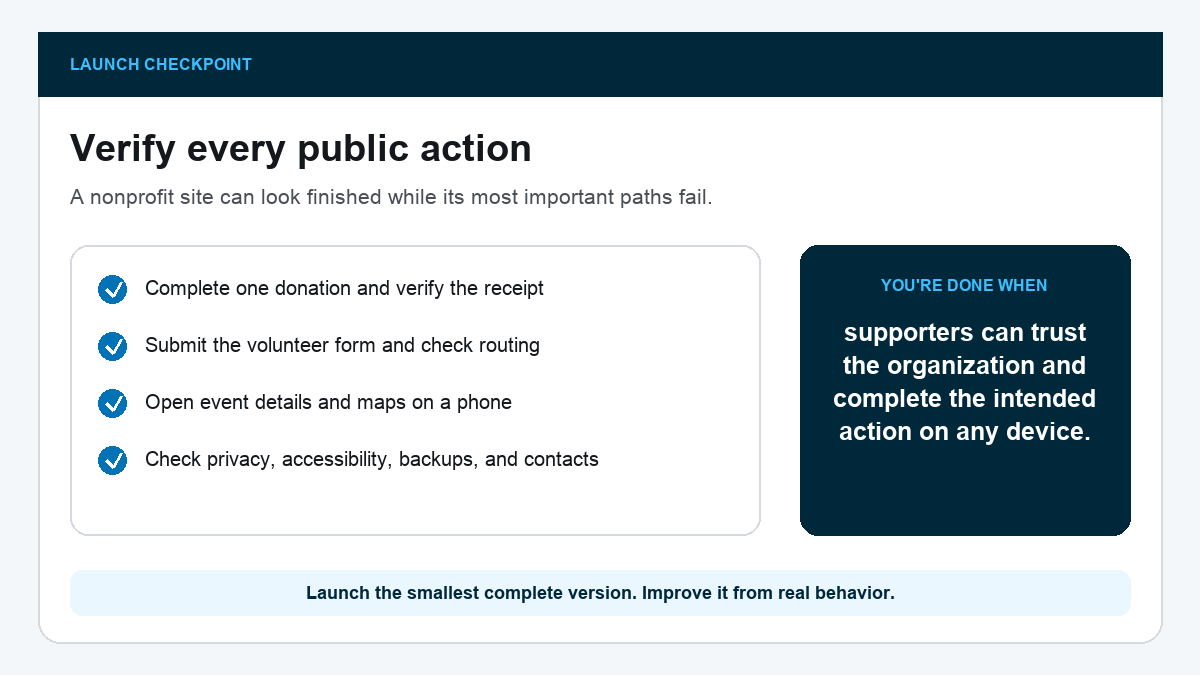
Assign one person to review upcoming dates, forms, leadership, program details, plugin updates, backups, and donation reports. Put the cadence and credentials location in the organization’s operating notes.
Launch when the primary paths work and the information is current. Add new stories, resources, and campaigns after your team proves it can keep the core pages accurate.
How to Adapt This Website for an Association, Campaign, or Community Group
The same structure works when the organization is not a registered charity. A neighborhood association may need notices, meetings, and membership. A community campaign may need a petition, events, and volunteer shifts. A conference or temporary event may need registration, schedules, speakers, and directions.
Start with the real visitor action and keep legal labels accurate. Do not call gifts tax-deductible, describe the group as a nonprofit, or display registration details unless the organization can support those statements. The website should make the organization easier to understand without turning a working label into a legal claim.
What to Put on Each Page
- Home: plain-language mission, current work, primary action, and urgent routes
- About or Leadership: responsible people, history, governance, and contact details
- Programs or Our Work: who each program serves, what happens, and how to participate
- Get Involved: volunteer, membership, partnership, campaign, or event options
- Donate: purpose, secure payment, recurring choice when supported, confirmation, and receipt information
- Contact or Get Help: routed forms, phone or location when appropriate, and expected response time
- Privacy: an accurate explanation of forms, email, analytics, donations, and retained information
Use a News or Blog section only when someone owns the publishing schedule. For time-sensitive organizations, a simple Updates page with the newest item at the top can be easier to maintain than a full editorial program.
A Maintenance Rhythm the Organization Can Keep
A nonprofit site becomes less trustworthy when dates, people, and programs drift out of date. The solution is not a bigger redesign. It is a small review rhythm with a named owner and a backup.
- Weekly during active campaigns: confirm event details, urgent notices, forms, and donation messages
- Monthly: submit every form, review the main action pages, remove expired dates, and check mobile behavior
- Quarterly: review leadership, programs, contact information, privacy language, administrator access, and plugin updates
- Annually: review domain and hosting renewal, donation statements, reports, recurring-gift language, accessibility, backups, and account ownership
Create a short page-owner list. The program lead owns program facts. The event lead owns dates and locations. Finance or the authorized officer owns donation and receipt language. The website owner handles the pages and technical checks without inventing missing information.
When a staff member or volunteer leaves, remove access and transfer any personal-account ownership immediately. A current website with unclear account control is still an operational risk.
Archive old campaign pages when they still have useful history or incoming links, but mark them clearly as complete and point visitors to the current program. Remove private drafts, duplicate forms, and outdated files that no longer serve a public purpose. This keeps search results and shared links from sending supporters into a dead end.
Ask one person outside your team to review the site each quarter. Insiders know the acronyms, staff roles, and program names already. A fresh reader will show you where the website assumes knowledge the public does not have.
Frequently Asked Questions
What pages should a nonprofit website have?
Most need Home, About, Programs or Our Work, Get Involved, Contact, Privacy, and Thank You pages. Add Donate, Events, Leadership, Reports, Resources, or Get Help when the organization actually uses them.
Can I build a nonprofit website with WordPress?
Yes. WordPress gives the organization control over pages, forms, donations, events, and future updates. Keep the domain, hosting, and administrator accounts under organization ownership.
Does every nonprofit need online donations?
No. Add donations only when your team is authorized and prepared to manage the processor, receipts, records, refunds, privacy, and donor support. Some groups need volunteer, membership, event, petition, or get-help paths instead.
How do I accept donations online?
Use a reputable processor or donation platform, connect it to an organization-controlled bank account, explain what gifts support, and test payment, receipt, donor record, refund, and mobile behavior before launch.
What should go on the homepage?
State who you help, what you do, and where or how the work happens. Show one current proof point or program, then provide clear paths to the primary action and other common visitor needs.
Who should maintain the website?
Assign one named owner and a backup. They should review dates, forms, leadership, program details, donations, updates, backups, and account access on a regular schedule.
Run One Final Action Test
Hand the live site to someone outside the team and ask them to donate, volunteer, find an event, or request help without coaching. Fix the first place they get stuck, repeat the test on a phone, and launch once the complete route works.