You are building
How to Make a Business Website (2026)
A professional site your customers can find, trust, and act on.
Before a customer calls, books, or walks through your door, they Google you. If nothing comes up, or what they find looks outdated, they move on. You never even knew they were there.
This guide builds a complete, professional business website on your own domain using WordPress: homepage, services page, about page, contact form, and local SEO setup. No developer, no agency, no coding.
It works for any type of local or service business: shops, cafés, contractors, coaches, salons, law offices, fitness studios. The setup is the same across all of them. The steps that follow get you from zero to a live, Google-ready site.
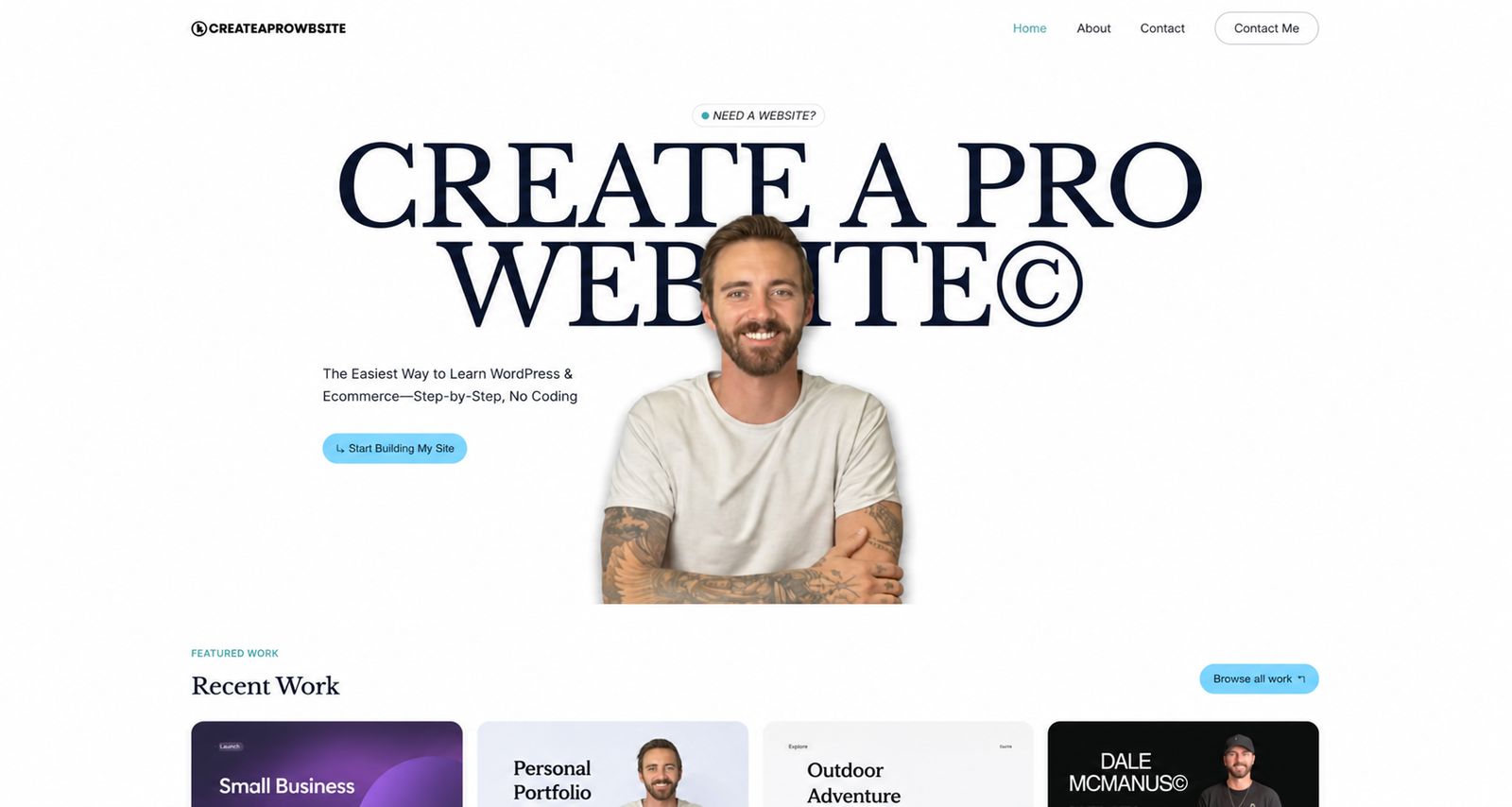
Here’s what the finished site looks like:
Pick Your Platform: WordPress
Why WordPress is right for your business site
Every business website needs a platform: the software it runs on. Your choice determines how much control you have over your design, your SEO, and how you capture leads long-term.
Wix and Squarespace make it easy to start, but you’re renting their infrastructure. If they raise prices or change terms, you’re still on their platform. A Facebook page or Google Business Profile exists to keep customers inside those ecosystems, not to send them to you.
WordPress powers 43% of the web. It’s free, open source, and runs on hosting you control. Every page you publish builds domain authority on an asset you own, not a platform you rent.
| Our pick WordPress | Wix | Squarespace | GoDaddy Builder | Facebook Page | |
|---|---|---|---|---|---|
| Overall rating | |||||
| Setup effort | Easy (via host) | Very easy | Easy | Very easy | Instant |
| Ownership & SEO | Full — yoursite.com | yoursite.com but Wix-hosted | yoursite.com but SS-hosted | yoursite.com but GD-hosted | On facebook.com |
| Design flexibility | Unlimited | Flexible drag-and-drop | Polished templates | Limited templates | Fixed layout |
| Lead capture | Full form control | Built-in forms | Built-in forms | Basic forms | Messenger only |
| Scalability | Unlimited | Good | Limited | Limited | None |
| Pricing model | ~$4/month hosting | $17–36/month | $16–65/month | $10–25/month | Free |
| Best fit | Any business, long-term | Quick small-biz site | Service + portfolio | Very simple sites | Social presence only |
Swipe to compare more options. WordPress stays pinned.
Ranking emphasizes long-term ownership, design control, and lead generation capability.
What This Guide Builds
- Homepage — your business, value proposition, and primary CTA above the fold.
- Services page — what you offer, described as outcomes clients actually want.
- About page — who you are, why you, and what makes your business trustworthy.
- Contact page — a form that routes inquiries directly to your inbox.
- Local SEO setup — Google Business Profile, location in title tags, and a map embed.
A 4-page website and a Google Business Profile together are the most cost-effective marketing investment most local businesses can make. The website does not have to be complex — it has to be findable and trustworthy.
Sign Up for Hosting and Register Your Domain
The foundation your site needs
Every professional website needs two things: hosting (the server where your files live) and a domain (your address on the internet, like yourbusiness.com). These two things together make your site publicly accessible 24/7.
Go to Hostinger via our discount link so the Create A Pro Website coupon applies automatically at checkout. Before you sign up though, it helps to know why we’d recommend Hostinger in the first place. On WordPress.org, click Hosting in the menu and you will see WordPress’s official list of recommended providers. Hostinger is on that list, and that’s one reason I use it on every business build.
Back on Hostinger, choose the Business plan. This will run you about $3–4/month with a free CDN, extra resources, and a free domain for year one. Set a billing cycle of at least 12 months, then complete checkout.
Don’t register your domain in the plan checkout search bar. Your free domain is included with the plan, and you will claim it inside the setup wizard in Step 2.
One more thing before you move on: pick a domain name you are happy keeping for years. You’ll register it in the next step, but thinking it through now saves headaches later.
Your domain is your permanent professional address, so don’t rush the choice. If yourbusinessname.com is taken, try adding your city or service as a suffix: “austinlawncare.com” or “smithplumbingco.com.” Avoid .net or .co if a .com exists. Mistyped extensions send traffic to someone else.
Register Your Domain and Install WordPress
Your address and dashboard
After checkout, Hostinger’s setup wizard starts automatically. Click Get started, choose Create a website, and select WordPress as your builder, not the AI-only path, since we want the full WordPress and Elementor workflow.
Create a login email and password you will remember, then choose Create a blank site when prompted. We import a professional business template in the next step, so you do not need a pre-built AI layout here.
Now claim your free domain. Look for the tag showing you have one free domain available, type the name you want, and confirm it is available before finishing registration. Pick something easy to say, spell, and remember. For example, you might want yourbusinessname.com if it’s available.
Hostinger installs WordPress in about 60 seconds. When it finishes you land in the WordPress admin dashboard for the first time. Bookmark your login URL (your domain followed by /wp-admin), and log in here every time you work on your site.
The left sidebar is your control center: Pages, Posts, Plugins, Appearance, and Settings all live there. Take a minute to hover over each item and get oriented before you start building.
Knowing where things live now saves time at every step that follows.
Install Astra and Import a Business Template
A layout for your business
Go to Appearance → Themes, search for Astra, install it, and click Activate. Astra is one of the most-used free themes on WordPress. It’s lightweight, fast, and works seamlessly with the Starter Templates library we are about to use.
Now go to Appearance → Starter Templates. If it’s not listed yet, install the free Starter Templates plugin from Plugins → Add New first. Open Starter Templates, click the back arrow if prompted, and select Elementor as your page builder. This step is easy to miss, and choosing the wrong builder means importing a template built for a different editor.
Filter templates by Business. Browse the layouts. Business templates lead with services sections, testimonials, and clear CTAs. Pick the one closest to the vibe of your industry and click the preview to confirm it has the pages you need.
Click Submit and build my site. Astra installs your homepage, About, Services, and Contact pages, plus all placeholder content, in about a minute.
Once the import finishes, go to Pages and open your homepage. Click Edit with Elementor. You are now in the drag-and-drop editor where every section of your site gets customized.
Before you start editing, remember that Elementor does not auto-save like Google Docs. Hit Publish every few minutes, especially before switching pages or refreshing your browser.
Elementor does not auto-save. This is why we recommend you hit Publish every few minutes while editing, especially before navigating to a different page. A browser refresh with unsaved changes means starting that section over.
Customize Your Homepage in Elementor
Say what you do fast
Click any element to select it, then click the text itself to edit it inline. The left panel shows the settings for whatever is selected: content, colors, font sizes, spacing. Work top-to-bottom: hero section first, then each section below it.
Replace the placeholder hero headline with something specific to your business. For example, “Expert Plumbing Services in Austin, TX” beats “Welcome to Our Website” for both conversions and SEO. Add your tagline and swap the stock photo for a real photo of your work or space.
Then update your CTA button. Change the text to a clear action like “Get a Free Quote” or “Book a Consultation,” paste the link to your contact page, and style the normal and hover states under the Style tab.
Once your hero looks right, lock in one primary call to action for the whole site and reuse that exact label on every button. For example, “Get a Quote,” “Book a Consultation,” or “Call Us Today.”
Before writing a single word of copy, decide on one primary call to action for the whole site, “Get a Quote,” “Book a Consultation,” or “Call Us Today.” Use that exact same label on every button throughout the site. Inconsistency confuses visitors about what to do next.
Build Your Services Page
Make your offer clear
The Services page is the section most generic website tutorials skip, and it’ i’s the page that wins customers. This is where visitors decide whether to contact you or move on. Done right, it does the job of a sales conversation without you being on the phone.
Describe every service as the result the customer gets, not a task you perform. A plumber does not list “pipe fitting,” They list “same-day leak repair” and “water heater installation with 1-year labor warranty.” A café does not list “espresso.” They say “specialty coffee made with locally roasted beans, every morning from 7am.”
Go to Pages, open your Services page (imported with the template), and click Edit with Elementor. Build one section per service: an outcome-focused heading, two or three sentences of specifics, and a CTA button leading to your contact form.
When your services sections are in place, add a service-area note at the bottom if you serve a specific region. It helps local visitors self-qualify before they contact you.
Showing a price range when you can. Even stating something like “Starting at $X” filters out bad-fit leads and saves you time on calls.
Show a price range when possible. A statement like “Starting at $X” filters out bad-fit leads and saves you time on calls. Customers who contact you after seeing a price range are already pre-qualified. Customers who leave because of price were never going to convert anyway.
Add Trust Signals
Proof that reduces doubt
Visitors decide whether to trust you in seconds. You don’t need Fortune 500 client logos. You need something that proves real people hire or visit you. Two or three short testimonials with a first name and city beat zero every time.
Place trust signals below your homepage hero and again on the Services page before your contact CTA. In Elementor, add a subtle fade-in entrance animation to your testimonial row so it draws the eye as visitors scroll without being distracting. Select the section, then go to Advanced → Motion Effects → Entrance Animation → Fade In.
Below is one example of what a testimonials row can look like once you add real quotes. Star ratings, a first name and city, and a short two-line quote in a clean card grid are all you really need for a testimonials row that builds credibility and trust.
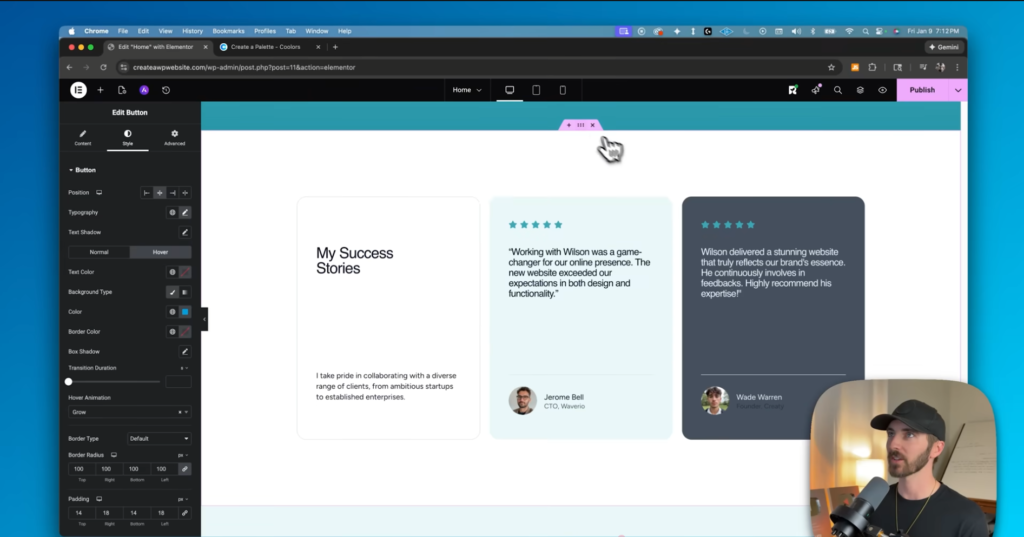
No reviews yet? Text your last three customers today and ask for a one or two sentence quote. Most people respond within a day. One authentic sentence from a real person converts better than a full section of polished marketing copy.
Set Up a Contact Form
Where leads reach you
Your imported template already includes a contact form on the Contact page. Open the page in Elementor, and you’ll see the full layout ready to edit and style to match your brand.
Strip the form down to what you actually need: name, email, phone (optional), and one open field like “How can we help you?” If the template includes a budget dropdown or other fields you will never use, delete them. A shorter form converts better for most local businesses.
Before you publish, open the form notification settings and confirm submissions route to an inbox you check every day. This is the step most people forget, and a form that emails the wrong address loses every lead silently.
Publish the page and load it on the frontend. Send yourself a real test message and confirm it lands in your inbox before you share the URL with anyone.
Once the test message lands in your inbox, you’re ready to go live. Remember, if you have a broken form, you’re losing leads because most customers won’t bother telling you what went wrong.
Test your contact form before launch. Submit a real test message, confirm delivery, then go live. If your form is broken, you will miss out on leads, and may never even know it!
Local SEO: Getting Found on Google
Help nearby customers find you
“How do I get my business to show up on Google?” is one of the most-searched questions among new business owners. Here are the three steps that actually move the needle for a local business.
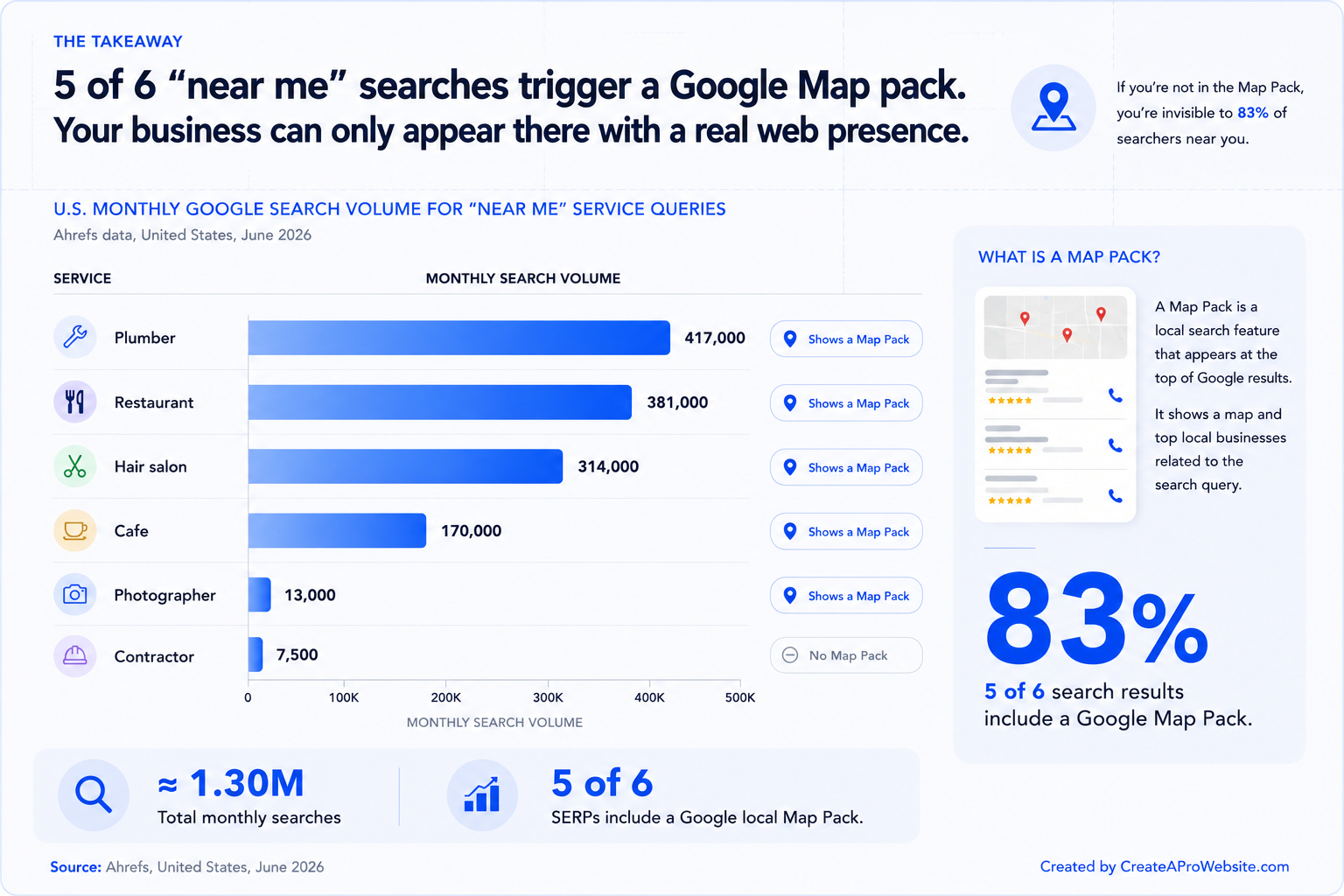
1. Claim your Google Business Profile. Go to business.google.com, verify your business, add photos, set your hours, and link to your website. This is what populates the map pack when someone searches “plumber near me” or “café open Austin.” Free to set up and takes about 20 minutes.
2. Keep your NAP consistent. Your Name, Address, and Phone number must match exactly across your website footer, Google Business Profile, and any directory listings (Yelp, TripAdvisor, etc.). Inconsistencies confuse Google’s local ranking algorithm.
3. Include your location in your page titles. “Austin Plumbing Company | Smith Plumbing Co.” tells Google and searchers where you operate. Install a free SEO plugin like Rank Math from Plugins → Add New, and set the page title for each page in the Rank Math panel below the Elementor editor.
A verified Google Business Profile has everything filled in including its business name, hours, photos, and a website link all in one place.
Claim your profile the same day your website goes live. Doing so builds local search visibility immediately. This means people can find your business even before your site has earned any organic rankings in search engines.
Claim your Google Business Profile the same day your website goes live. It builds local search visibility immediately. Even before your site has earned any organic rankings. It’s free and takes as little as 20 minutes.
Mobile Check
Final checks before publishing
Most people searching for a local business do it from their phone. In Elementor, switch to the mobile preview icon in the bottom toolbar and go page by page. Hero text should wrap cleanly, buttons should be thumb-friendly, and your phone number should be a tap-to-call link.
After checking in Elementor, test on a real phone. Open your site on your actual device, navigate through every page, tap the contact form, and submit a test message. The browser-resize preview misses things that a real phone will catch.
Launch Checklist
Before you share your URL with anyone, be sure to add/do the following:
✅ Home, About, Services, and Contact pages complete with real content, no placeholder text remaining
✅ Business name or logo visible in the site header
✅ Contact form tested, real message submitted and confirmed delivered
✅ Phone number visible on every page, preferably in the header and footer
✅ Google Business Profile claimed and your website URL added to it
✅ Site tested on a real phone, not just a browser resize
✅ Remove the “Sample Page” WordPress creates by default (Pages → Trash it)
A live site with four solid pages beats a “perfect” site still in draft. Your first version doesn’t have to be flawless. It just needs to be findable and trustworthy. You can always improve your website after seeing real visitor behavior in Google Analytics.
Frequently Asked Questions
Do I really need a website for my business?
Yes! For nearly every type of business. 97% of people search online before visiting or contacting a local business. A website is the only online presence you fully own, works 24/7, builds credibility that social profiles alone cannot, and lets customers contact you outside business hours. Even a simple 4-page site outperforms having nothing significant.
How much does a business website cost?
About $3–4/month for Hostinger hosting, plus a free domain in year one. WordPress, Astra, and Elementor are all free. Total first-year cost is under $60. Compare that to $16–23/month for Wix or Squarespace, or $1,500–5,000+ to hire an agency. Building it yourself with WordPress means you own it outright and can update it anytime.
Can I build this myself, or should I hire someone?
With WordPress + Astra + Elementor, most business owners complete their 4-page site in a focused weekend. There’s no coding needed. The benefit of building it yourself is ongoing: you can update hours, prices, services, and photos anytime without waiting on a developer or paying for every small change.
How do I get my business to show up on Google?
Two free steps make the biggest difference: claim your Google Business Profile (for Maps and local search visibility) and submit your sitemap to Google Search Console (so your pages get indexed). A GBP can produce results for local searches within weeks of verification. For the sitemap, install Rank Math, go to your WordPress dashboard → Rank Math → Sitemap, copy the sitemap URL, and paste it into Search Console.
Does this work for a café, retail shop, or brick-and-mortar?
Yes! The same WordPress + Elementor stack works for cafés, retail shops, studios, salons, restaurants, and any other type of local business. The Starter Templates library has layouts designed specifically for hospitality and retail. For a café or shop, your Services page becomes a Menu or Products page, and your Contact page should include a Google Maps embed and clear directions.
Do You Actually Need a Website for Your Business?
Short answer: Yes. Here’s the longer version:
A Google Business Profile alone puts you on the map, but it sends people to a Google-owned listing. Social media reaches the people already following you. A Yelp page exists to serve Yelp, not you. Learning how to make a business website helps you create the only online presence you fully own. Your business website is where you control the message, the design, and the next step you want customers to take.
There are a few situations where creating a business website is especially urgent. For example:
- Customers research your type of service before choosing anyone
- You want to appear in searches for your specific service or product, not just “near me”
- You want customers to be able to book, quote, or contact you outside of business hours
- You are in a competitive market and need to look more credible than a Facebook page
A 4-page website and a Google Business Profile together are the most cost-effective marketing investment most local businesses can make. The website doesn’t have to be complex. Again, it just has to be findable and trustworthy.
How Much Does a Business Website Cost?
Less than most business owners expect. Here is the breakdown for a self-built WordPress site using this guide:
- Hosting: Hostinger Business plan: ~$3–4/month ($36–48/year)
- Domain name: Free for year one with the hosting plan, then ~$12–15/year to renew
- WordPress: Free
- Astra theme + Starter Templates: Free
- Elementor page builder: Free
- Contact form: included with your imported template, customize fields and notification email in Elementor
Total first year cost: under $60. Here’s how that compares to the other routes most business owners consider:
| Option | Typical first-year cost | You own the site? | Best for |
|---|---|---|---|
| DIY WordPress (this guide) | ~$48–60 | Yes | Owners who want full control at the lowest cost |
| Wix or Squarespace | $192–276/year | No. Locked to their platform | Fast launch with limited customization |
| Hire a web agency | $1,500–5,000+ | Usually yes | No time to build; complex custom needs |
| Google Business Profile only | Free | No | Supplement, not a replacement for a real site |
Building it yourself with WordPress gives you a site you own outright. Once you learn how to make a business website, you can update prices, hours, photos, and copy anytime. And, you can do all of this without waiting on anyone or paying platform rent every month.
What a Business Website Needs
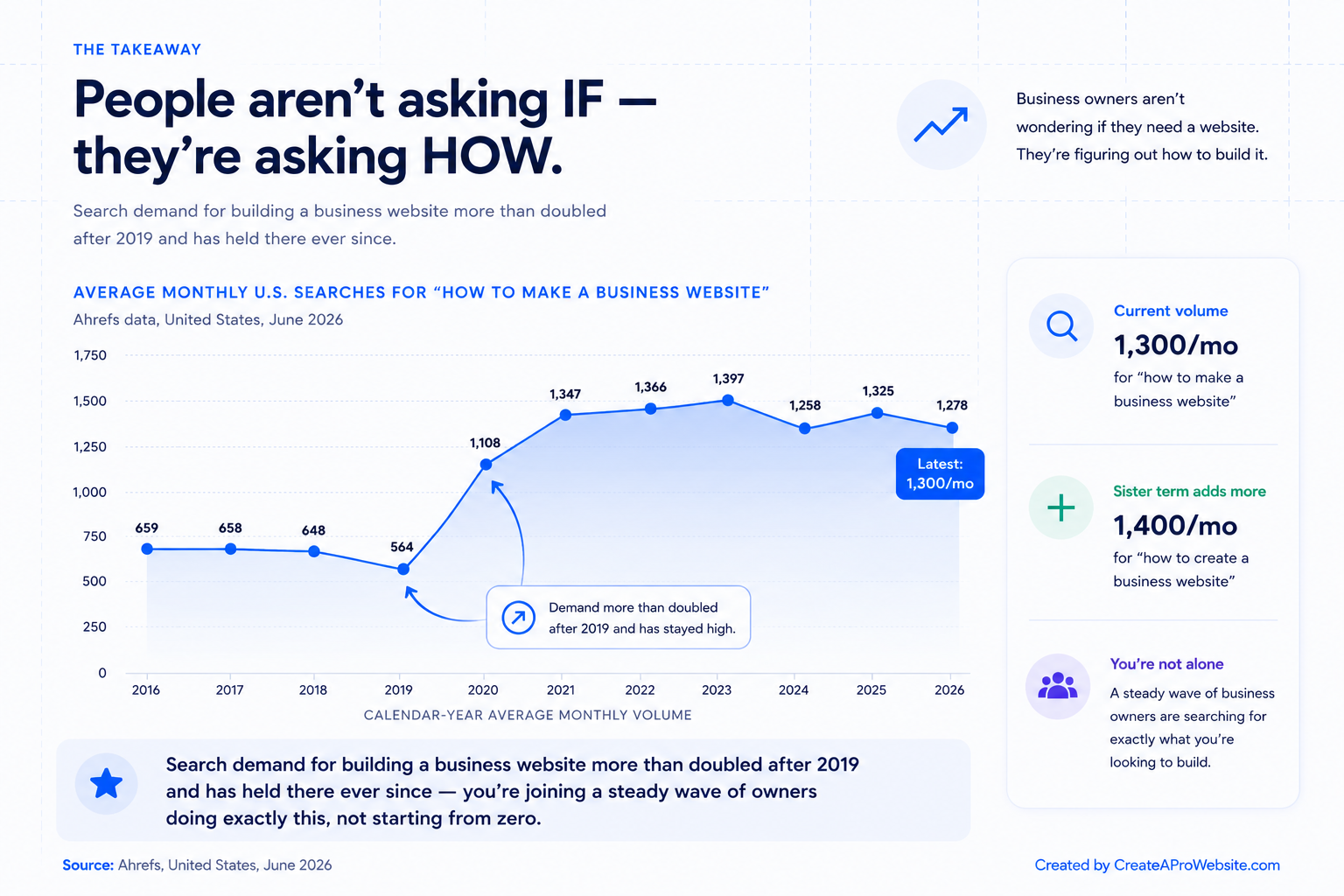
A business website has one job: turn strangers into bookings, calls, or foot traffic. Four pages, when done well, accomplish everything a small business needs.
- Home: who you are, what you do, and why someone should trust you in under 10 seconds
- About: your story, credentials, and the people behind the business
- Services: what you offer, described as outcomes and results rather than technical jargon
- Contact: a form, phone number, address if relevant, and one clear next step
Skip the blog, skip the animations, skip the 10-page sitemap on day one. Nail these four pages first. Every section in this guide builds one of them.
Every element on a business homepage should answer one of three visitor questions:
- What is this?
Who is it for?
What do I do next?
If a stranger cannot answer all three in five seconds, simplify! Don’t add more content until you’ve nailed this down.
You’re Live. Now Get Found.
That’s the complete setup: WordPress, Astra, Elementor, a services page built to convert, a contact form routing leads to your inbox, and local SEO that puts you on Google Maps. The site is yours. Your domain, your content, and your customer data.
The next priority is your Google Business Profile if you haven’t claimed it yet. It takes 20 minutes and directly affects whether you show up in “near me” searches. Your website and your GBP work together. One without the other leaves traffic on the table.
After that: ask your first few happy customers for a Google review. A site with five genuine reviews converts dramatically better than one with none. Get the site live, send the link to five people you’ve already worked with, and ask them to leave a review. That’s the whole launch strategy.